kirra-docs
Deck Builder
The Deck Builder is Kirra’s visual tool for designing charge columns. It provides a drag-and-drop interface for stacking explosive decks, stemming layers, spacers, and primers into a complete charge design. You can apply the design to individual holes or save it as a reusable rule.
Opening the Deck Builder
There are several ways to open the Deck Builder:
- Click Charge Rule Builder in the Holes toolbar
- Right-click a hole to open Edit Hole, go to the Loading tab and click Edit Loading
- In the Product Manager (Holes toolbar), click Edit Rules to load, edit, save or delete individual charge rules
When opened from Edit Rules, the Deck Builder works in rule mode: the buttons read Load Rule…, Save As Rule and Save over Rule, and nothing is applied to holes.
The same editor also appears on the Charging tab of a pattern template, so you can build or change a template’s charge rule without leaving the template. See Pattern Templates.
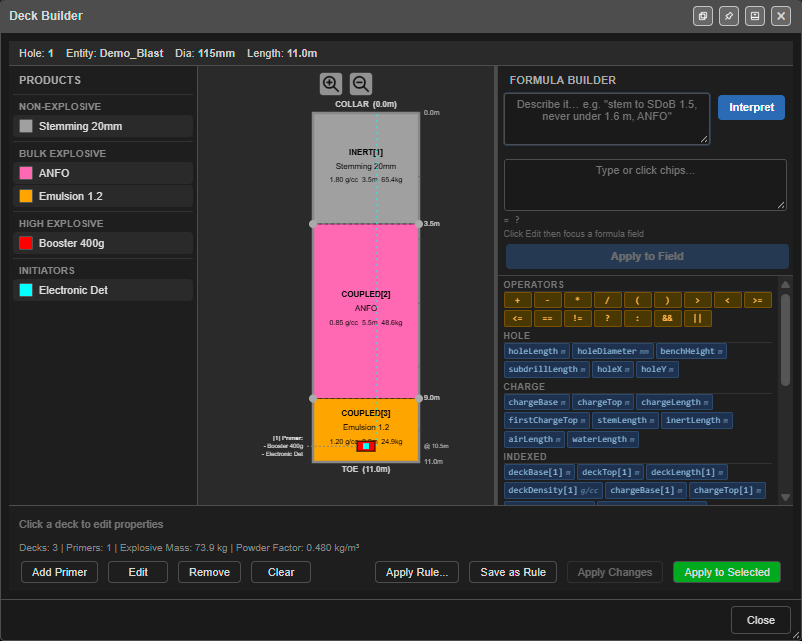 The Deck Builder opened on a charged hole: products on the left, the charge column in the
centre (stemming, ANFO and an emulsion toe charge with one primer), the Formula Builder on the
right. The line under the column totals the decks, primers, explosive mass and powder factor.
The Deck Builder opened on a charged hole: products on the left, the charge column in the
centre (stemming, ANFO and an emulsion toe charge with one primer), the Formula Builder on the
right. The line under the column totals the decks, primers, explosive mass and powder factor.
Deck Builder Layout
The Deck Builder dialog has three main panels:
| Panel | Description |
|---|---|
| Product Palette (left) | Displays all loaded products. Drag a product onto the Section View to add a deck. |
| Section View (centre) | Interactive 2D cross-section of the hole showing all decks from collar to toe. Click to select a deck; drag deck boundaries to resize. |
| Formula Builder (right) | Drag-and-drop formula construction for setting deck lengths and primer positions. |
Adding Decks
By Dragging from the Product Palette
- Locate the product you want in the Product Palette (left panel)
- Drag it onto the Section View at the desired position
- The deck appears in the hole cross-section with a default length
- Adjust the length as needed (see below)
By Type
- Click Add Deck and choose the deck type: Inert, Coupled, Decoupled, or Spacer
- Select a product from the dropdown
- Enter the deck length or formula
- The deck is added to the charge column
Configuring Deck Properties
Select any deck in the Section View to edit its properties:
| Property | Description |
|---|---|
| Product | The explosive or stemming product (from your products database) |
| Length | Deck length in metres, or a formula, or a mass value |
| Scaling Mode | How the deck adapts when applied to different hole lengths |
| Swap Conditions | Optional product substitution rules for wet, damp, or reactive holes |
Setting Deck Length
You can set the length of a deck in four ways:
| Method | How to Enter | Example |
|---|---|---|
| Fixed length | Type a number in metres | 3.5 |
| Formula | Type a formula starting with fx: |
fx:holeLength - 3.5 |
| Mass | Type m: followed by kilograms |
m:50 (50 kg) |
| Drag | Drag the deck boundary in the Section View | Visual resize |
Note: Dragging a deck boundary in the Section View overrides any formula on that deck. Use formulas for designs that need to adapt to different hole sizes.
Scaling Modes
Each deck has a scaling mode that controls how it behaves when applied to holes of different lengths:
| Mode | Badge | Behaviour |
|---|---|---|
| Proportional | (none) | Deck length scales proportionally with hole length (default) |
| Fixed Length | F (blue) | Deck keeps its exact length regardless of hole depth |
| Fixed Mass | M (orange) | Deck recalculates length to maintain the same explosive mass at different diameters |
| Variable | VR (green) | Formula is re-evaluated for each hole (set automatically for formula-based decks) |
Using the Formula Builder
The Formula Builder panel provides a drag-and-drop interface for creating deck length and primer depth formulas.
Variable Chips
Drag or click these variable chips to insert them into the formula bar:
| Variable | Description |
|---|---|
holeLength |
Total hole length from collar to toe (metres) |
holeDiameter |
Hole diameter (millimetres) |
benchHeight |
Vertical distance from collar to grade (metres) |
subdrillLength |
Distance from grade to toe along the hole (metres) |
holeX |
Hole collar X coordinate — easting (metres) |
holeY |
Hole collar Y coordinate — northing (metres) |
chargeBase |
Depth to the base of the deepest charge deck (metres) |
chargeTop |
Depth to the top of the shallowest charge deck (metres) |
chargeLength |
Sum of all COUPLED / DECOUPLED deck lengths (metres) |
stemLength |
Sum of all stemming (INERT) deck lengths (metres) |
firstChargeTop |
Depth to the top of the first (shallowest) charge deck — the geometric uncharged zone (metres) |
inertLength |
Sum of all inert deck lengths, including Stemming / DrillCuttings / StemGel / SPACER (metres) |
airLength |
Sum of all Air deck lengths (metres) |
waterLength |
Sum of all Water deck lengths (metres) |
deckBase[N] |
Base depth of any deck at position N (works for all deck types) |
deckTop[N] |
Top depth of any deck at position N |
deckLength[N] |
Length of any deck at position N |
deckDensity[N] (v1.0.272+) |
Effective density (g/cc) of deck N’s product — pre-populated for all decks, order-independent |
chargeBase[N] |
Base depth of the charge-only deck at position N (COUPLED / DECOUPLED only) |
chargeTop[N] |
Top depth of the charge-only deck at position N |
chargeLength[N] |
Length of the charge-only deck at position N |
chargeDensity[N] (v1.0.272+) |
Effective density (g/cc) of charge-only deck N |
Indexed densities are order-independent.
deckDensity[N]andchargeDensity[N]are populated for every deck before the position-resolution loop runs, so a formula on Deck 1 can safely referencedeckDensity[2]. The position-indexed variables (deckBase[N],deckTop[N],chargeBase[N]) still resolve sequentially — Deck 1 cannot read Deck 2’s depths.
chargeBase[N]vsdeckBase[N].chargeBase[N]only counts COUPLED / DECOUPLED decks.deckBase[N]counts everything (including INERT / Stemming / SPACER). For cross-deck references, preferdeckBase[N].
Unit badges. Each chip shows a small muted unit after its name —
m(metres),mm(hole diameter),g/cc(density), or, for function chips, the return unit (sdobStem → m,sdobKg → kg,ppvKG → kg). The badge is a display hint only; it is never inserted into the formula. Because functions nest, the badge tells you what a call returns, so you know which field it belongs in —sdobKg → kgfeeds a Mass field, whilesdobStem → mfeeds a length field.
See the Formula Engine hub if you are unsure whether a formula belongs in charging, a print template, or a blast group.
See the Deck Builder Formula Guide & Examples for worked examples, including Pattern 11 — Adaptive density via deckDensity[N] (formulas that adapt automatically when a product swap fires).
Operator Chips
Drag or click operator chips: +, -, *, /, (, ), ?, :, &&, ||, and comparison operators.
Building a Formula
- Click on a deck to select it, then click Edit on the length field
- In the Formula Builder, drag variable and operator chips into the formula bar (or type directly)
- The formula bar shows a live preview of the calculated value
- Click Apply to Field to set the formula on the selected deck
Example: Stemming that is 30% of hole length
- Drag
holeLengthinto the formula bar - Drag
*operator - Type
0.3 - The formula bar shows:
fx:holeLength * 0.3with a preview like= 3.60 m - Click Apply to Field
Describe it in plain English
At the top of the Formula Builder is a “Describe it…” box. Type what you want the deck to do in
ordinary English, click Interpret, and Kirra fills the formula bar with the matching fx:
formula and shows a one-line readback of what it understood. You can edit the result before applying.
This is a deterministic translator, not a chatbot — it recognises a fixed set of charging patterns and will tell you plainly when a request is outside what a charge formula can express (rather than guessing). It only works in the Deck Builder (deck length, mass, and primer-depth fields).
Things it understands:
| You type | You get |
|---|---|
25 kg of ANFO |
fx:massLength(25, "ANFO") |
stemming 25% of the hole length |
fx:holeLength * 0.25 |
hole length minus 3.5 |
fx:holeLength - 3.5 |
stem to SDoB 1.5 but never under 1.6 m |
fx:Math.max(1.6, sdobStem(1.5, "ANFO")) |
mass of ANFO for SDoB 1.4 |
fx:sdobKg(1.4, "ANFO") |
put the primer at grade level |
fx:holeLength - subdrillLength |
primer 0.3 m above grade |
fx:(holeLength - subdrillLength) - 0.3 |
primer at the toe |
fx:holeLength - 0.3 |
primer 0.3 m above deck 4 |
fx:deckBase[4] - 0.3 |
if hole over 5 m then 25% of length else 40% of length |
fx:holeLength > 5 ? holeLength * 0.25 : holeLength * 0.4 |
25% if hole > 5 m, 40% if 5 to 3 m, 75% if 3 to 1.5 m |
nested ternary on holeLength |
25% of the hole length only if the subdrill is 1 m else 35% |
fx:subdrillLength == 1 ? holeLength * 0.25 : holeLength * 0.35 |
25% of hole length rounded to 0.1 |
fx:Math.round((holeLength * 0.25) * 10) / 10 |
Conditional words it knows: if, when, while, then, else/otherwise; comparators
more than / over / greater than (→ >), less than / under / below (→ <),
at least / at most, and is / equal to for equality. You can stack bands (“25% if … and
40% if … and 75% if …”) and the condition variable can differ from the branch variable (test the
subdrill, scale the hole length). Rounding — add “round to 0.1”, “round up”, or “round down” to
wrap any of the above.
PPV / vibration limits. Phrases like “the biggest charge that keeps all monitors under 10 mm/s” are recognised. Kirra reads the PPV monitors you have placed on the plan and builds a formula that takes the smallest allowed charge across every monitor, using each monitor’s own coordinates and site constants (K, b):
fx:massLength(Math.min(ppvKG(1000, 2000, 10, 1140, 1.6), ppvKG(1500, 2200, 10, 1200, 1.7)), "ANFO")
If you haven’t placed any PPV monitors yet, the readback asks you to add them first — it will not invent monitor coordinates.
The PPV flow understands several refinements:
- Both a PPV and an SDoB limit at once — “…40 mm/s at the monitors or SDoB 1.5” folds
sdobKg(1.5, …)into the sameMath.min, so the tighter of the regulatory limit and the confinement limit wins. - 3D distance — say “3D” or “slant” and Kirra uses each monitor’s elevation
(
ppvKG3D(...)) instead of the horizontal distance. - One named monitor —
monitor "FMG_A1_M01"restricts the formula to that single monitor (an unknown name returns a clear error). - Probability of exceedance — “1% probability of exceedance” or “1 in 100 blasts may
exceed” designs to a confidence buffer using each monitor’s site σ (
ppvKGPoE(...)); the read-back states the PoE %. Smaller σ allows a bigger charge, so set each monitor’s σ from your own site-law regression rather than relying on the 0.22 default. See the Probability of Exceedance analytics for the underlying maths.
What it refuses (on purpose). A charge formula can only see the hole’s geometry and its deck depths, so the box declines requests built on quantities it has no variable for, and explains why instead of returning a wrong-but-plausible formula: powder factor, burden / spacing, volume / area, VED (vertical energy distribution), and fragmentation / P80 / X50. Those belong to the solver or pattern tools, not a deck formula.
Typos. If a word is close to one it knows (“lenght” → “length”), it suggests the correction and asks you to confirm — it never silently auto-corrects.
The Describe-it box is a starting point. Always sanity-check the readback and the placeholder values (density, monitor constants) before applying the formula to your holes.
Custom Functions
The Formula Builder includes function chips that you can click or drag into the formula bar. These functions use the hole’s properties (diameter, length, position) automatically.
massLength(kg, density)
Calculates the deck length required to hold a given mass of explosive at the hole’s diameter.
| Parameter | Description |
|---|---|
kg |
Target mass in kilograms |
density |
Density in g/cc, or a product name in quotes |
fx:chargeTop[4] - massLength(50, 0.85)    // 50 kg ANFO above deck 4
fx:chargeTop[4] - massLength(50, "ANFO")  // Same, using product lookup
sdobStem(targetSDoB, density)
Calculates the stemming length required to achieve a target Scaled Depth of Burial. This is the Chiappetta SDoB formula used in flyrock risk assessment, solved in reverse to give you the stemming.
| Parameter | Description |
|---|---|
targetSDoB |
Target SDoB value in m/kg^(1/3) (typical: 1.2 to 1.8) |
density |
Explosive density in g/cc |
fx:sdobStem(1.5, 1.2)                    // Stem for SDoB 1.5, emulsion 1.2 g/cc
fx:sdobStem(1.8, 0.85)                   // Stem for SDoB 1.8, ANFO 0.85 g/cc
fx:Math.max(sdobStem(1.5, 1.2), 2.5)     // SDoB stem with a 2.5 m minimum
Use this as the base depth of a stemming deck. The charge deck below it fills the remainder of the hole. Each hole in the blast gets a stemming length tailored to its diameter and depth.
Typical SDoB targets:
| SDoB | Risk Level |
|---|---|
| < 0.8 | Very high flyrock risk |
| 0.8 – 1.2 | High — review stemming |
| 1.2 – 1.8 | Normal blast conditions |
| 1.8 – 2.5 | Well-confined |
| > 2.5 | Over-confined |
sdobKg(targetSDoB, density)
The inverse of sdobStem — returns the deck mass in kilograms (not a length) that achieves a target Scaled Depth of Burial at the hole’s current length and diameter. Internally it solves the stemming with sdobStem, then converts the remaining charge column to a mass. Use it in a deck’s Mass field, or nested inside another function — not a length field.
| Parameter | Description |
|---|---|
targetSDoB |
Target SDoB value in m/kg^(1/3) (typical: 1.2 to 1.8) |
density |
Explosive density in g/cc, or a product name in quotes |
fx:sdobKg(1.4, "ANFO")                                       // kg of ANFO that hits SDoB 1.4
fx:Math.min(ppvKG(x, y, 4, 1140, 1.6), sdobKg(1.4, "ANFO"))  // smaller of the PPV-allowed and SDoB-compliant mass
sdobKg returns kg while sdobStem returns m, so mind which field you drop each into — the chip’s unit badge shows the return unit.
ppvKG(monitorX, monitorY, targetPPV, K, b)
Calculates the Maximum Instantaneous Charge (MIC) in kilograms that keeps vibration below a target at a monitor location. The function uses the hole’s collar coordinates (holeX, holeY) to compute the distance to the monitor point.
| Parameter | Description |
|---|---|
monitorX |
Monitor easting (metres) |
monitorY |
Monitor northing (metres) |
targetPPV |
PPV target in mm/s |
K |
Site constant from vibration regression |
b |
Site exponent from vibration regression |
fx:ppvKG(500000, 6000000, 5, 1140, 1.6) // MIC (kg) for 5 mm/s at monitor
Each hole in the blast gets a different MIC because each hole is a different distance from the monitor. Holes closer to the monitor are allowed less charge; holes further away get more.
To convert the MIC to a charge column length, combine with massLength:
fx:deckBase[1] + massLength(ppvKG(500000, 6000000, 5, 1140, 1.6), 1.2)
This sets the charge deck base to: stemming base + the column length that holds the PPV-limited charge mass at 1.2 g/cc.
Adding Primers
Primers are detonator assemblies positioned at specific depths within the charge column.
How to Add a Primer
- Click Add Primer in the Deck Builder
- Set the primer depth using a fixed value (in metres) or a formula
- Select the Detonator product
- Select the Booster product (or choose “None” for detonating cord)
Primer Depth Formulas
Primer depth formulas work the same as deck length formulas. Common patterns:
| Formula | What It Does |
|---|---|
fx:chargeBase - 0.3 |
Places the primer 0.3 m above the base of the deepest charge deck |
fx:deckBase[4] - 0.3 |
Places the primer 0.3 m above the deck at position 4 (any deck type) |
fx:holeLength * 0.95 |
Places the primer at 95% of hole depth |
Multiple Primers
For multi-deck configurations, you can add multiple primers targeting different decks. Each primer has its own depth formula:
- Primer 1:
fx:deckBase[8] - 0.3(targets the bottom charge deck) - Primer 2:
fx:deckBase[4] - 0.3(targets the upper charge deck)
Swap Conditions (Product Substitution)
Each deck can carry swap rules that automatically substitute the product when certain hole conditions are met.
Setting Swap Conditions
- Select a deck in the Section View
- In the deck properties panel, find the Swap Conditions field
- Enter rules using condition codes:
| Code | Condition | Example |
|---|---|---|
w |
Wet hole | Swap ANFO to water-resistant ANFO |
d |
Damp hole | Swap ANFO to emulsion |
r |
Reactive ground | Swap to a reactive-ground-safe product |
t |
Temperature threshold | Swap if borehole temperature exceeds a limit |
How Swap Conditions Work
When a charge rule is applied to a hole:
- Kirra checks the hole’s condition flags (wet, damp, reactive, temperature)
- If a condition matches a swap rule on a deck, the product is substituted
- The original product name is recorded for reference
- Per-hole overrides take priority over deck-level rules
Deck Order
Decks are ordered from collar (top) to toe (bottom) using a position number. The Section View displays this visually:
Collar (0 m)
  +-------------------+
  |  Position 1       |  Stemming (Inert, Fixed Length)
  +-------------------+
  |  Position 2       |  ANFO (Coupled, Formula)
  +-------------------+
  |  Position 3       |  Gas Bag (Spacer)
  +-------------------+
  |  Position 4       |  ANFO (Coupled, Fixed Length)
  +-------------------+
  |  Position 5       |  Stemming (Inert, Formula)
  +-------------------+
Toe (hole length)
Position numbers do not need to be sequential — gaps are allowed. The engine sorts all decks by position number to determine the collar-to-toe order.
Saving as a Rule
- After designing your charge column, click Save as Rule
- Enter a Config Code, Rule Name and Description. Pattern templates link to a rule by its name.
- Review each deck’s Top, Base, Mass and Swap values. Each accepts a number or an
fx:formula. Leave Top or Base blank with a Mass set and the mass decides the missing end. - Review the primer depth formulas if needed (indexed formulas are auto-generated based on deck positions)
- Click Save — the rule is added to the rule list
Saved rules can be applied to any selection of holes and are included when you export charge configurations.
Applying a Charge Design to Holes
To the Current Hole
Click Apply to Selected in the Deck Builder to write the charge design to the selected hole. Apply Changes applies only the edits you made in this session, leaving the rest of each target hole’s charging intact.
To Multiple Holes
- Select the holes you want to charge
- Click Charge Rule Builder in the Holes toolbar
- Click Apply Rule… and choose the saved rule
- Click Apply to Selected
- Kirra evaluates all formulas for each hole and generates the charge columns
To re-fit existing charging after hole lengths change, select the holes and click Reapply Charging in the Holes toolbar. Remove Charges clears charging from the selected holes.
Previewing the Charge Column
The Section View in the Deck Builder shows a live preview of the charge design, including:
- Colour-coded deck types
- Deck lengths and masses
- Product names
- Scaling mode badges (F, M, VR)
- Primer positions with depth labels
As you change formulas or drag deck boundaries, the preview updates in real time.
Related Topics
- Formula Engine — charging vs print vs blast group
- Deck Builder Formula Guide & Examples — full charging formula reference
- Charging Overview — introduction to the charging system
- Products CSV Reference — CSV format and formula reference