kirra-docs
Site Law Regression
Fits your site’s vibration law from measured blasts. Load a CSV of monitoring records — distance, charge and peak vibration — and Kirra fits
PPV = K × (D / Q^e) ^ −B
on a log-log chart, gives you K at three confidence levels and B, and can apply them to a monitor.
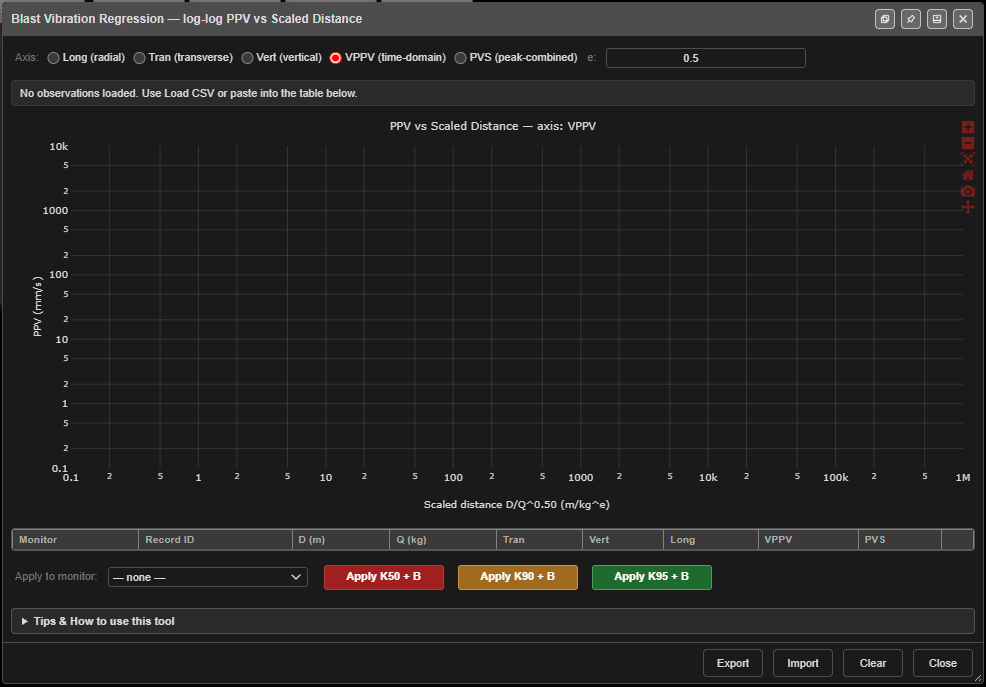 The dialog before any records are loaded.
Prerequisites
- A CSV of at least three records, each with a distance, a charge and a vibration reading.
- To apply the result: at least one monitor in the Monitor Points Manager.
How to fit a site law
- Click Site Law Regression — log-log PPV vs Scaled Distance on the Analyse toolbar. The dialog is Blast Vibration Regression — log-log PPV vs Scaled Distance.
- Click Import and choose the CSV.
- Choose the Axis to fit, and the charge exponent e:.
- Read the fit in the bar above the chart.
- To use it, choose a monitor in Apply to monitor:, then click Apply K50 + B, Apply K90 + B or Apply K95 + B.
The fit updates as soon as three usable records are loaded.
The CSV
Commas, tabs or semicolons are all accepted. Header names are not case-sensitive.
| Column | Accepted headers |
|---|---|
| Distance (m) | D, Distance, Distance_m, D_m, Effective_Distance |
| Charge (kg) | Q, Charge, Charge_kg, Charge_Weight, Q_kg, Charge (kg) |
| Transverse | Tran, Tran_mmps, Transverse |
| Vertical | Vert, Vert_mmps, Vertical |
| Longitudinal | Long, Long_mmps, Longitudinal, Radial |
| Peak vector (VPPV) | VPPV, VPPV_mmps, PeakVectorSum, Peak_Vector_Sum, PPV, Peak_Vector, Recorded_PPV |
| Pseudo vector sum (PVS) | PVS, PVS_mmps, PseudoVector, Pseudo_Vector_Sum, Naive_PVS |
| Monitor (optional) | MonitorName, Monitor_Name, Monitor, Mon, Receiver |
| Record (optional) | RecordID, Record_ID, Record, ShotID, Blast, SD_Hole, Seed, Hole |
- A file with no header row is read as D, Q, VPPV.
- Rows without a positive distance and charge are skipped.
- A column headed
PPVis read as VPPV. - If there is no PVS column, PVS is worked out from the three components.
Settings
| Setting | Default | What it does |
|---|---|---|
| Axis | VPPV (time-domain) | Which reading to fit: Long (radial), Tran (transverse), Vert (vertical), VPPV (time-domain) or PVS (peak-combined) |
| e: | 0.5 | Charge exponent in scaled distance D / Q^e. “0.5 = square-root (Holmberg-Persson), 0.333 = cube-root.” Range 0.1 – 1.0 |
Reading the fit
| Value | Meaning |
|---|---|
| n | Records used |
| K50 | The median line — half of real blasts will exceed it |
| K90 | 90 % of blasts fall under it |
| K95 | 95 % fall under it — the usual choice for compliance |
| B | The attenuation exponent (slope) |
| RSQ | How well the line fits (1 = perfectly). Shown green above 0.6, yellow above 0.4, orange below |
| σ log | The scatter of the records about the line, in log units — the Site σ a monitor needs for Mode F |
| Outliers | Records more than two σ from the line |
The chart plots PPV (mm/s) against Scaled distance, with the K50, K90 and K95 lines. Outliers are shown as amber diamonds. The table below the chart lists every record; remove one with its button.
Warning: If B comes out at zero or below, the fit says vibration grows with distance. Kirra warns “Non-physical fit” and will not apply it. Check the data.
Apply to a monitor
- Choose the monitor in Apply to monitor:.
- Click Apply K50 + B, Apply K90 + B or Apply K95 + B. The button reads Applied ✓ briefly.
This sets the monitor’s Site K and Site B only. Set Charge e and Site σ on the monitor yourself, in the Monitor Points Manager.
Note: The monitor list is filled when the dialog opens. If you add a monitor, close and reopen the dialog.
Other buttons
| Button | What it does |
|---|---|
| Clear | Removes all records, with no confirmation |
| Export | Saves the records and the fit as site_law_regression_<axis>.csv |
| Close | Closes the dialog |
The Tips & How to use this tool panel explains the axes, the percentiles and RSQ in more detail.
Troubleshooting
“Loaded … observations — need ≥3 with positive D, Q, and … to fit.” Fewer than three records have a distance, a charge and a value on the chosen axis. Check the axis matches the columns in your file.
“No valid rows with D, Q found in CSV”. The distance or charge headers were not recognised — rename them to one of the headers above.
Apply says “No monitor selected”. Choose a monitor in Apply to monitor: first.