kirra-docs
CRS Library
The CRS Library keeps the coordinate systems your site uses — mine grids, UTM zones, local survey grids — so you choose them by name instead of pasting a definition every time. It travels inside your KAP project and KAT site template files, so a colleague who opens your file gets the same grids, even with no internet.
What it accepts
| Format | File | Example |
|---|---|---|
| WKT (ESRI or OGC) | .prj, .wkt |
PROJCS["GDA_1994_MGA_Zone_50", …] |
| Proj4 | .proj4, .proj, .txt |
+proj=tmerc +lat_0=0 +lon_0=117 … |
| EPSG code | typed, or in a file | EPSG:28350 |
| A library file | .json |
Several projections at once, as exported from the CRS Library |
Each definition is checked when it comes in. A file Kirra cannot use is reported, and never stored.
Open it
Click CRS Library — saved projections on the Analyse toolbar. The dialog is CRS Library.
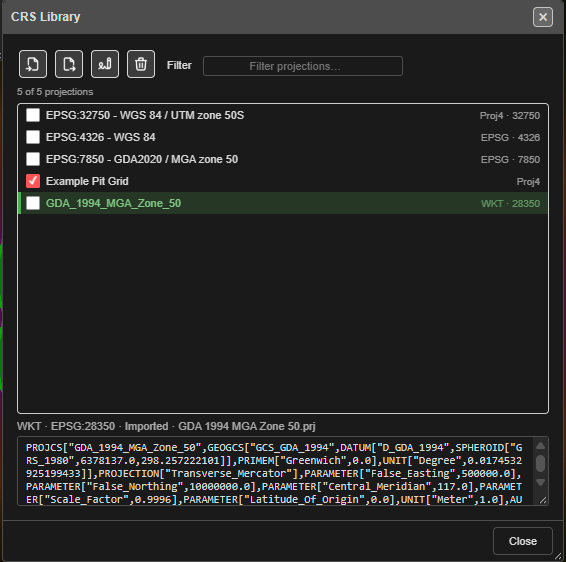 One entry ticked for Export or Delete; the highlighted entry shows its definition below.
| Part | What it does |
|---|---|
| Import | Reads one or many projection files at once. Files that cannot be read are listed in an amber banner |
| Export | Saves the ticked projections, or the highlighted one. One WKT saves as .prj, one Proj4 as .proj4. An EPSG entry, or several entries, save as one .json that Import reads back |
| Rename | Renames the highlighted projection. Dialogs that remembered it still find it |
| Delete | Deletes the ticked projections, or the highlighted one, after asking |
| Filter | Narrows the list by name or EPSG code |
| The list | Tick boxes choose what Export and Delete act on. Click a row to see its type, EPSG code, where it came from, and the full definition |
Projections in import and export dialogs
Every dialog that asks for a coordinate system uses the same picker. A transform import or export asks two questions: Select current projection (the system the data is in now) and Select destination projection (the system you want).
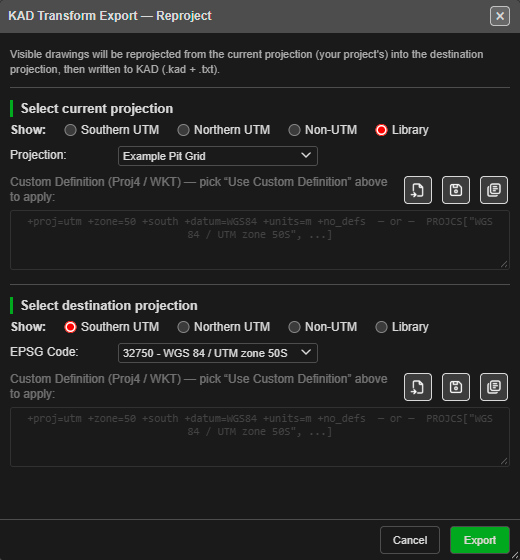 The current projection comes from the Library; the destination is an EPSG code.
| Control | What it does |
|---|---|
| Show: Southern UTM / Northern UTM / Non-UTM | Filters the EPSG Code list |
| Show: Library | Lists your CRS Library. The list label changes to Projection: |
| — Use Custom Definition — | In the EPSG list: use the Proj4 / WKT box below instead |
| Load a projection file (open-file icon) | Reads a .prj, .wkt, .proj4 or .json into the custom box |
| Save the active projection to the Library (save icon) | Names the current pick and saves it to the Library |
| Choose a projection from the Library (library icon) | Lists your CRS Library in the dropdown — the same as Show: Library. If the Library is empty, Kirra says where to import projections |
Saving a custom definition when you press OK
If you used a custom definition that is not in the Library, Kirra asks Save to Library? when you press the dialog’s OK button:
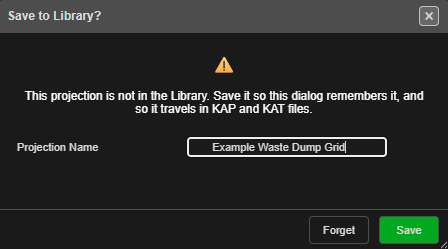
- Save — type a Projection Name and save. The dialog remembers it by name next time.
- Forget — use it this once. Nothing is kept.
If the same definition is already in the Library, Kirra uses that entry and asks nothing. Saving under a name that is already taken by a different projection adds a number — Pit Grid (2) — rather than replacing the first.
What each dialog remembers
Each dialog remembers the last projection you used: an EPSG code, or a Library entry. These choices are work settings, so they travel in a KAP or KAT with the Library itself. A colleague who opens your file finds your grid already chosen.
Working offline
The first time you use an EPSG code, Kirra downloads its definition and keeps a copy in the Library, named EPSG: plus the code. From then on that code works without internet, and it travels with your KAP and KAT files to sites that have none.
Notes
- Only X and Y are converted. Elevations are never changed.
- ESRI
.prjfiles for skewed mine grids (Rectified Skew Orthomorphic) are supported. - The GeoTIFF export picker lists only Library entries with an EPSG code, because the file must record one.
Related topics
- Transform (Reproject) Import
- Analyse Toolbar
- Starting and Saving — KAP and KAT files
- Coordinate System