The Analyse toolbar holds Kirra’s analysis tools — flyrock, vibration, timing, block models,
blast quality and the coordinate-system library. It is one of the eight floating toolbars;
open it from its tab on the right edge of the window.
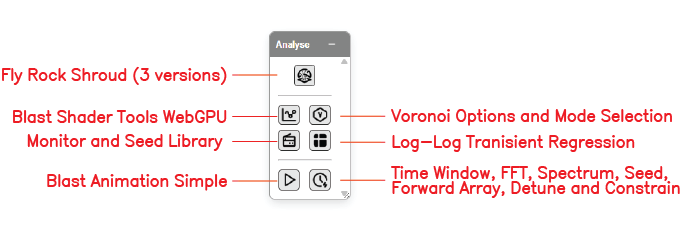 The Analyse toolbar with its buttons labelled.
Hover over a button to see its name. The buttons sit in six groups, separated by a line,
listed here from the top of the toolbar down.
Blast models
| Button |
What it does |
Guide |
| Flyrock Shroud Generator |
Builds a 3D flyrock envelope over the blast, from one of four published models |
Flyrock Modelling |
| Blast Analysis Shader |
Paints a vibration, damage, pressure or powder-factor model over the ground |
Blast Analysis Shader |
Surfaces
| Button |
What it does |
Guide |
| Compare Surfaces |
Colours a measured surface by its distance from a design surface |
Compare Surfaces |
Holes as drilled
| Button |
What it does |
Guide |
| Hole Section Tool |
A section through one hole, showing its burden to the face, with staged edits |
Hole Section View |
| Blast Quality |
The spread of any hole attribute, and holes filed in the wrong row |
Blast Quality |
Timing
| Button |
What it does |
Guide |
| Blast Animation |
Plays the firing sequence back in time |
Blast Animation |
| Time Window |
Timing and vibration analysis — histograms, intervals, spectrum, waveform synthesis, detune and constrain |
Time Window |
Block models
| Button |
What it does |
Guide |
| Adjust Block Model Loaded |
Changes how the loaded block model is drawn |
Below |
| Adjust Block Model Schema Colour |
Manages the named colour schemas for block-model attributes |
Below |
Vibration and libraries
| Button |
What it does |
Guide |
| Voronoi Options |
Sets up the Voronoi cells — what they show, the area basis, the legend and the PPV modes |
Voronoi Cells |
| Monitor Points Manager |
Adds and edits vibration monitors and the seed waveform library |
Monitor Points & Seed Library |
| Site Law Regression |
Fits your site law (log-log PPV against scaled distance) from monitoring records and applies it to a monitor |
Site Law Regression |
| CRS Library |
Keeps your site’s coordinate systems — .prj, WKT, Proj4, EPSG — for every import and export dialog |
CRS Library |
Adjust Block Model Loaded
Opens Load Block Model for the first loaded block model, to change how it is drawn — colour,
blocks or points, bench slice, limits. It does not load a model; Kirra says so if none is
loaded. Full guide: The Load Block Model Dialog.
Adjust Block Model Schema Colour
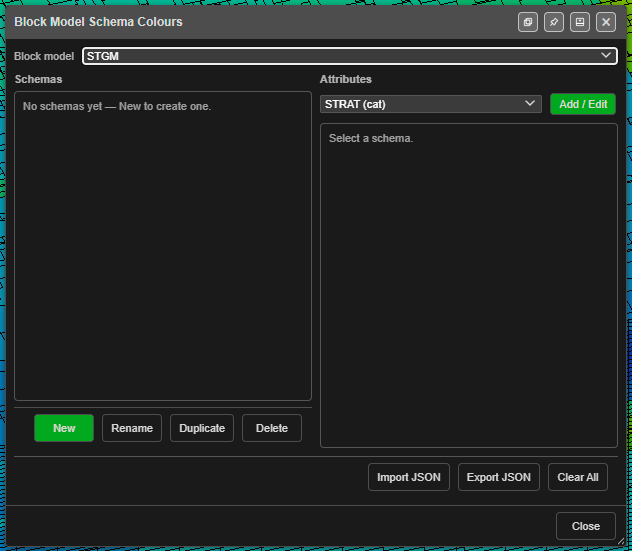
Manages named colour schemas — site or project colour standards for block-model attributes. A schema holds one colour definition per attribute (rock type, grade, domain, etc.).
How to use
- Click the Adjust Block Model Schema Colour button on the Analyse toolbar — the Block Model Schema Colours dialog opens
- In the Schemas list, create a schema with New, or Rename, Duplicate or Delete an existing one
- Select a schema, pick an attribute and click Add / Edit — choose the Type (Ranges (decimal), Discrete values (integer) or Categorical (labels)), set the colours and click Save. Remove deletes an attribute’s colours
- Use Import JSON / Export JSON to share schemas between projects
- To use a schema, open Adjust Block Model Loaded and set Colour by to Schema