kirra-docs
Transform (Reproject) Import
Use a Transform import when a file is in a different coordinate system from your project — for example a drone survey in latitude / longitude, or drawings on another mine grid. Kirra converts the file’s X and Y from the source system to your project’s as it imports. Z (elevation) is never changed.
Find the Transform formats
At the top of the Import dialog, choose Transform (reproject CRS) instead of Standard. The tabs then list only the formats that can be converted:
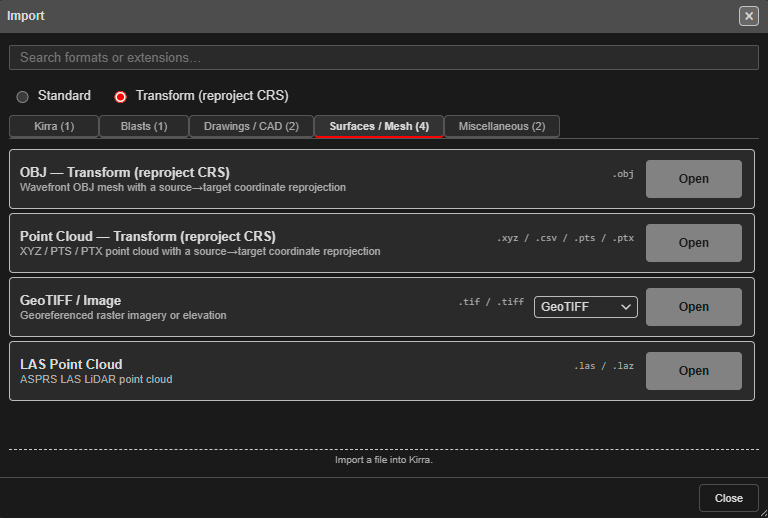
| Tab | Rows |
|---|---|
| Kirra | Kirra App Drawing — Transform (reproject CRS) |
| Blasts | Davey BPD |
| Drawings / CAD | DXF — Transform (reproject CRS), Geometry CSV — Transform (reproject CRS) |
| Surfaces / Mesh | OBJ — Transform (reproject CRS), Point Cloud — Transform (reproject CRS), GeoTIFF / Image, LAS Point Cloud |
| Miscellaneous | KML / KMZ, ESRI Shapefile |
The rows named — Transform (reproject CRS) ask for both coordinate systems. The others (Davey BPD, GeoTIFF / Image, LAS Point Cloud, KML / KMZ, ESRI Shapefile) already handle their own conversion when they import, and appear here so you can find them in one place.
Switching between Standard and Transform returns you to the first tab.
Import with a transform
- Choose Transform (reproject CRS), open the tab, and click Open on the row.
- Pick the file.
- Kirra asks for two coordinate systems:
- Select current projection — the system the file is in.
- Select destination projection — your project’s system.
For each, pick an EPSG code (filter the list by hemisphere), choose Library to pick from your CRS Library, load a
.prj/.proj4file, or paste a Proj4 or WKT definition. Both are required. - Click Import (or Continue for a point cloud or geometry CSV, which go on to their normal import dialog).
- If you used a custom definition that is not in the Library, Kirra asks Save to Library? — name it and click Save, or click Forget to use it this once.
Kirra remembers the last pair you used for each format, so for a regular survey you only choose them once. That memory travels in your KAP and KAT files, with the Library.
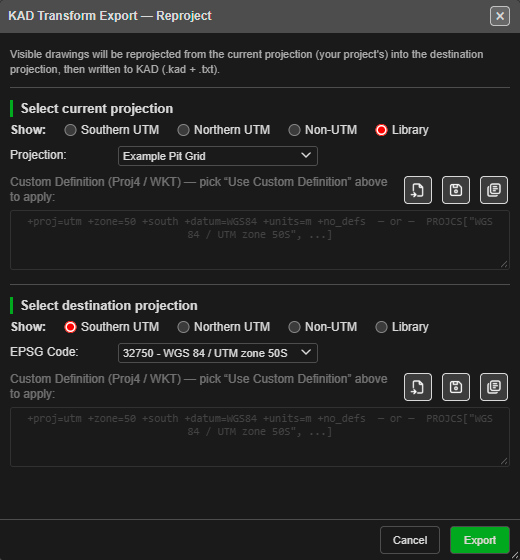 The same picker appears in every transform import and export. The three icons load a
file, save to the Library, and choose from the Library.
The same picker appears in every transform import and export. The three icons load a
file, save to the Library, and choose from the Library.
| Row | After the transform |
|---|---|
| OBJ — Transform | The OBJ imports as a surface. Select its .mtl and images too to keep the texture. Only .obj — not GLTF or GLB |
| Point Cloud — Transform | Opens the Import Point Cloud dialog — see Point Cloud. Also reads Leica .ptx and .asc |
| DXF — Transform | Imports like a normal DXF; several files can be picked |
| Geometry CSV — Transform | Opens the column-mapping dialog |
| Kirra App Drawing — Transform | Imports the .kad / .txt drawing |
Notes
- Any pair of systems works: grid to grid, or latitude / longitude to a projected grid.
- Files dropped onto the canvas are never transformed. Use the Import dialog.
- Only X and Y change. If the two systems use different vertical datums, adjust the elevations separately.