kirra-docs
3D Mesh Import (OBJ / GLTF / GLB)
Kirra imports 3D mesh files as surfaces, including textured models from drone photogrammetry and meshes exported from CAD or 3D software.
Supported formats
| Format | Extensions | What Kirra keeps |
|---|---|---|
| Wavefront OBJ | .obj (+ .mtl + images) |
The mesh, and its texture when the .mtl and its images are selected too |
| GLB | .glb |
The mesh. A textured GLB keeps its texture |
| GLTF | .gltf |
The mesh, drawn in Kirra’s elevation colours |
PLY files are read as points, not as a mesh: Kirra takes the vertices of a text (ASCII) PLY, drops its faces and colours, and builds a new surface from the points in the Import Point Cloud dialog. See Surfaces and Point Clouds. Binary PLY is not read.
How to import
- Open the Import dialog and choose the Surfaces / Mesh tab — see The Import Dialog.
-
Click Open on the OBJ / GLTF row.
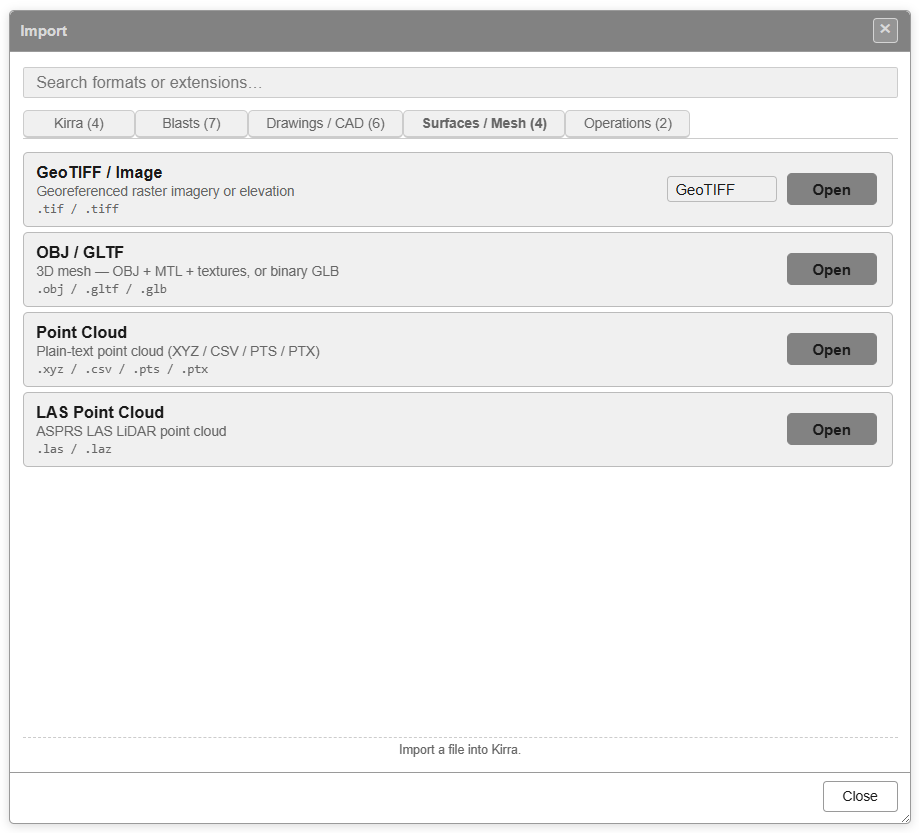
- Kirra reminds you, in an OBJ File Selection message, to select every related file at once. Click OK.
- Select the mesh file. For a textured OBJ also select its
.mtlfile and its texture images — hold Ctrl (Cmd on a Mac) and click each one. - A Loading OBJ progress bar runs. The surface then appears in the Data Explorer under Surfaces, in its own layer, and the view zooms to it. It is drawn in both the 2D and 3D views.
You can also drop the files onto the canvas. Drop the .obj, .mtl and images together
to keep the texture.
Textured OBJ
A drone or photogrammetry model usually comes as three kinds of file:
| File | Holds |
|---|---|
.obj |
The mesh |
.mtl |
The material, naming the texture image |
.jpg / .png |
The texture image |
Kirra finds the .mtl by the name the .obj gives it, then by the .obj’s own name, then
by taking the only .mtl you selected. The texture needs both the .mtl and its
image. If the .mtl the OBJ names was not selected, the status bar says the material file
was not selected and the mesh imports without its texture.
A textured mesh opens with the texture gradient. It is saved with the project — mesh, material and images — and rebuilt with its texture when you reload.
To make a flat image from a textured mesh, right-click the surface and choose Send to Image.
GLTF and GLB
- A textured GLB keeps its texture.
- Any other GLTF or GLB becomes a plain surface in Kirra’s elevation colours, and an Import Complete message reports its vertex and triangle counts.
Reprojecting an OBJ
If the mesh is in a different coordinate system from your project, use OBJ — Transform (reproject CRS) on the Import dialog’s Transform view. It moves the mesh’s X and Y from the source system to yours as it imports; Z is not changed. See Transform (Reproject) Import.
After import
- Change the gradient (elevation, hillshade, texture, scientific colour maps)
- Adjust transparency, and set elevation limits for the colours
- Right-click the surface for its properties
- Use it in boolean operations, contours and blast analytics
See Importing Surfaces and Surface Gradients.