kirra-docs
Importing Surfaces
Kirra supports importing 3D surfaces from multiple formats. Surfaces are used for terrain visualisation, grade control, blast analytics overlays, boolean operations, contour generation, and GeoTIFF export.
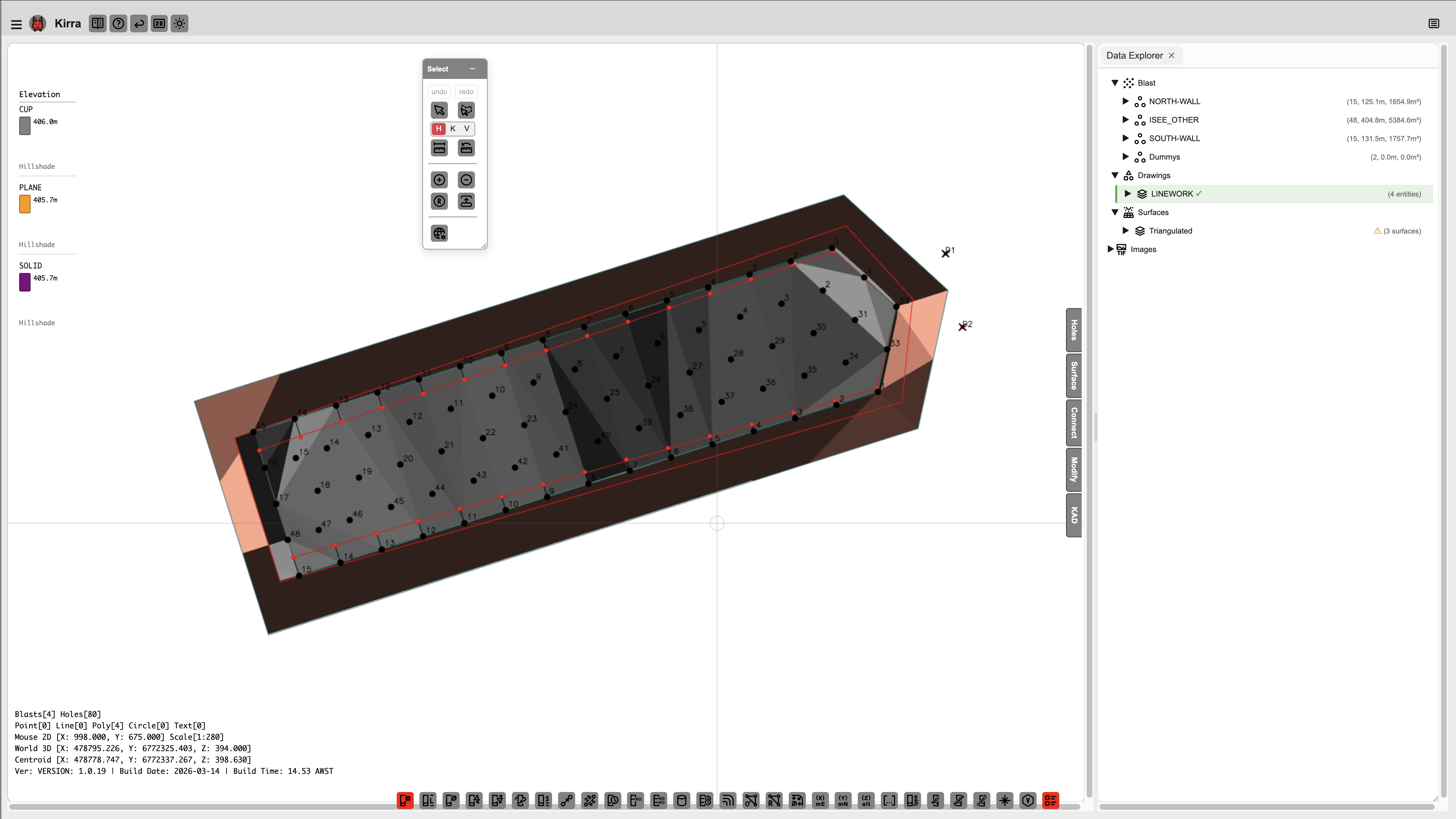 An imported surface displayed in the 2D canvas view with triangulation visible.
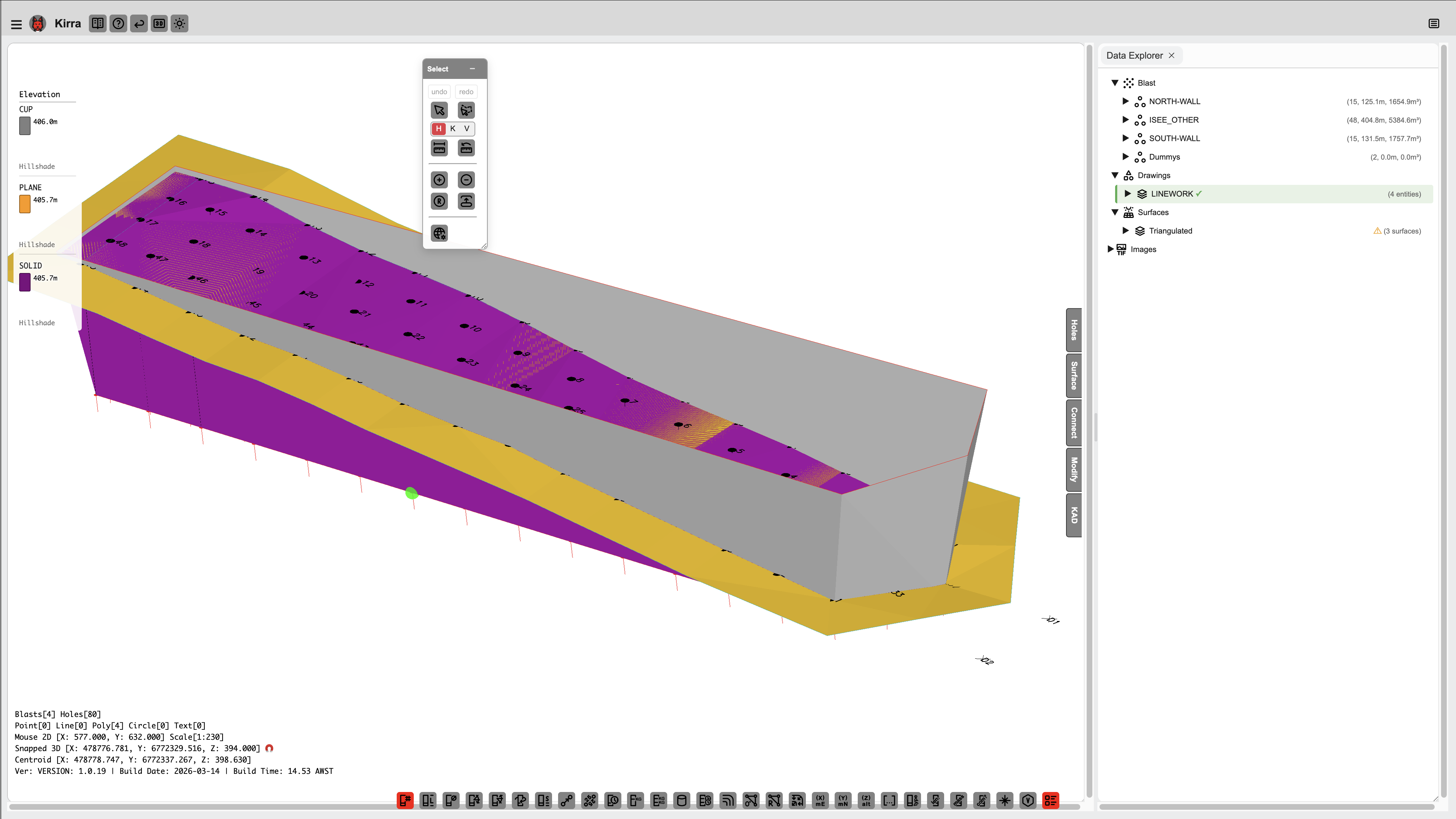 The same surface in the 3D view showing elevation colouring.
Supported Surface Formats
| Format | Extensions | Source |
|---|---|---|
| Surpac DTM/STR | .dtm + .str |
Surpac |
| Wavefront OBJ | .obj (+ .mtl + textures) |
Photogrammetry, CAD, Blender |
| GLTF/GLB | .gltf, .glb |
3D viewers, Blender |
| DXF 3DFACE | .dxf |
AutoCAD — one surface per DXF layer |
| DWG 3DFACE | .dwg |
AutoCAD (experimental) |
| Vulcan triangulation | .00t |
Maptek Vulcan |
| Datamine surface | .dm (points + triangles) |
Datamine |
| 12d Archive TINs | .12da, .12daz |
12d Model |
| Elevation GeoTIFF | .tif, .tiff (one band) |
Digital elevation models |
| Point clouds | .xyz, .csv, .pts, text .ply |
Surveys and scans: a point cloud, KAD points, or a surface triangulated on import |
| LAS | .las, .laz |
LiDAR: a point cloud by default, or a surface triangulated on import (for example ground points only) |
See Surfaces and Point Clouds for the point cloud, LiDAR and GeoTIFF options.
How to Import
- Open the Import dialog — see The Import Dialog
- Find your format:
- Surfaces / Mesh tab — OBJ / GLTF, Vulcan .00t Triangulation, Datamine Surface, Point Cloud, LAS Point Cloud and GeoTIFF / Image
- Drawings / CAD tab — Surpac (choose DTM & STR), DXF, DWG (experimental) and 12d Archive
- Select your surface file(s)
- For Surpac: select both
.dtmand.strtogether - For OBJ with textures: select the
.obj,.mtland texture images together (Ctrl+click, or Cmd+click on Mac)
- For Surpac: select both
- The surface appears in the Data Explorer and in the 2D and 3D views. A very large Vulcan surface can be kept to 2D only — see Vulcan .00t
- The surface is saved in your browser and persists across sessions
You can also drag surface files from your file manager straight onto the canvas. Dropped files are never reprojected; for a file in another coordinate system use the Transform view.
After Import
Once imported, you can:
- Apply gradients – Change the colour scheme (elevation, hillshade, viridis, texture, etc.)
- Adjust transparency – Set surface opacity
- Set elevation limits – Clamp colour mapping to a specific Z range
- Right-click in 3D – Access surface properties, gradient options, and context menu
- Apply grade control – Use the surface elevation to set blast hole grade positions
- Run blast analytics – Overlay vibration or damage models on the surface
- Generate contours – Create elevation contour lines as KAD polylines
- Boolean operations – Combine, subtract, or intersect surfaces
Surface Properties
| Property | Description |
|---|---|
| Name | Filename or user-defined name |
| Visible | Show/hide toggle |
| Color Gradient | Colour scheme — Default, Hillshade, Viridis, Turbo, Parula, Cividis, Terrain, and Texture (Original) for textured meshes |
| Transparency | 0% = invisible, 100% = solid |
| Min Z / Max Z | The elevation range the colours are spread over. Blank uses the surface’s own lowest and highest points |
Open a surface’s properties by right-clicking it on the canvas, or by choosing Properties from its right-click menu in the Data Explorer. See Surface Gradients for every field.
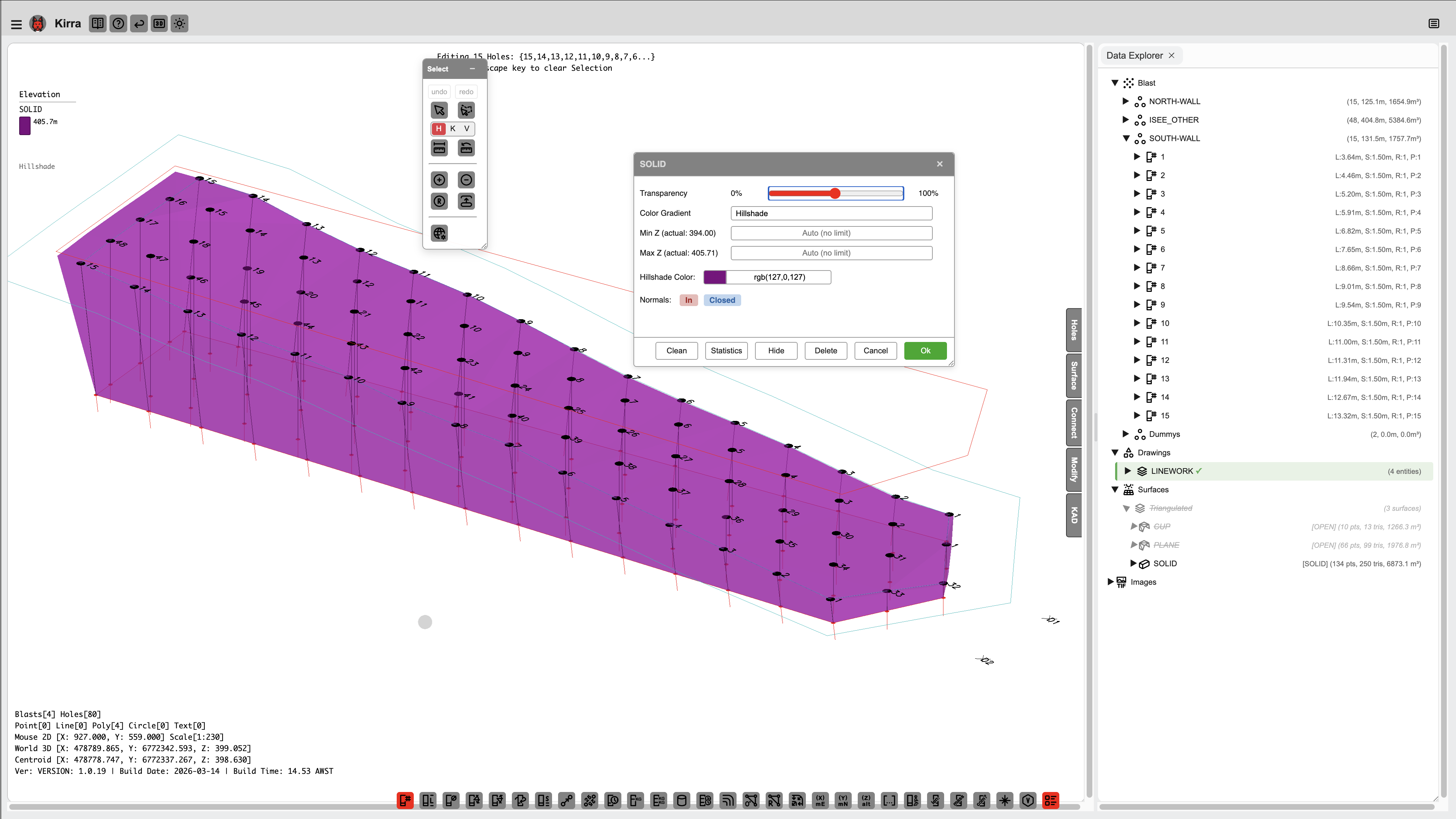 Right-click a surface in the 3D view to access properties, gradient options, and more.