kirra-docs
Surpac STR / DTM Import
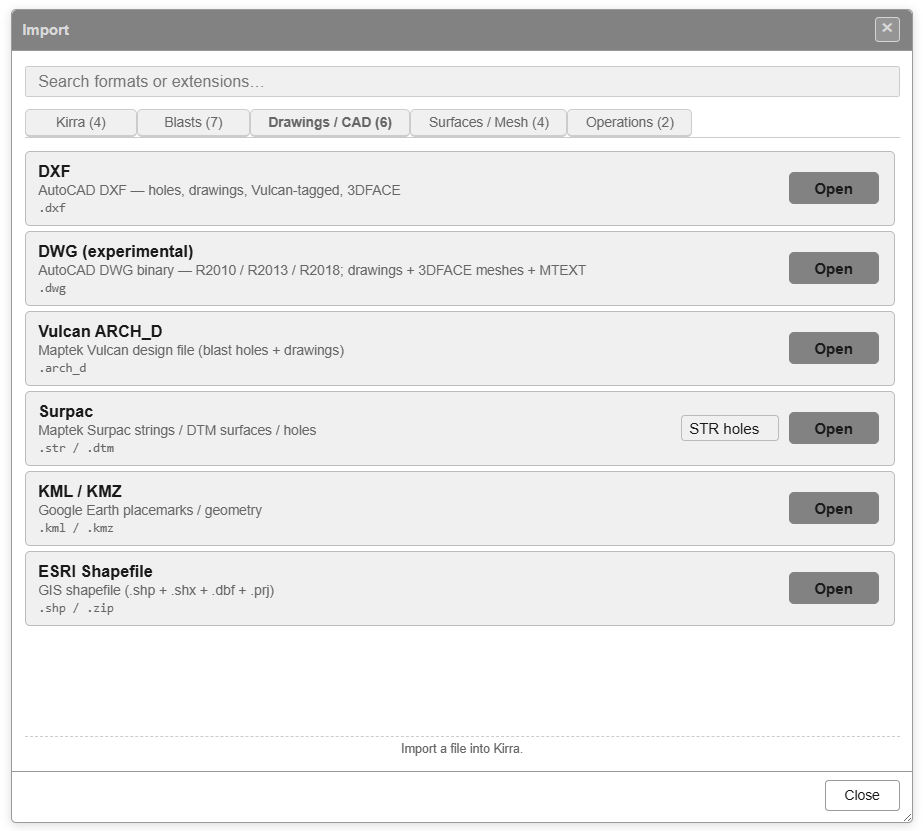
Kirra reads Surpac string (.str) and DTM (.dtm) files three ways: string files as
blast holes, string files as drawings, and a DTM with its string file as a
surface. All three are on the Surpac row of the Import dialog’s
Drawings / CAD tab.
How to import
- Open the Import dialog and choose the Drawings / CAD tab — see The Import Dialog.
-
On the Surpac row, choose from the drop-down:
Choice Reads Creates STR holes (default) A .strof drill holesBlast holes STR A .strof stringsDrawings (KAD lines, polygons and points) DTM & STR A .dtmand its.strA surface - Click Open and select the file(s).
If the data is more than 100 km from what is already loaded, Kirra warns that the coordinate systems may not match — see The Import Dialog.
STR holes
Each hole in the string file is a collar point and a toe point. Surpac stores extra information about each point in its descriptor fields (D1, D2 …), and different sites put different things there — so Kirra asks what each one holds.
The STR Holes — map descriptor fields dialog lists every descriptor column with the first rows of the file. For each, choose what it is: Hole ID, Length, Diameter, Subdrill, Dip, Angle, Bearing, Burden, Spacing, Hole Type, or (Ignore).
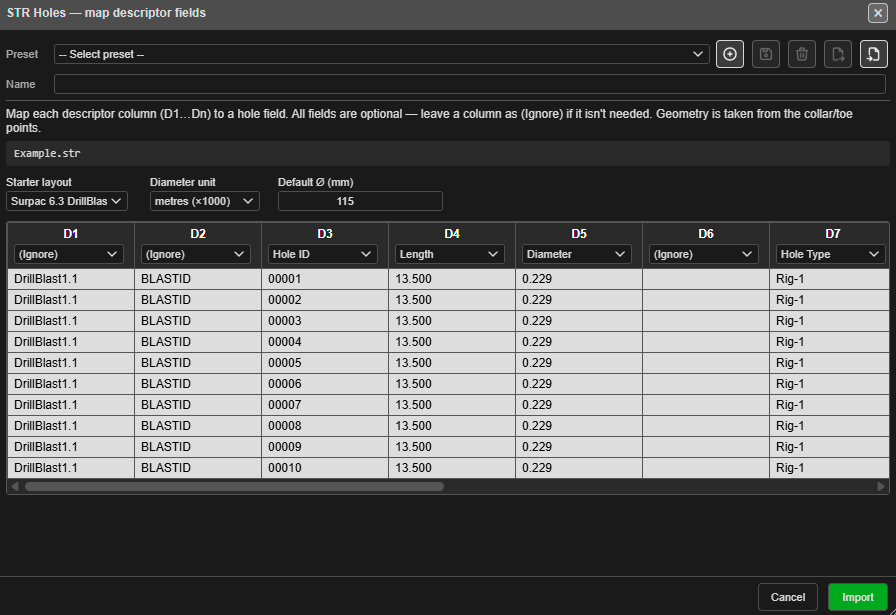 The Surpac 6.3 DrillBlast starter layout maps D3 to Hole ID, D4 to Length, D5 to Diameter and so on. Save your own mapping with the preset bar at the top.
| Setting | What it does |
|---|---|
| Starter layout | Fill in the mapping from a common layout: Survey (10-field), Survey (5-field) or Surpac 6.3 DrillBlast |
| Diameter unit | Whether the diameter descriptor is in metres (×1000) or millimetres |
| Default Ø (mm) | The diameter for holes with no diameter descriptor |
Click Import. The holes form one blast named after the file. If any land on top of existing holes, Kirra asks what to do with them. Kirra reports how many holes it imported.
STR (drawings)
Each string becomes a drawing entity:
- A string whose first and last points match (within 1 mm) becomes a closed polygon.
- Other strings become lines; single points become points.
- The name comes from the first descriptor (D1, or D2 when D1 is empty). Unnamed strings
are called
Line_<string number>_0001. - The colour follows the Surpac string number.
- Strings longer than 10,000 points are split into parts.
All of the file’s drawings go into one drawing layer named after the file. Text in the descriptors is kept as point labels; no separate text entities are made.
DTM & STR (surfaces)
A Surpac surface is two files:
| File | Contains |
|---|---|
.str |
The points |
.dtm |
The triangles, by reference to those points |
Select both together — hold Ctrl (Cmd on a Mac) and click each. With only one, Kirra reports Missing Files.
All the triangulations in the file are merged into one surface, drawn green with the
default elevation colours, in a surface layer named after the .dtm. If the surface has
more triangles than the 3D limit, Kirra offers to reduce it.
Coordinate order
Surpac writes coordinates as Northing (Y), Easting (X), Elevation (Z) — the reverse of the usual X, Y, Z. Kirra swaps them on import and export, so the data lands in the right place without you doing anything.
Kirra reads both text and binary .str files.
Drag and drop
You can drop Surpac files onto the canvas:
| Dropped | Result |
|---|---|
A .dtm and .str with the same name |
Imported as a surface |
A .dtm alone |
Kirra asks for its companion .str |
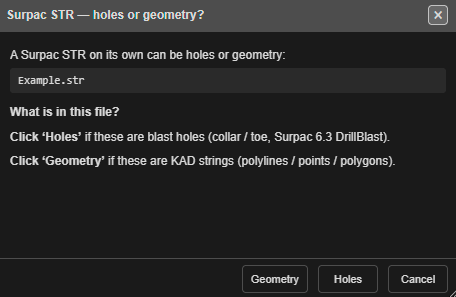
A .str alone |
Kirra asks Surpac STR — holes or geometry? — choose Holes or Geometry |
A Micromine .str dropped on the canvas is recognised and imported as Micromine — see
Other CAD Formats.
After import
A Surpac surface can be used for gradient colouring, boolean operations, assigning hole grades, contours, GeoTIFF export and blast analytics. See Importing Surfaces.
Exporting back to Surpac
In the Export dialog’s Surfaces / Mesh tab, click Save on the
Surpac Surface (STR + DTM) row. One .str and .dtm pair is written for each visible
surface.
Troubleshooting
| Problem | Fix |
|---|---|
| Missing Files | Select both the .dtm and the .str |
A dropped .dtm is not imported |
Drop it together with its .str, both with the same name |
| Holes have the wrong diameter | Check Diameter unit in the descriptor mapping |
| The data lands in the wrong place | Check the file really is Surpac (Y, X, Z); a Micromine .str belongs on the Micromine STR row |