kirra-docs
Surface Gradients
Each surface is coloured by its own Color Gradient — by elevation, by hillshade, or by a result such as a vibration analysis or a comparison with another surface. You set it, with the surface’s transparency and elevation limits, in the surface’s properties. The colours show in both 2D and 3D.
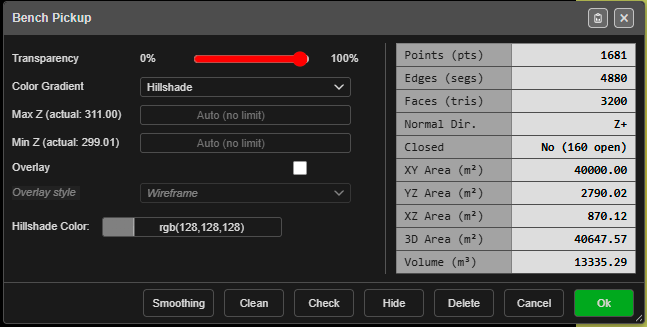 The properties dialog for a surface named Bench Pickup, with Hillshade chosen — the
Hillshade Color row appears only then. The table on the right is the surface’s statistics.
The properties dialog for a surface named Bench Pickup, with Hillshade chosen — the
Hillshade Color row appears only then. The table on the right is the surface’s statistics.
Change a surface’s colours
- Open the surface’s properties:
- right-click the surface on the canvas, in 2D or 3D, or
- right-click it in the Data Explorer and choose Properties.
The dialog is titled with the surface’s name.
- Choose the Color Gradient.
- Set Transparency, and Max Z / Min Z if you want to narrow the colour range (below).
- Click Ok. The change is saved with the surface. Cancel closes without changing anything.
The gradients
| Gradient | Colours, low to high | Good for |
|---|---|---|
| Default | Blue, cyan, green, yellow, red | Reading elevation at a glance |
| Hillshade | One colour, shaded by slope as if lit from one direction | Crests, toes, ramps and benches; checking a pickup |
| Viridis | Dark purple, teal, green, yellow | Even steps of colour; prints well |
| Turbo | A full rainbow | The most contrast between close elevations |
| Parula | Blue, green, yellow | An alternative to Viridis |
| Cividis | Blue to yellow | Easier to read for colour-blind viewers |
| Terrain | Dark green, pale green, brown, grey, white | A natural, map-like look |
Three more appear in the list only when they apply to that surface:
| Gradient | Shown when | Colours by |
|---|---|---|
| Texture (Original) | The surface is a textured OBJ | Its own photo texture — see 3D Mesh Import |
| Analysis (…) | The surface carries a Blast Analysis Shader result | That model’s values, for example Analysis (PPV) |
| Deviation (vs …) | The surface has been compared with another in Compare Surfaces | Its distance from the reference surface named in brackets |
The fields
| Field | What it does |
|---|---|
| Transparency | 0% is invisible, 100% is solid |
| Color Gradient | The colours, from the tables above |
| Max Z (actual: …) | The top of the colour range. The bracket shows the surface’s highest point. Blank — Auto (no limit) — uses that highest point |
| Min Z (actual: …) | The bottom of the colour range. The bracket shows the lowest point. Blank uses that lowest point |
| Overlay / Overlay style | Lines drawn over the surface — see Edge Overlay |
| Hillshade Color | The colour that Hillshade shades. Shown only when Hillshade is chosen. Grey unless you change it |
| Specular / Shininess | Textured OBJ surfaces only: how glossy the surface looks in 3D |
The buttons along the bottom:
| Button | What it does |
|---|---|
| Smoothing | Opens the smoothing tool for this surface |
| Clean | Opens Clean Mesh on this surface |
| Check | Runs a quick mesh check and reports the result in the dialog |
| Hide / Show | Hides or shows the surface |
| Delete | Removes the surface from the workspace |
| Cancel / Ok | Close without changes / save the changes |
Warning: Delete removes the surface straight away — it does not ask first.
Elevation limits
By default the colours run from the surface’s lowest point to its highest. Narrow the range with Min Z and Max Z to spread all the colours over the elevations you care about — one bench, for example.
- Points below Min Z take the lowest colour; points above Max Z take the highest.
- Leave a field blank to go back to the surface’s own lowest or highest point.
- A completely flat surface — or limits closer than a millimetre — is drawn orange.
Hillshade
Hillshade shades the surface as if lit by a single light, so slopes facing the light are bright and slopes facing away are dark. Choose the base colour in Hillshade Color.
The light’s direction is set for all surfaces, in Settings — see the 2D tab:
| Setting | Default | What it sets |
|---|---|---|
| Hillshade Light Bearing (deg) | 135 | The direction the light comes from (0 = north, clockwise) |
| Hillshade Light Elevation (deg) | 15 | How high the light is above the horizon. Lower gives longer, stronger shadows |
Edge Overlay
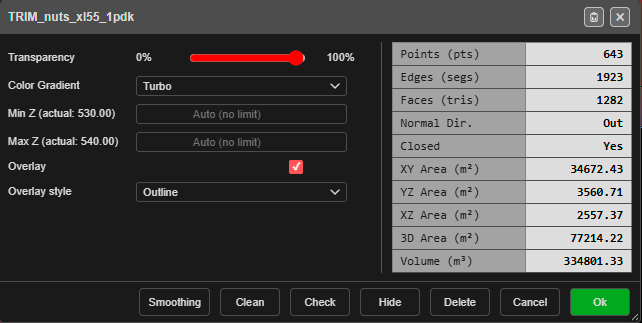
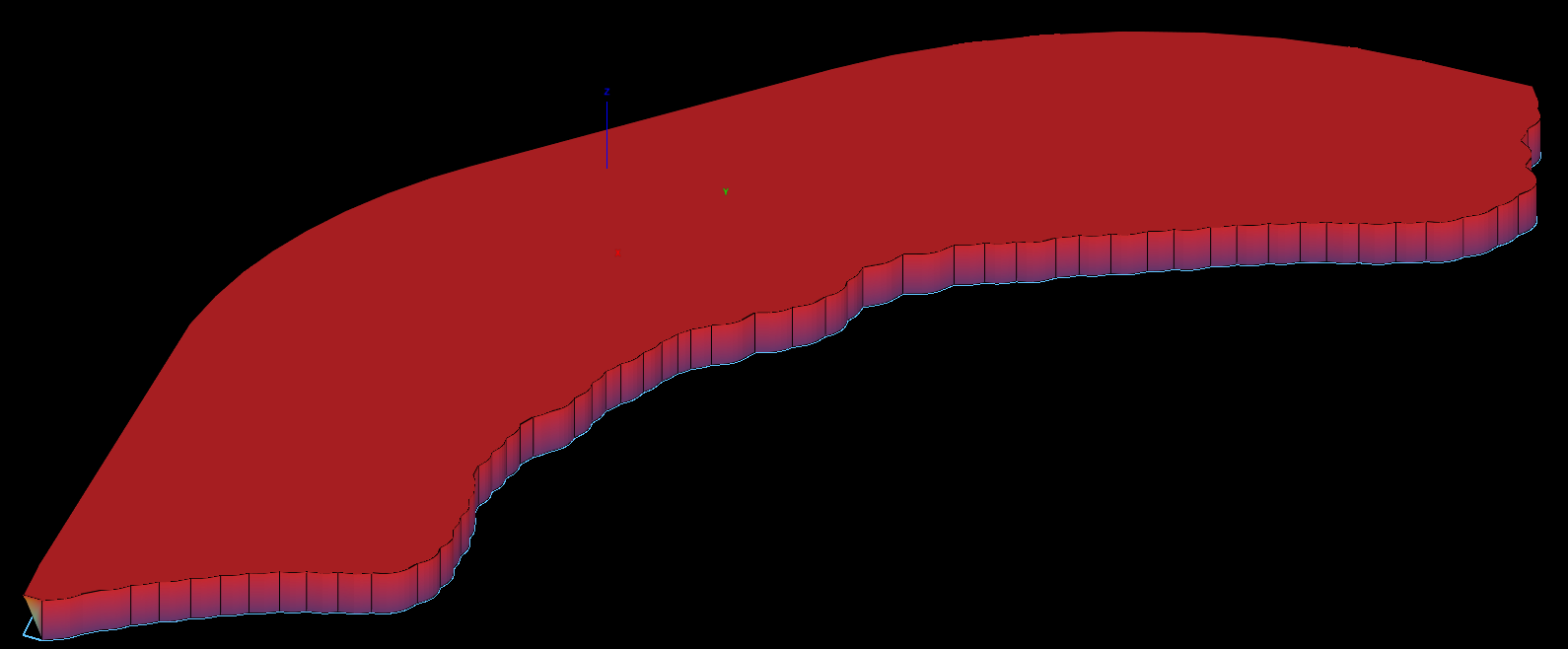
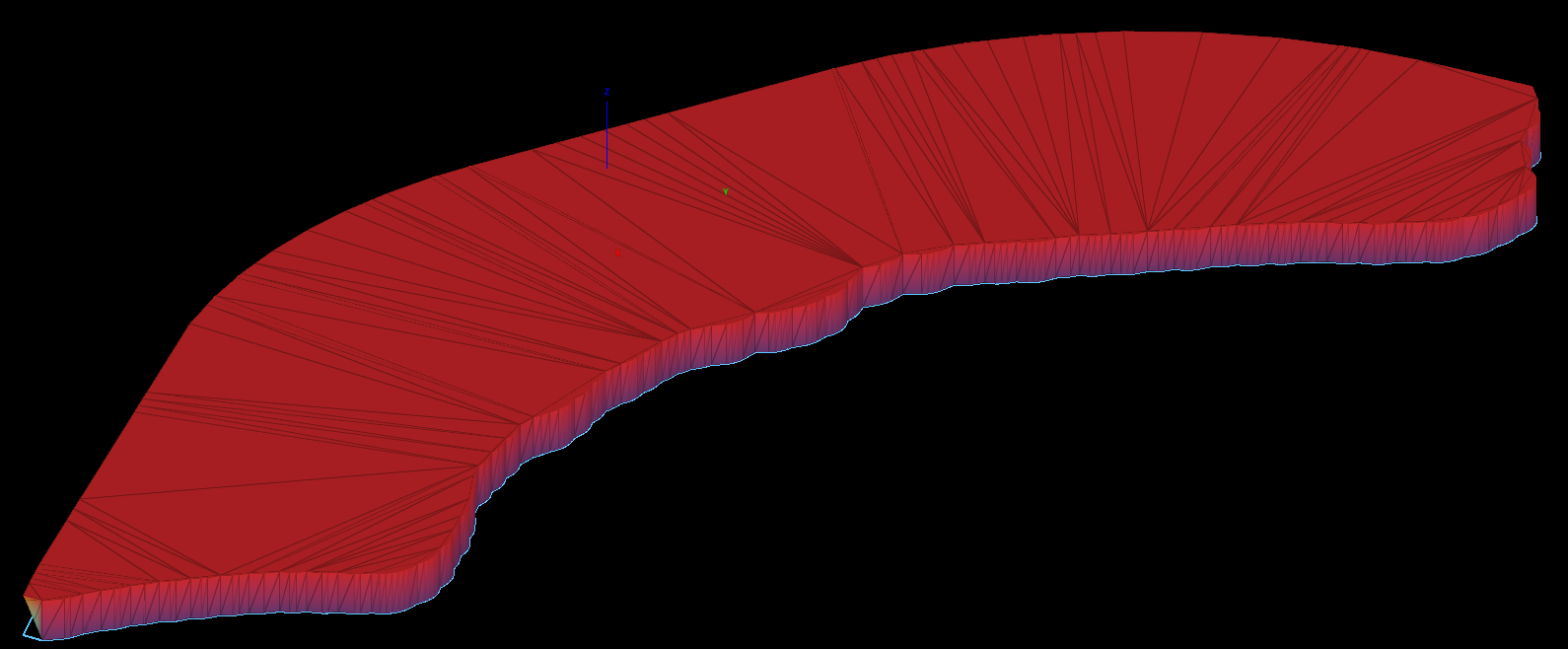
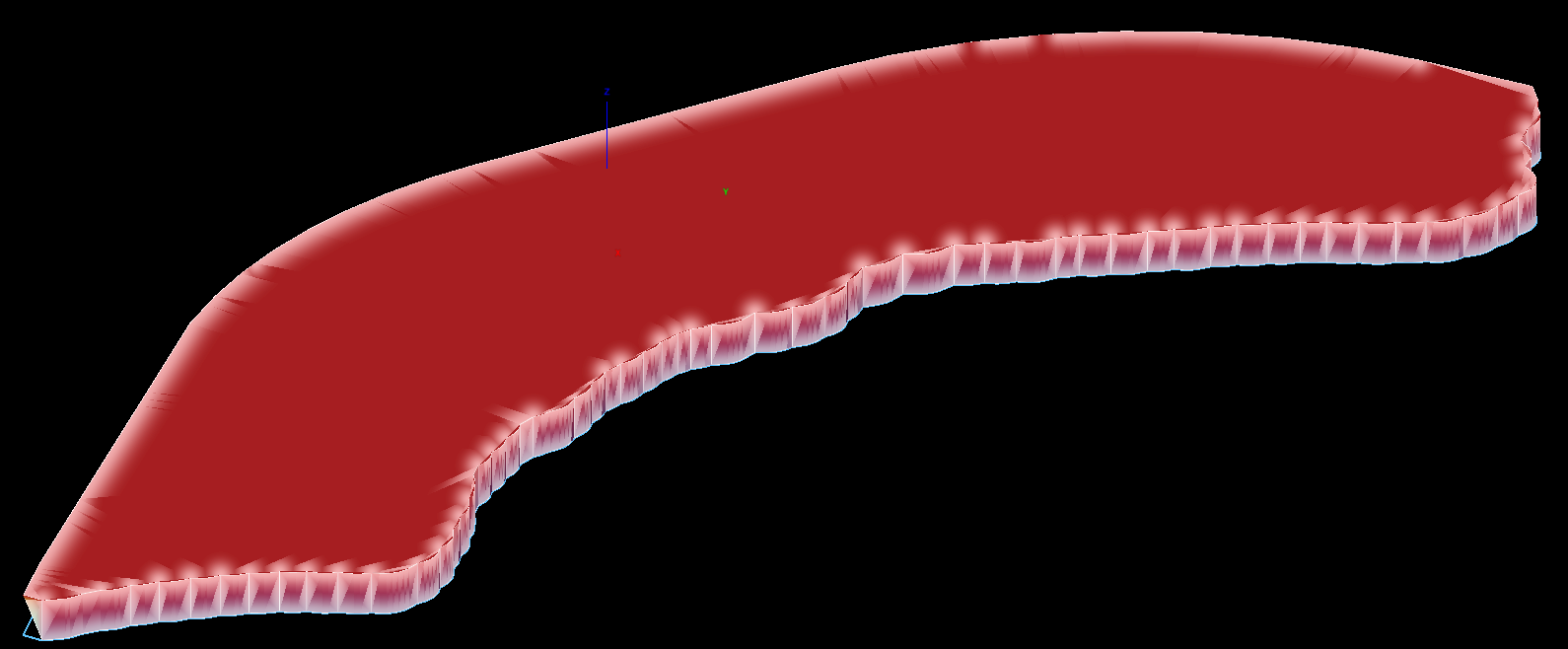
Draw lines over a surface to show its shape. Tick Overlay in the surface’s properties, then pick a style:
| Style | What it draws |
|---|---|
| Outline | Black lines only where the surface changes angle — crests, toes and the outer edge. Flat areas stay clean. |
| Wireframe | Every triangle edge, 30% darker than the surface. |
| Inner glow | A soft light glow along the same lines as Outline. |
How to use
- Right-click the surface to open its properties.
- Tick Overlay — Overlay style becomes available. It starts on Wireframe.
- Choose Outline, Wireframe or Inner glow.
- Click Ok — the overlay shows in both 2D and 3D.
Good to know
- Lines are 1 pixel wide at any zoom.
- In 3D, lines on the far side of a ridge are hidden.
- The overlay follows the surface’s transparency.
- The setting is saved with the surface and travels in project files.
- Inner glow works best on surfaces with evenly sized triangles. Very thin triangles can make it slightly uneven.
- The overlay is not printed, and is not included in Send to Image.
- Overlay is not offered on an analysis surface.
Send to Image
Send to Image turns a surface into a picture of how it looks right now — gradient, limits, hillshade, texture, or analysis colours — and adds it to the Images folder. The image is saved with the project and is still there when you reopen it.
It appears only on surfaces. Right-click a surface, a surface layer, or the Surfaces folder; a layer or folder makes one image per surface.
How to use
- Right-click a surface in the tree and choose Send to Image…
- Choose Resolution by — Pixels per metre, or DPI at a nominal 1:1000 plot
- Enter the Value, and a Max dimension (px) for the longest side
- Check the live readout: ground resolution, image size and memory
- Click Create Image
A render larger than Max dimension is scaled down to fit rather than refused.
Image sizes in the tree
Each image row in the Images folder shows its size, for example 4093×3681 px, 0.22 m/px, 57.5 MB:
- px — width × height in pixels
- m/px — ground resolution: how many metres one pixel covers
- MB — the memory the image takes while open
Troubleshooting
| Problem | Cause and fix |
|---|---|
| Every part of the surface is one colour | Min Z and Max Z are set outside the surface’s heights. Clear them |
| The surface is orange | It is flat, or Min Z and Max Z are almost equal |
| Texture (Original), Analysis or Deviation is not in the list | That surface has no texture, analysis result or comparison |
| The hillshade looks flat | The light is high. Lower Hillshade Light Elevation in Settings |