kirra-docs
GeoTIFF Export
Export surfaces as georeferenced raster images for use in GIS software such as QGIS, ArcGIS, and Global Mapper.
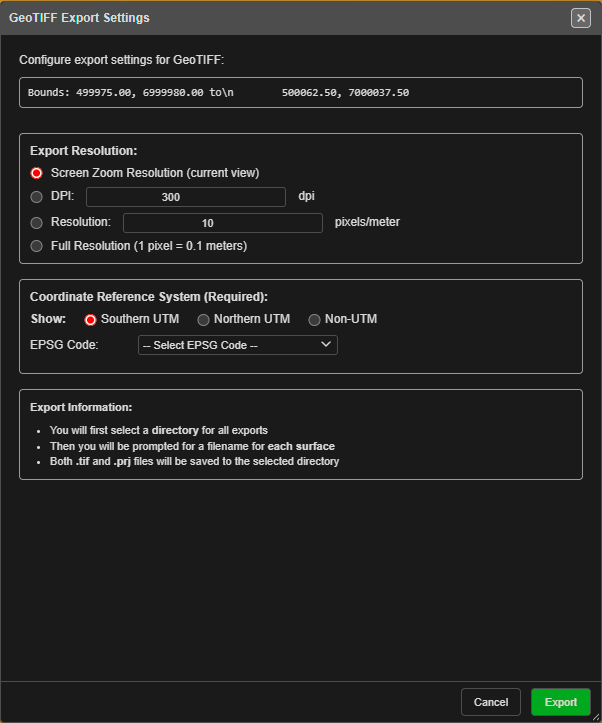
How to Export
- Load a surface with a gradient applied
- Click the Import Export Print button (file icon) in the menu bar and choose Export — or open the left sidenav (☰) and click Export under File Management
- In the Export dialog, open the Surfaces / Mesh tab. On the GeoTIFF / Image row, choose GeoTIFF (coloured image) or Elev.GeoTIFF (elevation raster) and click Save
- For a coloured GeoTIFF, configure the GeoTIFF Export Settings dialog (see below)
- Click Export
- Select a directory for the exports, then enter a filename for each surface. A
.tifand a.prjfile are saved for each one
Export Settings
| Setting | Description |
|---|---|
| Export Resolution | Controls the output pixel density (see table below) |
| Coordinate Reference System (Required) | Coordinate reference system for the output file (e.g., EPSG:32755 for UTM Zone 55S) |
Resolution Modes
| Mode | Description | Typical Use |
|---|---|---|
| Screen Zoom Resolution (current view) (default) | Uses the current 2D view resolution | Quick preview |
| DPI | Dots per inch, 72–600 (default 300) | Print-quality reports |
| Resolution | Pixels per metre, 1–1000 (default 10) | Engineering precision |
| Full Resolution (1 pixel = 0.1 meters) | 10 pixels per metre | Maximum detail |
Tip: Higher resolution produces larger files and takes longer to export. Choose based on your final use – screen display, printing, or archival.
What Gets Exported
The GeoTIFF contains:
- Raster data: RGB pixels rendered from the surface gradient (elevation colours, hillshade, scientific colour maps, or texture)
- Geotransform: Maps pixel coordinates to real-world coordinates
- CRS metadata: The EPSG code you selected
The gradient visible in Kirra at the time of export is preserved in the GeoTIFF.
Use Cases
- GIS integration – Import into QGIS or ArcGIS as a base layer
- Reporting – Generate high-resolution surface images for blast reports
- Archive – Document pre/post-blast surface conditions with embedded coordinates