kirra-docs
Surfaces and Point Clouds
The Surfaces / Mesh tab of the Import dialog brings in terrain and survey data: georeferenced images and elevation grids, point clouds, LiDAR, and triangulated surfaces from Vulcan and Datamine.
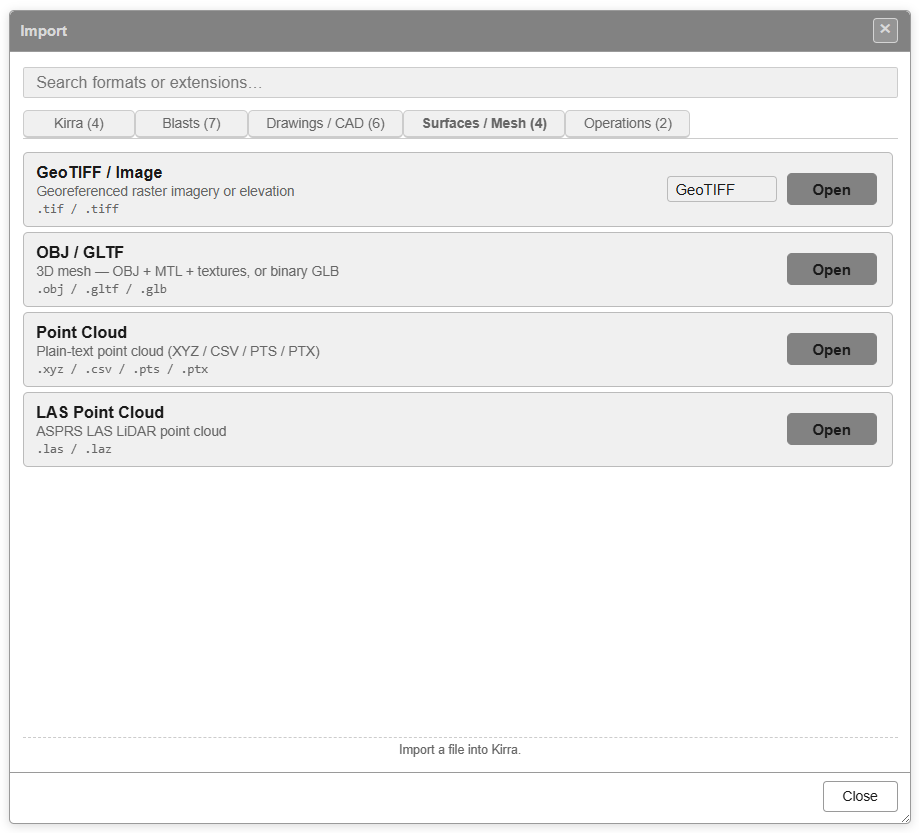
| Row | Extensions | Becomes |
|---|---|---|
| GeoTIFF / Image | .tif / .tiff |
An image, or an elevation surface |
| ECW (ERDAS) | .ecw |
An image (see ECW Imagery) |
| OBJ / GLTF | .obj / .gltf / .glb |
A surface (see 3D Mesh Import) |
| Point Cloud | .xyz / .csv / .pts / .ptx |
A point cloud, KAD points, or a surface built from them |
| LAS Point Cloud | .las / .laz |
A point cloud, KAD points by classification, or a surface |
| Vulcan .00t Triangulation | .00t |
A surface |
| Datamine Surface | .dm (pt + tr) |
A surface |
Surpac .dtm / .str and DXF 3DFACE surfaces are on the Drawings / CAD tab — see
Surpac DTM / STR and DXF Import.
GeoTIFF / Image
Imports a georeferenced .tif or .tiff. What you get depends on the file:
- Imagery (three or more colour bands — an orthophoto or aerial image) becomes an image, drawn as a flat plane at one elevation in 3D and under your design in 2D.
- Elevation (one band — a DEM) becomes a triangulated surface. Very large rasters are sampled down to about a million points; empty cells are skipped.
Kirra decides from the file itself, whichever choice the row’s drop-down shows.
Latitude / longitude files. If the image is in latitude and longitude, Kirra asks for the coordinate system to convert it to, in Coordinate System Conversion Required: choose an EPSG Code: (filter with Southern UTM, Northern UTM or Non-UTM), or paste a Custom Definition (Proj4 / WKT), and click Transform. Projected files import without asking.
A latitude / longitude image is converted by its corners, so it is stretched to fit rather than warped. Over a mine site the difference is small.
For a whole-world image, choose 4087 - WGS 84 / World Equidistant Cylindrical under Non-UTM (see ECW Imagery for what it stretches). To see an image’s size, cell size and colour histogram, right-click it in the Data Explorer and choose Statistics (see Image Statistics).
Point Cloud
Imports a text point cloud: one point per line, X Y Z, optionally followed by colour.
| File | Layout |
|---|---|
.xyz / .txt |
X Y Z separated by spaces, optional R G B |
.csv |
X,Y,Z, optional R,G,B |
.pts |
A count line, then X Y Z intensity R G B |
.ptx |
A Leica scan, with its scanner position applied |
.ply (text) |
The vertices only |
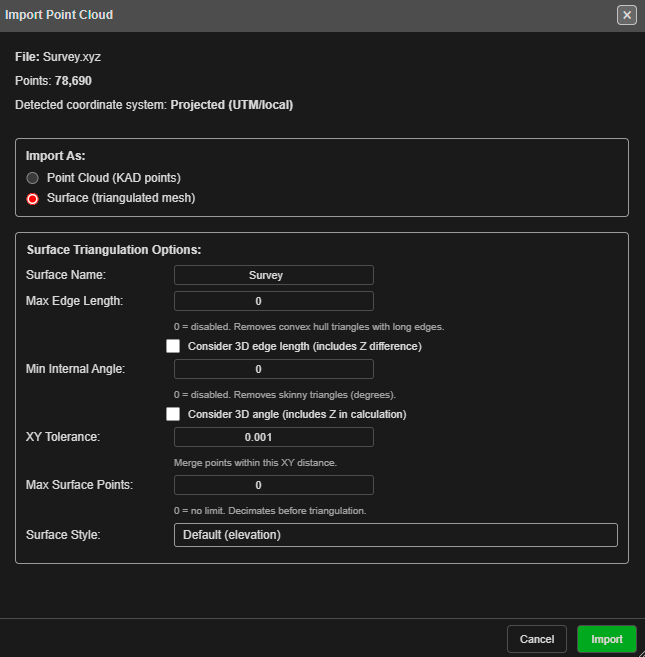
After you pick the file, the Import Point Cloud dialog asks how to bring it in:
| Setting | What it does |
|---|---|
| Import As: | Point Cloud (KAD Cloud Entity - Increased Point Capability), Point Cloud (KAD points) or Surface (triangulated mesh). A file with more than 1,000,000 points starts on Point Cloud (KAD Cloud Entity - Increased Point Capability); a smaller one starts on Surface (triangulated mesh) |
| Coordinate Transformation: | Shown for a latitude / longitude file: Keep as WGS84, or Transform to projected coordinates with an EPSG Code: or Custom Proj4: |
| Tolerance (3D): | Point Cloud (KAD Cloud Entity - Increased Point Capability): remove points closer than this, in 3D, to one already kept. 0 — the default — keeps every point |
| Max Points: | KAD points: thin the cloud to this many points (50,000 to start). 0 keeps them all, up to the 1,000,000-point limit |
| XY Tolerance: | KAD points and surfaces: points closer than this in plan are treated as one |
| Surface Name: | The name of the new surface |
| Max Edge Length: | Surfaces: remove triangles with an edge longer than this — the long, thin triangles that bridge gaps and the outside of the cloud. 0 for no limit |
| Min Internal Angle: | Surfaces: drop sliver triangles thinner than this angle. 0 for no limit |
| Max Surface Points: | Surfaces: thin the cloud to this many points first. 0 keeps them all |
| Surface Style: | The surface’s starting colours: Default (elevation), Hillshade, Viridis, Turbo, Parula, Cividis or Terrain |
With Point Cloud (KAD Cloud Entity - Increased Point Capability) the dialog says it keeps up to the draw budget (30,000,000 points unless you changed Max Point-Cloud Points on the Performance tab of Settings), spread evenly over the file. The cloud keeps the file’s colour when every point has one, and is otherwise coloured by elevation; change it in Cloud Properties.
Click Import. A surface is built in the background (Creating Surface). KAD points are coloured by elevation, blue low to red high.
Choosing Point Cloud (KAD points) for a file of more than 1,000,000 points shows Too Many Points for KAD Points.
Text files over 50 MB are read in pieces, under a Reading large point cloud progress bar, so a large survey does not run the browser out of memory.
A dropped
.csvor.txtfile asks whether it holds holes, geometry or a block model; use the Point Cloud row for a point cloud in CSV.
LAS Point Cloud
Imports an ASPRS LiDAR .las file (versions 1.0 to 1.4), or a compressed .laz file
(LASzip, point formats 0–3 and 6–8). Use the LAS Point Cloud row, or drag the file onto
Kirra.
Only the file’s header is read before the dialog opens, so even a file of several gigabytes
asks its questions straight away; the points are read afterwards, in pieces, with a progress
bar. A .laz file is decompressed on all of your computer’s processor cores.
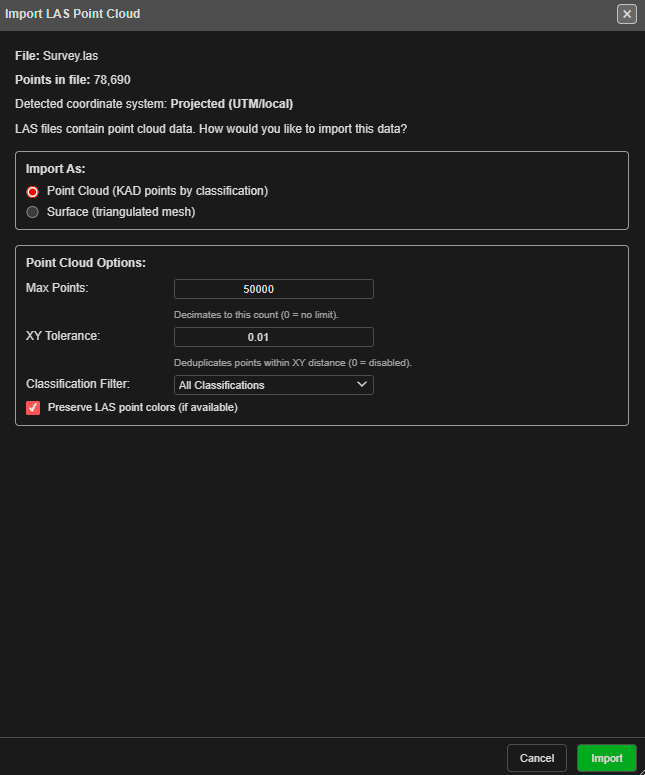
The Import LAS Point Cloud dialog offers the choices below. Import As: starts on Point Cloud (KAD Cloud Entity - Increased Point Capability) for every LAS and LAZ file; see Point Clouds.
| Setting | What it does |
|---|---|
| Import As: | Point Cloud (KAD Cloud Entity - Increased Point Capability) — the default — Point Cloud (KAD points by classification) or Surface (triangulated mesh) |
| Classification Filter: | All Classifications, or ground, vegetation, buildings or unclassified points only |
| Max Points: | Point clouds: keep this many points, spread evenly over the whole file. 0 — the default — keeps as many as Kirra can draw: the draw budget (30,000,000 unless you changed it) for Point Cloud (KAD Cloud Entity - Increased Point Capability), 1,000,000 for KAD points. The line under the box shows the number |
| Tolerance (3D): | Point clouds: remove points closer than this, in 3D, to one already kept. 0 — the default — keeps every point. Points above and below each other (a hole wall, a face) are kept unless they really are this close |
| Preserve LAS point colors (if available) | KAD points: use the scanner’s colours. Greyed out for Point Cloud (KAD Cloud Entity - Increased Point Capability), which keeps the colour and lets you choose the colouring in Cloud Properties |
| Keep GPS time | Point Cloud (KAD Cloud Entity - Increased Point Capability) only: keeps each point’s GPS time so the cloud can be coloured by time. Costs 8 bytes a point. Greyed out when the file’s point format has no GPS time |
| XY Tolerance: | Surfaces: points closer than this in plan are treated as one (default 0.001 m) — a surface keeps one height per position |
| Max Surface Points: | Surfaces: thin to this many points first. 500,000 is recommended for 3D |
| Surface Style: | As for a point cloud, plus LAS Point Colors |
Ground Only with Surface is the quick way to a bare-earth terrain from a LiDAR survey.
Kirra reports how many points it imported. A Point Cloud (KAD Cloud Entity - Increased Point Capability) keeps up to the draw budget, spread evenly over the file if the file holds more. KAD points show a preview of up to 1,000,000 points, spread evenly over the cloud, and Kirra reports how many are in the preview.
The cloud appears in the Point Clouds group of the Data Explorer. If it lands 100 km or more from your other data, Kirra asks before importing it, and it never moves the cloud — see Coordinates and scans that start at 0, 0.
Too Many Points for KAD Points
Each KAD point carries more data than a point-cloud point, so KAD points are limited to 1,000,000. If you choose Point Cloud (KAD points) for a bigger file, Too Many Points for KAD Points appears. It says KAD points carry more data per point and are limited to 1,000,000 points. For point clouds, use a point cloud (KAD Cloud). and This file has N points. Choose:
| Button | Result |
|---|---|
| Use KAD Cloud | Import the file as a point cloud instead |
| Thin to 1,000,000 KAD points | Keep KAD points, thinned to the number shown on the button: 1,000,000, or your Max Points: if that is lower |
| Cancel | Stop. Nothing is imported |
Vulcan .00t Triangulation
Imports a Maptek Vulcan triangulation (.00t, one file). The surface keeps the colour
stored in the file, if it has one.
If the surface has more triangles than the 3D limit (2,000,000 by default — set on the Performance tab of Settings), the Large Surface dialog offers:
| Choice | Result |
|---|---|
| Render in 3D | Draw it in full anyway |
| Decimate | Reduce it to Target triangles: |
| Adjust Settings | Open the setting to raise the limit |
| 2D Only | Draw it in 2D, but not in 3D |
Datamine Surface
A Datamine wireframe is two .dm files: points and triangles. Select both together
(hold Ctrl, or Cmd on a Mac). With only one, Kirra says the wireframe needs both
files. Kirra tells the two apart by their content, not their names.
When you drop the pair on the canvas instead, they are matched by name: …pt.dm with
…tr.dm.
Drag and drop
Every format on this page can also be dropped onto the canvas, except .csv and .txt
(which ask what the file holds). Dropping never reprojects — use the Transform rows for
that.