kirra-docs
The Import Dialog
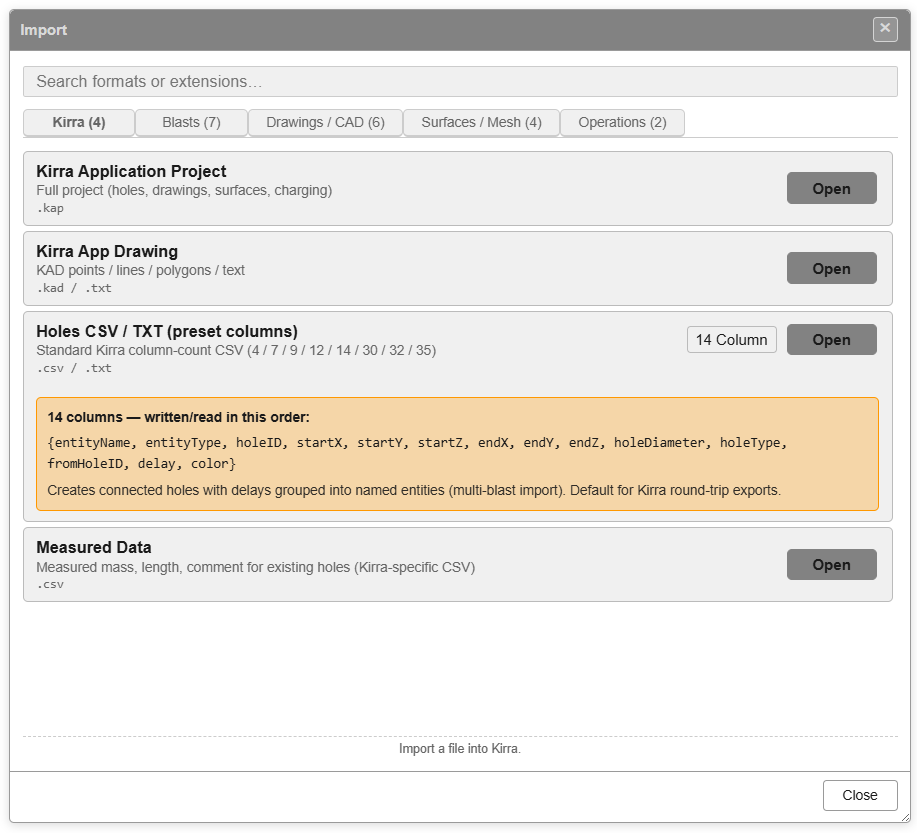
Every file Kirra reads comes in through the Import dialog, or by dropping the file onto the Kirra window. This page covers the dialog itself and the checks Kirra makes on every import. Each format has its own page, linked from the table below.
Open the Import dialog
- Click the Import Export Print button (the file icon) in the top bar and choose Import, or
- Open the left side panel (☰), and under File Management click Import.
If the dialog is already open, Kirra brings it to the front.
Find your format
The formats are grouped into tabs. Each tab shows how many formats it holds.
| Tab | Formats | Details |
|---|---|---|
| Kirra | Kirra Application Project, Kirra App Template, Kirra App Drawing, Holes CSV / TXT (preset columns), Measured Data | Kirra files, CSV Import |
| Blasts | Custom CSV, CBLAST, Orica ShotPlus, Davey BPD, DetNet ViewShot, DetNet DigiShot / ParVS3, Paradigm Terra | Blast Design Formats, CSV Import |
| Drawings / CAD | Geometry CSV, DXF, DWG (experimental), Vulcan ARCH_D, Vulcan Design Database, Surpac, Micromine STR, Deswik DUF, 12d Archive | DXF, Surpac, Other CAD Formats |
| Surfaces / Mesh | GeoTIFF / Image, ECW (ERDAS), OBJ / GLTF, Point Cloud, LAS Point Cloud, Vulcan .00t Triangulation, Datamine Surface | Surfaces and Point Clouds, ECW Imagery, 3D Mesh |
| Geology | Block Model — Datamine, Vulcan CSV, Vulcan BMF, Micromine | Importing Block Models |
| Miscellaneous | Borehole Telemetry, Epiroc Surface Manager, Wenco NAV, KML / KMZ, ESRI Shapefile | Other Formats |
| Legacy | Datavis DBS, ShotPlan 3 | Legacy formats |
Click Open on a row — or anywhere on the row — and pick the file. Some rows have a drop-down to choose a variant first, such as the Surpac row’s STR holes, STR and DTM & STR.
Search
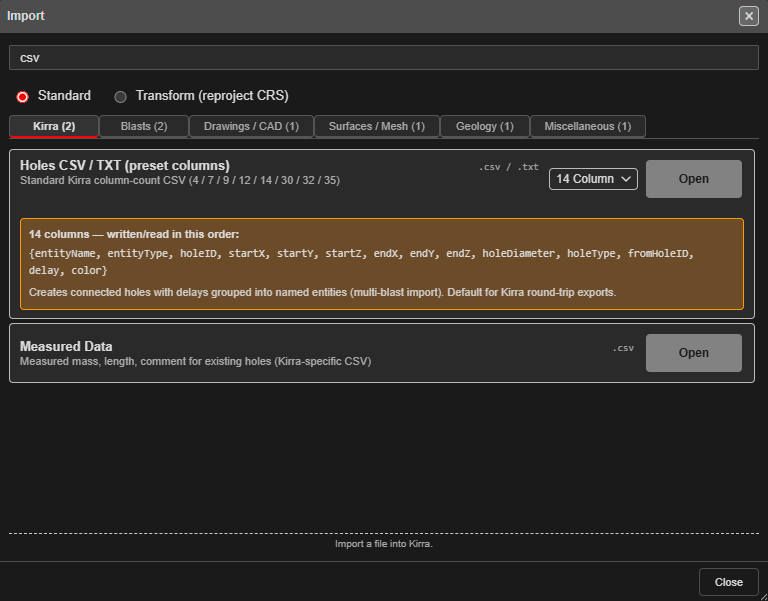
Type in Search formats or extensions… to filter every tab at once by name, description or extension. Tabs with no match are hidden, and the counts show the matches.
Standard and Transform
Standard lists every format. Transform (reproject CRS) lists only the formats that can convert coordinates from another system as they import — see Transform (Reproject) Import.
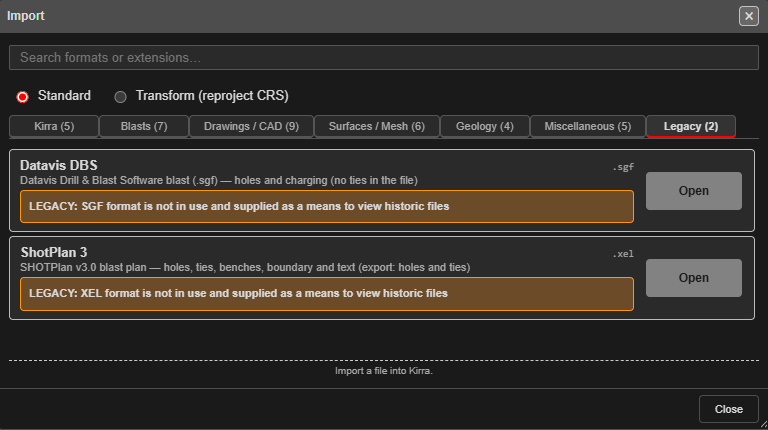
Legacy formats
The Legacy tab reads files from software no longer in use, so you can open historic blasts. Each row is marked as legacy.
When the import finishes
A successful import closes the dialog. If something went wrong, the dialog stays open with the message above the list — amber for a warning, red for an error — so you can try another file or format.
Drag and drop
You can drop files anywhere on the Kirra window instead of using the dialog. Kirra works out the format from the file.
- Several files at once. Files that belong together are kept together: a Surpac
.strand.dtmwith the same name, a Datamine points and triangles pair, an.objwith its.mtland images, and a Vulcan.dgd.isiswith its.isix. Other files are imported one at a time. -
CSV and TXT files could hold blast holes, drawing geometry or a block model, so Kirra always asks:
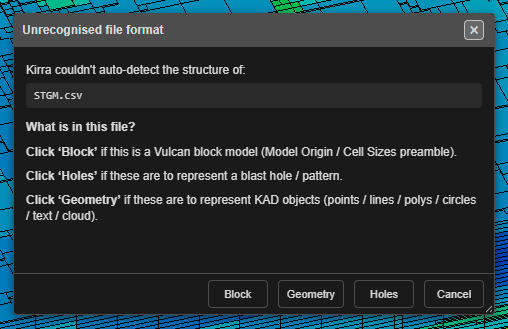
Holes opens the Custom CSV column mapping, Geometry the Geometry CSV mapping, Block the block model import, and Telemetry the Borehole Telemetry import.
- A file Kirra does not recognise is ignored, and the status bar says so.
- Dropped files are never reprojected. Use the Transform view of the dialog for that.
A few formats import more fully by one route than the other — each format’s page says when.
Checks on import
Kirra checks new data before adding it, so a wrong file or a second copy does not quietly spoil a design. Which checks run depends on the format.
Coordinate check
If the new data is 100 km or more from what is already loaded, the two are probably in different coordinate systems. Coordinate System Mismatch asks what to do:
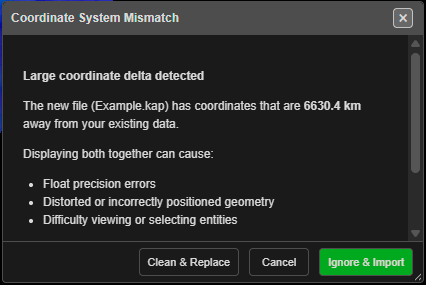
| Button | Result |
|---|---|
| Ignore & Import | Import anyway, alongside the existing data |
| Clean & Replace | Clear the existing data, then import |
| Cancel | Stop the import |
Duplicate blast
If at least half of an incoming blast’s hole IDs already exist, Duplicate Hole Import Detected asks How would you like to handle this?:
- Rename the incoming blast (recommended), or
- Skip exact duplicates — drop incoming holes whose blast and hole ID already exist, or
- Cancel the whole import.
Click Apply, or Cancel Import.
Holes on top of holes
If an incoming hole lands on top of an existing hole, Hole Proximity Warning offers Skip (leave this hole out), Ignore (import it anyway), Skip All or Cancel. For a whole blast at once, the batch version offers Skip overlapping, Continue all or Cancel.
Related topics
- Supported File Formats — the full import and export list
- Interface Tour — Import Dialog