kirra-docs
Other CAD Formats
The Drawings / CAD tab of the Import dialog reads design files from the main mine planning packages. DXF and Surpac have their own pages: DXF Import and Surpac STR / DTM.
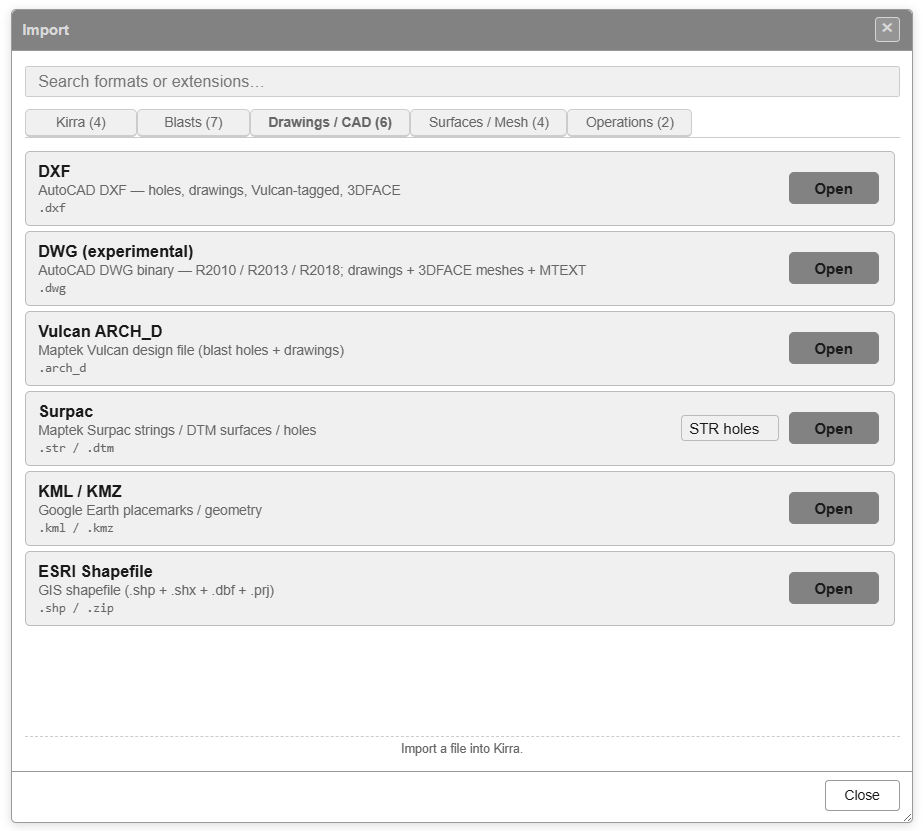
| Row | Extensions | Creates |
|---|---|---|
| Geometry CSV | .csv / .txt |
Points, lines, polygons, circles, text or a point cloud |
| DWG (experimental) | .dwg |
Drawings and 3DFACE surfaces |
| Vulcan ARCH_D | .arch_d |
Blast holes and drawings |
| Vulcan Design Database | .dgd.isis |
Blast holes and drawings, layer by layer |
| Micromine STR | .str |
Lines, polygons and points |
| Deswik DUF | .duf |
Lines and polygons (and surfaces when dropped) |
| 12d Archive | .12da / .12daz |
Surfaces (TINs) and strings |
Vulcan ARCH_D, Micromine STR and Deswik DUF warn when the new data is more than 100 km from what is already loaded — see The Import Dialog. Each file’s drawings go into one drawing layer named after the file.
Geometry CSV
For survey strings, MWD and boretrack exports, and any other X, Y, Z text file. After you pick the file, Import Geometry CSV: Map Columns asks how to read it:
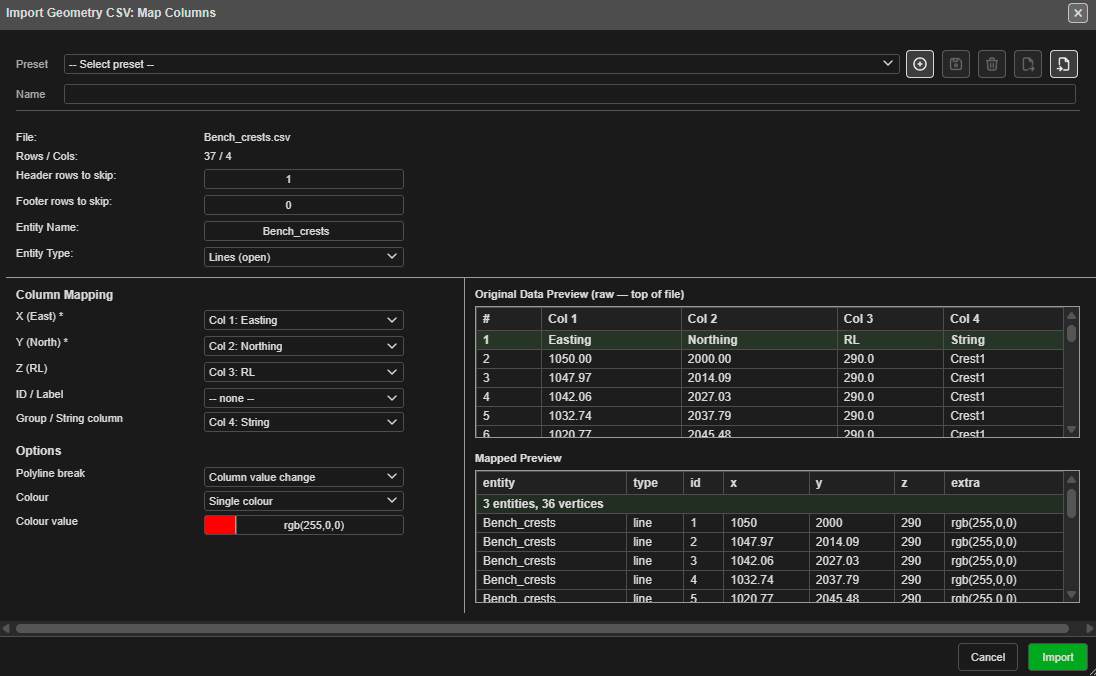 Easting, Northing and RL are detected from the headers. With Lines (open) and
Polyline break set to Column value change on the String column, the file
becomes three lines — the Mapped Preview shows “3 entities, 36 vertices”.
Easting, Northing and RL are detected from the headers. With Lines (open) and
Polyline break set to Column value change on the String column, the file
becomes three lines — the Mapped Preview shows “3 entities, 36 vertices”.
| Setting | What it does |
|---|---|
| Header rows to skip: / Footer rows to skip: | Lines to ignore at the top and bottom |
| Entity Name: | The name for what is imported |
| Entity Type: | Points, Lines (open), Polygons (closed), Circles, Text, Point Cloud, or Read from Column |
| X (East) *, Y (North) *, Z (RL), ID / Label | Which column holds each value. X and Y are required |
| Group / String column | For lines and polygons: the column that says which string each point belongs to |
| Polyline break | How one line ends and the next begins: None — one entity, Blank line, Column value change or Marker line (token) (with its Marker token) |
| Close polygon ring | Close each polygon back to its first point |
| Circle radius (m) | The radius for circles, or a radius column |
| Colour | Single colour, By value (colormap), R,G,B,A columns or HEX / CSS column |
Two previews show the raw file and how it will be read. A preset bar saves the settings for files you import often. Click Import; Geometry Imported reports what was made.
Choosing Point Cloud goes on to the point-cloud import — see Surfaces and Point Clouds.
A .csv dropped on the canvas asks what it holds; choose Geometry for this dialog.
Large dropped files are read in the background.
DWG (experimental)
Reads AutoCAD’s own binary drawing format, versions R2010, R2013 and R2018. Save older drawings in one of those versions first, or export DXF — see DXF Import.
| Read | Not yet |
|---|---|
| Lines, polylines (2D and 3D), circles, arcs, ellipses, points, text and multiline text | Blocks (INSERT) |
| 3DFACE meshes, as one surface | |
| Layer names, and layer colours for entities coloured ByLayer |
“Experimental” means it works on the drawings it has been tested with, but is not yet as
complete as DXF. Each drawing comes in on its DWG layer, as a DXF import does. Importing the same DWG again adds a second copy, with _(2) on the names. If a DWG
does not come in cleanly, export DXF from your CAD package instead.
Vulcan ARCH_D
Reads a Maptek Vulcan design file: blast holes and the drawings around them.
Holes. Vulcan holes are recognised by their Link / MVAR data or a “blast hole” description. Each keeps its collar, grade and toe; holes with several intervals are accepted. Holes are grouped into blasts by their Vulcan layer. Diameter and hole type come from each hole’s MVAR record, or from the file’s blast summary.
If any hole is still without a diameter, Vulcan ARCH_D — Drill Diameter asks for one: enter the Diameter (mm): and click Apply, or click Keep 115 mm. You can also Load specifications.dab to read the diameters from the Vulcan specifications file.
Row, position, burden and spacing are worked out from the hole layout. If holes land on top of existing ones, Kirra asks what to do.
Drawings. Other strings become lines, polygons or points; 2D and 3D text becomes text. Colours follow Vulcan’s standard colour numbers.
Vulcan Import Complete reports the holes and drawings imported.
Vulcan Design Database
Reads a Maptek Vulcan design database (.dgd.isis) — many layers in one file. Blasts come
in with their Vulcan MVAR attributes. The database is read only; Kirra does not change it.
- Pick the
.dgd.isisfile. Importing Vulcan Design Database runs; it can be cancelled. - Import Vulcan design database — choose layers lists every layer, with its Entities, Points and whether it holds a Blast. Tick Load for the layers you want, or Load every layer.
- Optionally Load specifications.dab for hole diameters.
- Click Load.
This import uses the browser’s private file storage to read large databases. If the browser does not provide it, Kirra says so.
Micromine STR
Reads Micromine Extended Data string files.
- Points with the same string number that follow each other form one string.
- A string that returns to its first point becomes a closed polygon.
- Single points become point entities, one per string number.
- Colours are read from the file; strings without one are white.
There is no dialog. If the file turns out to be a Surpac string file, Kirra says so — use the Surpac row instead.
A Micromine .str dropped on the canvas is recognised automatically.
Deswik DUF
Reads Deswik design files: polylines and closed rings.
Drop the file on the canvas for the fullest import: large files are read in the background, each Deswik layer path becomes its own drawing layer, and polyface meshes come in as surfaces. The Open button reads the polylines and rings only.
12d Archive
Reads 12d Model text archives (.12da) and compressed archives (.12daz).
| Imported | Skipped |
|---|---|
| Strings: 2D, 3D, 4D, polyline, pipe, arc, circle, face, interface, text and super strings | Drainage, feature, alignment, pipeline, plot frame and LAS data |
| Surfaces: TINs, full and super TINs, and 3D primitives |
Importing 12d Archive shows progress and can be cancelled. For a .12daz, or a
.12da over 1 GB, Import 12d Archive — choose surfaces lists each surface with its
point and triangle counts and the memory it needs; tick the ones to load and click
Load selected. Drawings always load.
Related topics
- The Import Dialog
- DXF Import
- Surpac STR / DTM
- Transform Import — for Geometry CSV in another coordinate system