kirra-docs
Other Import Formats
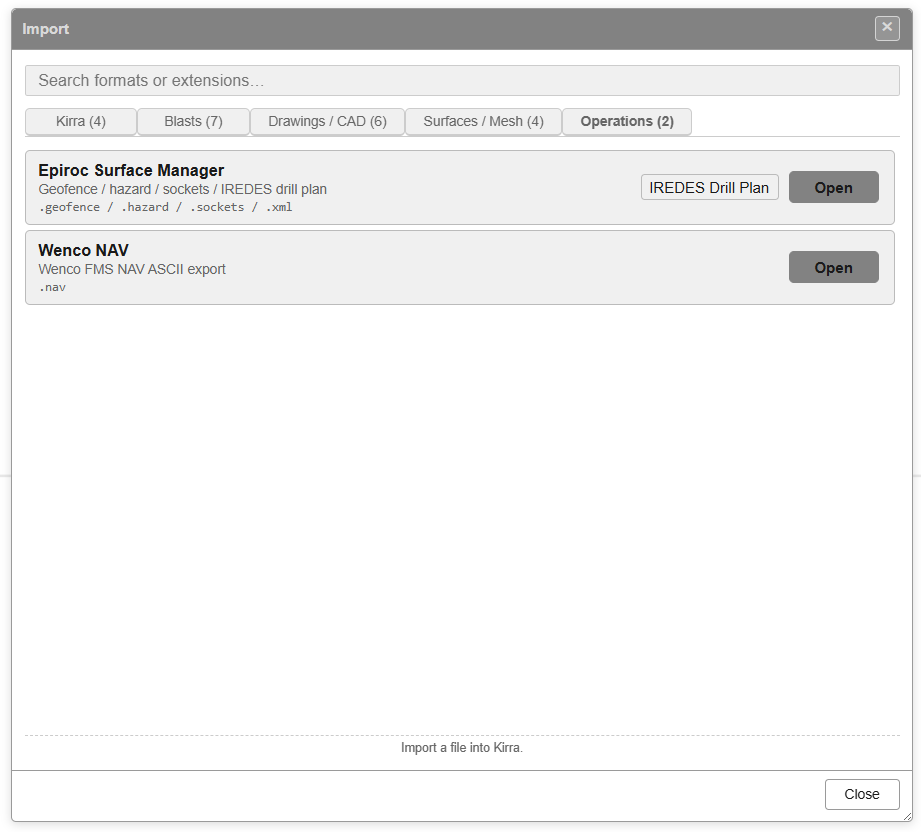
This page covers Kirra’s own files, the Miscellaneous tab and the Legacy tab of the Import dialog. Other formats have their own pages — see The Import Dialog for the full list.
| Looking for | See |
|---|---|
| ShotPlus, CBLAST, Davey, DetNet, Paradigm | Blast Design Formats |
| Vulcan ARCH_D and Design Database, DWG, Micromine, Deswik, 12d | Other CAD Formats |
| GeoTIFF, point clouds, LAS | Surfaces and Point Clouds |
| IREDES drill plans | Epiroc Surface Manager below |
Kirra files
KAP (Kirra Application Project)
A .kap file is a complete Kirra project. It carries everything, so the person you
share it with can work exactly as you did:
| What | Includes |
|---|---|
| The blast | Holes, blast groups, trunks and connections, timing constructs and firing groups, charged holes |
| Drawings and surfaces | KAD drawings and layers, surfaces (including textured and analysis surfaces), imagery |
| Point clouds | Every point cloud, with its colouring settings |
| Libraries | Explosive products, charge rules, pattern templates, print templates, measured seeds, PPV monitors, block-model colour schemas |
| Settings | Your work settings — hole and text sizes, colours, snapping, CSV column order and export preferences, dialog presets and similar |
Settings that belong to your computer never travel: theme, language, and your toolbar and panel layout stay as they are.
How the import is applied
- Import Project asks you to confirm. It reminds you that, if you already have data, the next step lets you choose between merging and replacing. Click Import, or Cancel to stop.
- If the project is more than 100 km from the data you already have, Kirra warns that the two may be in different coordinate systems — see Checks on import.
-
If your workspace already holds anything, Import KAP File asks How should this import proceed?:
Choice Blast Libraries Settings Merge (the default) Added to yours Added to yours Theirs Replace data, merge libraries Theirs Added to yours Theirs Replace data, keep my libraries Theirs Yours, unchanged Yours, unchanged Replace everything Theirs Theirs — yours are removed Theirs Click Import, or Cancel Import. An empty workspace is not asked; the project simply loads.
In a Merge, a hole whose blast name and hole ID you already have is not brought in
again, and nor is a point cloud you already have. A cloud whose name is taken by something
else is renamed with _2, _3 and so on.
When the import finishes, Import Complete lists everything that arrived. If the file brought settings, the summary says so and Kirra reloads when you click OK so the settings take effect — your project is already saved; choose Continue Previous to carry on.
Settings that belong to your computer never travel: theme, language, and your toolbar and panel layout stay as they are.
Note: Project files saved by Kirra before version 1.1.32.112 carry print templates without their spreadsheet. Kirra skips those and keeps any template of the same name you already have. Ask the sender to save the project again, or load the template’s
.xlsxin the print dialog and Save to Library.
KAT (Kirra App Template)
Import a site template from a .kat file. A KAT is everything a KAP carries
except the blast — no holes, drawings, surfaces, images, point clouds, blast groups,
trunks, timing or firing groups. It brings a site’s setup: explosive products, charge rules,
pattern and print templates, measured seeds, PPV monitors and parameters, the
CRS Library, colour settings and work settings.
Into an empty workspace, the template simply loads. Nothing is asked.
If the workspace already has anything in it — a blast, drawings, surfaces, or libraries such as products and templates — Kirra offers two choices:
- Merge — add the template’s libraries to yours. Nothing of yours is lost, and your blast, drawings and hole-label edits are left alone.
- Start Fresh — clear the workspace completely, then load the template. This removes everything in the workspace first: holes, drawings, surfaces, products, charge rules, pattern and print templates, and colour schemas. Use it to set a workspace up from scratch for a site.
A template never reloads Kirra. Its settings take effect straight away, and a summary lists everything that arrived.
KAD (Kirra App Drawing)
A .kad (or .txt) file holds Kirra drawing entities — points, lines, polygons,
circles and text — with their coordinates and colours.
- The file’s drawings go into one drawing layer named after the file; importing a file of
the same name again creates
name_2and so on. - If an entity in the file has the same name as one you already have, its points are added to that existing entity.
- To read a KAD file in another coordinate system, use Kirra App Drawing — Transform (reproject CRS) — see Transform Import.
A dropped .kad imports directly. A dropped .txt asks what it holds instead — use the
Open button for a KAD saved as .txt.
Miscellaneous
Borehole Telemetry
Turns a downhole survey — depth, heading and inclination down each hole — into the path the hole actually took. Import Borehole Telemetry asks:
| Setting | What it does |
|---|---|
| Blast / survey name | The name the paths are filed under |
| Hole ID, Depth, Heading, Angle columns | Which columns hold the survey |
| Angle convention | Inclination (0° = vertical) or Dip (−90° = vertical) |
| Collar position from | Blast holes, by Hole ID, KAD points, by Point ID, or Columns in this file |
| Path reconstruction | Tangential (Boretrak), Balanced tangential or Minimum curvature |
| Heading offset (°) | Correct the survey heading, for example from magnetic to grid north |
| Line colour, Line width | How the paths are drawn |
Each hole’s path becomes a drawing line named BLAST[HOLE], in the Telemetry layer
with a sub-layer per blast. A report lists any holes whose collar could not be found. The
paths can then be used to measure burden on the drilled hole in the
Hole Section View.
You can also drop the survey file onto the canvas: Kirra asks what it holds — choose Telemetry.
Epiroc Surface Manager
Reads Epiroc rig files. Choose the type in the row’s drop-down:
| Choice | File | Creates |
|---|---|---|
| IREDES Drill Plan (default) | .xml |
Blast holes, in a blast named after the file, with rows worked out automatically |
| Geofence | .geofence |
Closed polygons |
| Hazard | .hazard |
Closed polygons |
| Socket | .sockets |
Points |
For geofences, hazards and sockets Kirra asks for the Elevation (Z) to place them at. IREDES files store coordinates Y before X; Kirra swaps them.
A dropped .xml is read as an IREDES drill plan.
Wenco NAV
Reads Wenco fleet management NAV files (text format). Text, points and lines become drawings named after the file; triangle records become a surface. Binary NAV files are not supported — export text NAV from Wenco.
KML / KMZ
Reads Google Earth files. Import KML/KMZ asks:
| Setting | What it does |
|---|---|
| Import As: | Blast Holes or Geometry (KAD) |
| Target Coordinate System: | For latitude / longitude files: keep them, or project to an EPSG grid |
| Default Values: | The elevation to use where the file has none, and the blast name |
Hole details are read from a placemark’s description as {key:value} pairs, and from its
ExtendedData fields (both Google Earth’s Data and QGIS’s SimpleData). The field
names are Kirra’s: diameter, calculatedHoleLength, subdrillAmount, holeType. Where
a field is in both, the description wins.
ESRI Shapefile
Reads shapefiles: select the .shp together with its .shx, .dbf, .prj (and
.cpg) files, or a .zip holding them. Dropping the files — or the .zip — onto the
canvas works too. Points, multipoints, polylines and polygons are read, with their Z and M
variants; multipatch shapes are skipped.
Import ESRI Shapefile offers a projection for latitude / longitude files and a Master RL Offset (Optional) to raise or lower everything by a fixed elevation.
Legacy formats
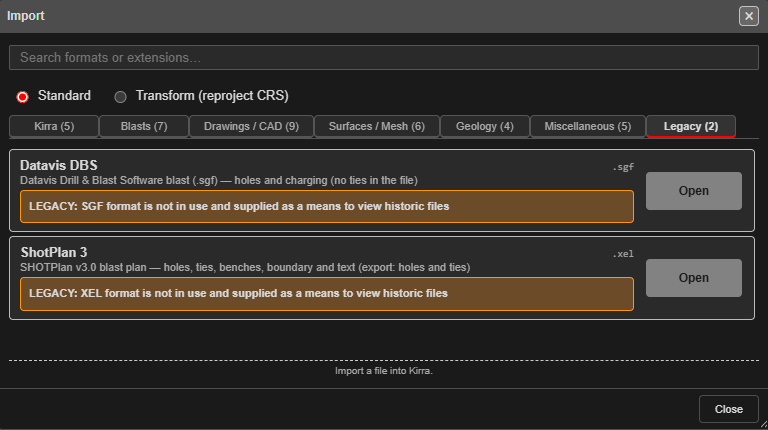
Datavis DBS (legacy)
Legacy format. Datavis Drill & Blast Software
.sgffiles are no longer in use. Kirra reads them so that historic blasts can still be viewed. The Import dialog marks the row with an amber LEGACY note.
Import ▸ Legacy ▸ Datavis DBS, or drag a .sgf file onto the canvas. Import only.
| What is in the file | What Kirra makes of it |
|---|---|
| Blast holes | Blast holes in one blast named after the file. Hole ID, collar, toe, length, angle, bearing, diameter, burden, spacing and subdrill come straight across. The first word of the hole’s design rule (for example BUS or MPSS) becomes its hole type |
| Decks | The hole’s charging, collar to toe: stemming, air and explosive decks with their products and lengths |
| Primers | Each primer at its depth, with its booster and its downhole detonator and delay |
| Products | Added to the Product Manager with the density the file gives them, and the delay of each detonator. A product you already have with the same name is reused |
| Drill designs | A blast that was never charged imports its holes only, with hole type Undefined |
The import summary lists how many holes were charged and how many primers came in.
Primers the file places wrongly
Some files place the primers of holes with an air deck far below the hole, sometimes hundreds or thousands of metres down. This is an error in the file, not in the design. Kirra works out where each of those primers was designed to sit from the hole’s decks, and puts it there.
A primer always ends up in an explosive deck. If the file places one just outside the charge (on a short toe charge, for example), Kirra moves it 5 mm inside the charge. The import summary counts the primers moved in either way.
No surface ties
The files hold no surface ties and no firing times. Each hole has its downhole detonator delay only, so the holes all fire on that delay. Tie the blast up in Kirra to time it.
Not imported
- Surface ties and firing times — the files hold none.
- Booster mass. Set it on the booster in the Product Manager.
- Surfaces and other drawing objects in the file.
ShotPlan 3 (legacy)
Legacy format. SHOTPlan v3.0
.xelfiles are no longer in use. Kirra reads them so that historic blast plans can still be viewed. The Import dialog marks the row with an amber LEGACY note.
Import ▸ Legacy ▸ ShotPlan 3, or drag a .xel file onto the canvas.
| What is in the file | What Kirra makes of it |
|---|---|
| Blast holes | Blast holes in one blast named after the plan’s title (or the file name). Collar, diameter, length, angle from vertical and bearing come straight across. Hole numbers are kept, so ties still line up |
| Dummy holes | 0 m holes of type Dummy — a position with no hole drilled |
| Deleted holes | Skipped |
| Surface ties | Hole-to-hole ties, each with its delay. Where several ties reach one hole, the one whose signal arrives first is kept |
| Benches | A crest line and a toe line per bench, as drawings |
| Boundary | A closed polygon, as a drawing |
| Text | Text drawings, all in one entity |
Rows, positions, burden and spacing are worked out by Kirra after the holes arrive, the same as for any other imported blast.
Tie delays and colours
A ShotPlan plan names its surface connectors (TLD 42, CD 17, MSC 175) rather than storing their delays, so Kirra reads the delay from the name. A tie whose connector name carries no delay — detonating cord, or a millisecond downhole delay used on the surface — is imported at 0 ms and listed in the import summary, so you can set it yourself.
Each tie is coloured:
- From your product library — if a surface connector in your library has the same delay, the tie takes that product: its colour and its link to the product.
- Otherwise by delay — 0 ms MediumVioletRed, 9 ForestGreen, 17 Gold, 25 Crimson, 33 DarkGrey, 42 LightSlateGrey, 50 RosyBrown, 65 RoyalBlue, 100 Orange, 125 Wheat, 150 Khaki, any other delay Indigo.
A 0 ms tie is never matched to a library product: 0 ms only comes from a connector whose delay could not be read.
Elevations
Many ShotPlan plans have no collar elevations. Those collars come in at 0 m, and the import summary says how many. Set them afterwards, for example with Assign Collar Elevation.
Not imported
- Charging. The plan’s decking table is not read.
- Downhole (in-hole) delays.
- Pattern definitions — the holes they made are imported; the pattern record is not.