kirra-docs
CSV Import
Kirra reads blast holes from CSV files using its BlastHole CSV family — a set of fixed column layouts, told apart by how many columns the file has. Use Custom CSV if your file does not match one of them.
How to Import a CSV
- Open the Import dialog — see The Import Dialog
- Stay on the Kirra tab
- Click Open on Holes CSV / TXT (preset columns) and select your
.csvor.txtfile
Kirra works out the layout from the number of columns in each line, so you do not need to choose one. The row’s drop-down is a reference: pick a column count to see, in the note under it, which columns that layout holds.
An Importing Blast Data progress bar runs, Kirra checks the holes against what is already loaded (see Checks on import), and a summary reports the holes, rows, average burden and spacing.
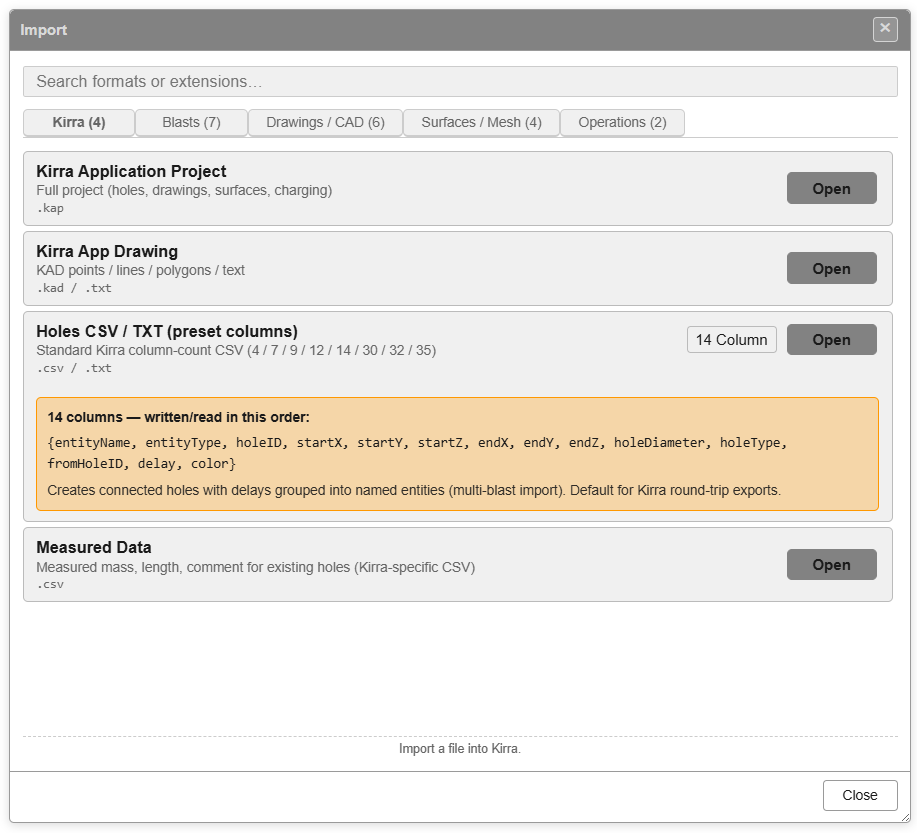 The Holes CSV / TXT row, with the 14-column layout shown in its note.
If your file does not match any preset, switch to Custom CSV on the Blasts tab — see Custom CSV Import below.
Files with 4, 7, 9 or 12 columns carry no blast name; their holes go into one blast
named BLAST_ followed by a short code. Rename it afterwards.
BlastHole CSV — accepted column counts
The parser dispatches strictly on column count. It accepts files with 4, 7, 9, 12, 14, 29, 30, 31, 32 or 35 columns; any other count is skipped with a warning (unless the file has a header row — see Header rows).
| Cols | Layout | Carries |
|---|---|---|
| 4 | holeID, X, Y, Z |
Collar only — toe defaults to collar (dummy holes) |
| 7 | + endX, endY, endZ |
Collar → toe vector |
| 9 | + holeDiameter, holeType |
Diameter (mm) and hole type |
| 12 | + fromHoleID, delay, color |
Tying / delay / colour (single entity) |
| 14 | entityName, entityType, … (rest as 12-col) |
Multi-entity grouping — recommended round-trip format |
| 29 / 30 | Full design columns 1-24, then row / position / burden / spacing / curve | Full design without measured data |
| 31 / 32 | Columns 1-24, then measured length and mass, then row / position / burden / spacing | Design + measured length and mass |
| 35 | Columns 1-24, measured fields with timestamps, then row / position / burden / spacing / curve | Complete — every parsed field |
29- to 35-column files are not “14 + extras”. Cols 1-9 match the 14-col layout, but from col 10 onward the order diverges — grade, subdrill, and bench come before
holeDiameter. See 29- to 35-Column Files for the exact order.
4-Column (Collar Only)
Creates collar-only holes — toe coordinates default to the collar position.
| Column | Field |
|---|---|
| 1 | holeID |
| 2 | X — collar Easting (m) |
| 3 | Y — collar Northing (m) |
| 4 | Z — collar Elevation (m) |
H001,477750.5,6771850.2,335.0
H002,477755.5,6771850.2,335.0
7-Column (Collar + Toe)
Full 3D hole geometry — collar plus toe.
| Column | Field |
|---|---|
| 1 | holeID |
| 2-4 | Collar X / Y / Z |
| 5-7 | Toe endX / endY / endZ |
H001,477750.5,6771850.2,335.0,477751.2,6771849.8,320.0
9-Column (+ Diameter + Type)
Adds hole diameter and hole-type classification.
| Column | Field |
|---|---|
| 1 | holeID |
| 2-4 | Collar X / Y / Z |
| 5-7 | Toe endX / endY / endZ |
| 8 | holeDiameter (mm) |
| 9 | holeType — e.g. Production, Buffer, Presplit, Trim |
12-Column (+ Timing + Colour)
Adds the timing connection back to its source hole, the delay, and a display colour.
| Column | Field |
|---|---|
| 1 | holeID |
| 2-4 | Collar X / Y / Z |
| 5-7 | Toe endX / endY / endZ |
| 8 | holeDiameter (mm) |
| 9 | holeType |
| 10 | fromHoleID — upstream hole in the timing chain |
| 11 | delay — milliseconds relative to fromHoleID |
| 12 | color — #RRGGBB hex, or a named colour like red / blue |
fromHoleIDform: in legacy single-entity files, just the holeID (e.g.H001). In multi-entity files (14-col), useentityName:::holeID(e.g.Pattern_A:::H001).
14-Column (Kirra Standard — Recommended)
Same fields as 12-col but prefixed with the entity name (blast pattern) and entity type. This is the recommended round-trip format.
| Column | Field |
|---|---|
| 1 | entityName — blast pattern name (e.g. Pattern_A) |
| 2 | entityType — hole for blast holes |
| 3 | holeID |
| 4-6 | Collar X / Y / Z |
| 7-9 | Toe endX / endY / endZ |
| 10 | holeDiameter (mm) |
| 11 | holeType |
| 12 | fromHoleID — use the entityName:::holeID form |
| 13 | delay (ms) |
| 14 | color |
Pattern_A,hole,H001,477750.5,6771850.2,335.0,477751.2,6771849.8,320.0,115,Production,,0,#FF0000
Pattern_A,hole,H002,477755.5,6771850.2,335.0,477756.2,6771849.8,320.0,115,Production,Pattern_A:::H001,25,#FF0000
29- to 35-Column Files
Columns 1-24 (shared)
These files share the same first 24 columns. Grade, bench, length, angle, bearing and fire time are recalculated on import, so their columns can hold any value.
| Column | Field | Notes |
|---|---|---|
| 1 | entityName |
Blast pattern name |
| 2 | entityType |
hole for blast holes (not read) |
| 3 | holeID |
|
| 4-6 | startX, startY, startZ |
Collar |
| 7-9 | endX, endY, endZ |
Toe |
| 10-12 | gradeX, gradeY, gradeZ |
Grade point — recalculated from subdrill |
| 13 | subdrillAmount |
Vertical delta-Z (m), not along-hole |
| 14 | subdrillLength |
Along-hole subdrill (m) (not read) |
| 15 | benchHeight |
Bench height (m) (recalculated) |
| 16 | holeDiameter |
mm |
| 17 | holeType |
e.g. Production |
| 18 | fromHoleID |
Upstream tying hole (use entityName:::holeID) |
| 19 | delay |
Relative milliseconds. Accepts na / n/a / null / nan (case-insensitive) → stored as no delay, for the harness-wire / null-connector convention |
| 20 | color |
#RRGGBB or named colour |
| 21 | holeLength |
Calculated (m) (recalculated) |
| 22 | holeAngle |
Angle from vertical (0 = vertical) (recalculated) |
| 23 | holeBearing |
Azimuth clockwise from North (recalculated) |
| 24 | holeTime |
Hole fire time (recalculated) |
Two subdrill fields:
subdrillAmountis the vertical drop below grade (Δz).subdrillLengthis the same value projected along the hole vector. Both are written on export so other software can use whichever convention it prefers.
Columns 25 onward
| Column | 29 / 30 columns | 31 / 32 columns | 35 columns |
|---|---|---|---|
| 25 | rowID |
measuredLength |
measuredLength |
| 26 | posID |
measuredMass |
measuredLengthTimeStamp |
| 27 | burden |
rowID |
measuredMass |
| 28 | spacing |
posID |
measuredMassTimeStamp |
| 29 | connectorCurve |
burden |
measuredComment |
| 30 | (ignored) | spacing |
measuredCommentTimeStamp |
| 31 | — | connectorCurve (32-column files only) |
rowID |
| 32 | — | (ignored) | posID |
| 33 | — | — | burden (m) |
| 34 | — | — | spacing (m) |
| 35 | — | — | connectorCurve |
Empty rowID / posID parse as null. Holes with null or 0 row/pos are treated as unassigned and may be processed by smart row detection.
30 and 32 Column files: Kirra’s own 30 Column and 32 Column exports write the measured fields (with timestamps) from column 25 and carry a header row of Kirra field names. A 29-32 column file with that header is read by name, so Kirra’s exports round-trip. A headerless 29-32 column file is read in the older positional layout shown in the table.
For a full project save, prefer KAP — it carries every project state (charging, timing constructs, drawings, surfaces, layers) instead of just the holes.
Header rows
A header row is detected when any of columns 4-6 (collar X/Y/Z) in one of the first three lines is non-numeric, and the line has at least 6 columns. If your file has a header that doesn’t match this rule, the parser may treat it as a data row.
When a header row is present and the column count is not one of the accepted counts, Kirra maps the columns by their header names instead (the names Kirra itself writes, such as holeID, startXLocation, holeDiameter). With an accepted count, the column positions above still apply.
If you have an unusual header layout, use Custom CSV instead — it does header-driven field mapping.
Custom CSV Import
If your CSV does not match a preset (different column order, different field names, extra columns), use Custom CSV on the Blasts tab of the Import dialog. The separator — comma, tab, semicolon and so on — is detected automatically.
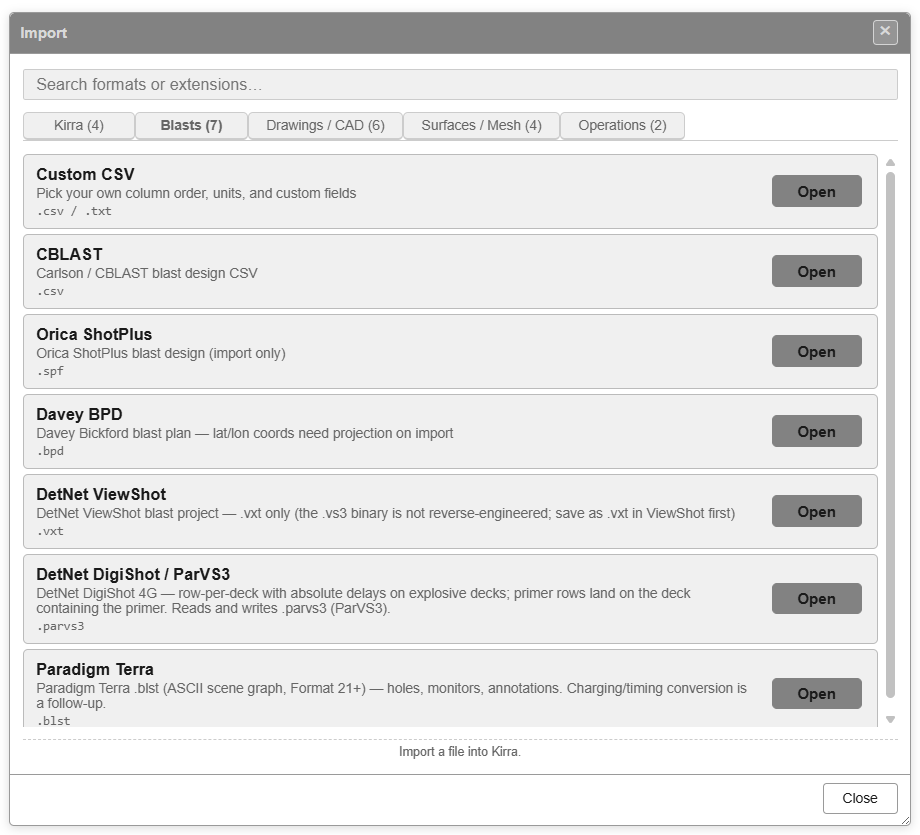 Custom CSV is the first entry on the Blasts tab — “Pick your own column order, units, and custom fields”.
- Open the Import dialog
- Blasts tab → Custom CSV → click Open
- Choose your
.csvfile. (For a.txt, drop it onto the canvas and choose Holes.) - The Import CSV: Map Columns dialog opens — review the auto-detected mapping (or override manually) and click Import
The Map Columns dialog
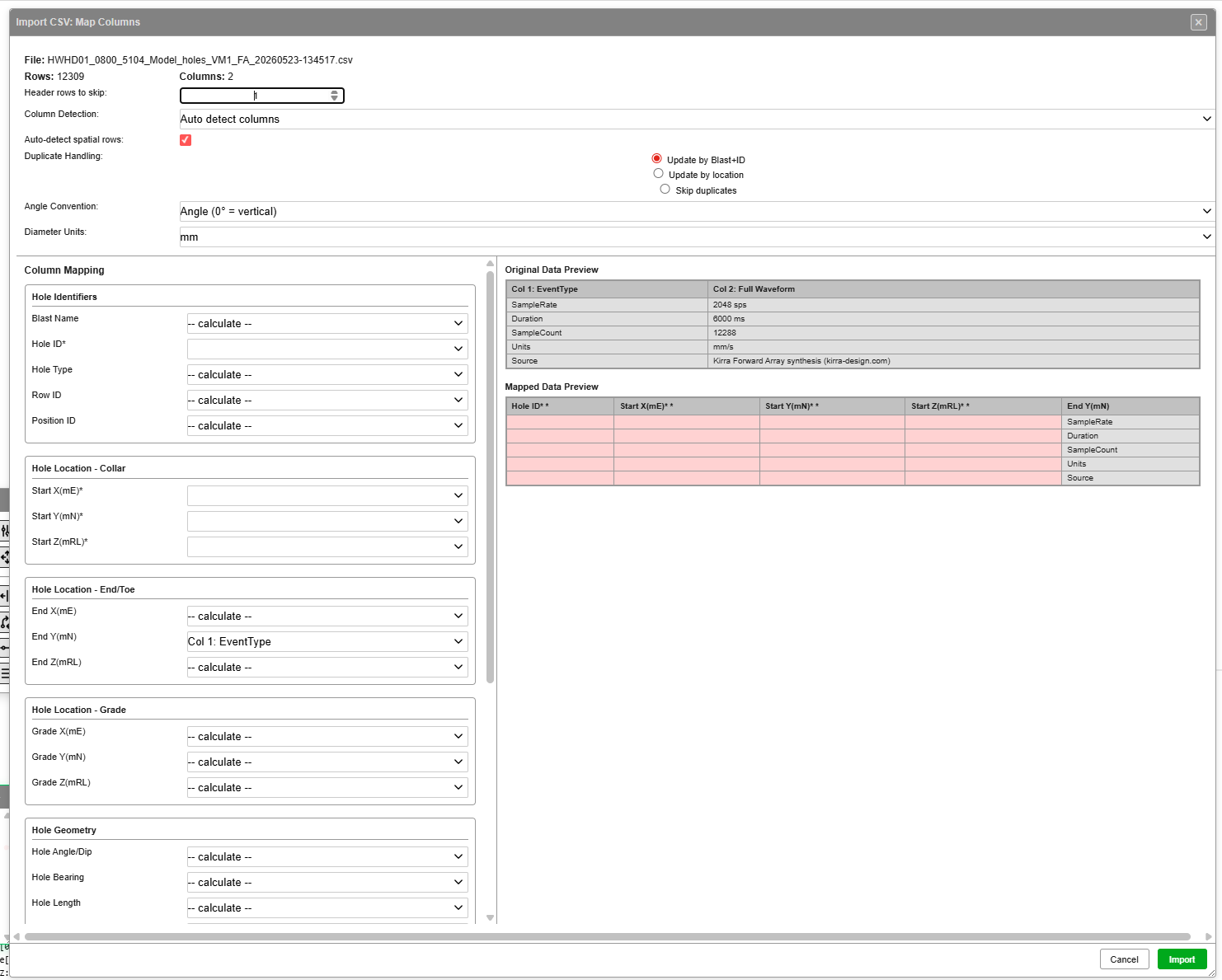 Import CSV: Map Columns — file header, dialog-wide settings, column mapping (left), and live preview (right).
The dialog shows the file name and row / column counts at the top, followed by dialog-wide settings, the column mapper, and a live preview.
Dialog-wide settings
| Control | Purpose |
|---|---|
| Header rows to skip | Number of rows to ignore at the top of the file (default 1) |
| Column Detection | Auto detect columns (match the header names — the default), Use last used column order, or Manual - don’t detect columns |
| Duplicate Handling | Radio buttons — Update by Blast+ID (default), Update by location (0.01 m tolerance), Skip duplicates |
| Angle Convention | Dropdown — Angle (0° = vertical) for Kirra’s native convention, or Dip (0° = horizontal) to convert (90 − value) |
| Diameter Units | Dropdown — mm (default), m, in — values are converted to mm on import |
Column Mapping panel
The left side groups Kirra fields by category. Each row has a dropdown — pick which CSV column in the file (Col 1: <name>, Col 2: <name>, …) supplies that Kirra field, or leave it as -- calculate -- to let Kirra derive it from the other fields.
| Group | Fields |
|---|---|
| Hole Identifiers | Blast Name, Hole ID (required, marked with *), Hole Type, Row ID, Position ID |
| Hole Location - Collar | Start X (mE) *, Start Y (mN) *, Start Z (mRL) * (all required) |
| Hole Location - End/Toe | End X (mE), End Y (mN), End Z (mRL) |
| Hole Location - Grade | Grade X (mE), Grade Y (mN), Grade Z (mRL) |
| Hole Geometry | Hole Angle/Dip, Hole Bearing, Hole Length, Bench Height (m), Subdrill (m), Diameter |
| Timing & Connections | From Hole ID, Timing Delay (ms), Initiation Time, Tie Color |
| Measured Values | Measured Length, Measured Mass, Measured Comment |
| Charging (decks & primers) | Shown when the file has deck or primer columns — see Charging columns |
Required fields are marked with * and shaded pink in the preview until mapped.
A preset bar at the top of the dialog saves a mapping, so a file from the same source imports in one click next time.
Live preview panels (right side)
| Panel | Shows |
|---|---|
| Original Data Preview | Top of the source file with column names as Kirra read them |
| Mapped Data Preview | What each Kirra field will receive after the mapping is applied. Pink-highlighted cells are required fields that are not yet mapped |
Footer
| Button | Action |
|---|---|
| Cancel | Discard the mapping and close |
| Import (green) | Apply the mapping, run the parser, and load the holes |
Header auto-detection
CsvColumnAutoDetect.autoDetectColumns() scans the header row, normalises each header (lowercase, alphanumeric only), and matches against a keyword list per Kirra field. Match priority:
- Exact match
- Longest matching keyword
- Earliest column wins ties
Examples of headers Kirra recognises out of the box:
| Header in your CSV | Maps to |
|---|---|
Hole ID, HoleID, BlastHoleId |
holeID |
Easting, East, Collar X, Start X |
startXLocation |
Northing, North, Collar Y, Start Y |
startYLocation |
Elev, Elevation, RL, Collar Z |
startZLocation |
Bearing, Azimuth |
holeBearing |
Dip |
interpreted via angle_convention (dip-from-horizontal converts to Kirra’s angle-from-vertical as 90 − value) |
Diameter, Dia |
holeDiameter (with unit conversion) |
A bare X, Y or Z header is deliberately not matched: it would also match EndX,
ToeX and so on. Map those columns by hand. Any header Kirra does not recognise can be
mapped by hand in the dialog.
Geometry priority
When a CSV provides multiple geometry specs at once, the parser picks the first match:
- Collar + Toe coordinates (overrides L/A/B if both present)
- Collar + Length / Angle / Bearing + Subdrill (forward calc)
- Toe + L/A/B + Subdrill (reverse calc — collar back-derived from toe)
- Collar + L/A/B only (subdrill defaults to 1)
- Collar only (length =
benchHeight + subdrill, angle = 0, bearing = 0)
Subdrill is always the vertical Δz, not along-hole.
Smart row detection
For files without explicit rowID / posID (this always runs):
- Alphanumeric IDs (e.g.
A1, A2, B1) — letter becomes the row, number becomes the position - Pure numeric — fits holes to linear sequences using collar XY (tolerance
2 × diameter) - Fallback — auto-assigns when the pattern is unclear
Duplicate handling
Configurable per import:
| Mode | Behaviour |
|---|---|
update-blast-hole |
Match on entityName + holeID, overwrite existing |
update-location |
Match on collar proximity (0.01 m tolerance), overwrite existing |
skip |
Match on entityName + holeID, keep the existing hole and drop the incoming row (also the second of two same-ID rows in one file) |
Time → delay back-calculation
If the CSV provides absolute holeTime but no timingDelayMilliseconds, Kirra walks the timing graph and derives each delay as myTime − fromHoleTime.
Unit conversion
- Diameter —
m → mm(× 1000) orin → mm(× 25.4) on import; reverse on export - Angle —
dip-from-horizontal(90 = horizontal) converts to Kirra’sangle-from-vertical(0 = vertical) as90 − value
NaN guard
Invalid coordinates do not abort the import:
end ← collar(zero-length / dummy hole) when the toe is badgrade ← collarwhen the grade is bad- The rows that fell back are listed in the browser console
Charging columns (v1.0.270+)
When the first row has any deck…[N] or primer…[N] header (e.g. deckType[1], primerDepth[2]), the dialog shows Import charging (N decks, M primers per hole), ticked. Each hole’s charging is rebuilt from the deck and primer cells, including verbatim fx: formula strings. Untick it to import the holes without charging; the slot list lets you check or change which columns feed each deck and primer.
Round-trip is full for design, formulas, and primer assignments — but live formula re-evaluation does not happen on import. The imported numeric values are the source of truth until a charge rule is next applied to the holes.
To see the exact charging columns Kirra writes, export a charged blast with Custom CSV — see CSV Export.
Measured Data
Measured Data on the Kirra tab updates holes you already have with what was measured in the field: length, explosive mass and a comment, each with its time stamp.
The file has nine columns:
EntityName,EntityType,HoleID,MeasuredLength,LengthTimeStamp,MeasuredMass,MassTimeStamp,Comment,CommentTimeStamp
Each row is matched to an existing hole by blast name and hole ID. Rows with no matching
hole are ignored. A first line containing EntityName is treated as a header.
Round-trip fidelity
| Round trip | Preserves | Loses |
|---|---|---|
| 14 → import → 14 | name, ID, collar/toe, diameter, type, tying, delay, colour | grade point, subdrill, measured fields, row/pos |
| 12 → import → 12 | as 14, except entityName is auto-assigned BLAST_<hex> |
grade, subdrill, measured, row/pos |
| 35 → import → 14 → 35 | re-derives grade from subdrill (small rounding drift) | rowID, posID, burden, spacing, connectorCurve |
| 35 → import → 35 | everything the parser knows about | nothing |
For lossless round-trip across Kirra sessions, prefer 35-col export — or KAP for the full project.
Edge cases and parser quirks
- Strict column count. A 9-col file is unambiguous, but a hand-crafted file with the wrong count will parse as the wrong variant. Stick to the documented variants.
- Embedded commas in quoted strings. The parser splits on every comma — quoted fields are not recognised. Embedded commas inside quoted strings are not safe. If you need that, use Custom CSV.
- BOM. A UTF-8 byte-order mark is stripped by the browser when the file is read.
- Locale numbers. Comma-decimal locales (
12,5) are not supported. Use period as the decimal separator. - Missing fields. Sensible defaults:
holeDiameter = 0,holeType = "Undefined",delay = 0,color = "red".
Tips
- Coordinate order — Kirra expects Easting (X), Northing (Y), Elevation (Z). For other orders, use Custom CSV.
- File encoding — UTF-8 or ASCII. Other encodings may produce garbled text.
- Decimal separator — Period (
.) only. - Units — Coordinates in metres, diameter in millimetres, delays in milliseconds. Bare numbers, no unit suffixes.
Related topics
- CSV Export
- DXF Import
- Hole Properties Reference
- Coordinate System
- Supported File Formats — full import / export matrix