kirra-docs
Data Explorer
The Data Explorer lists everything loaded in the workspace — blasts and their holes, KAD drawings, surfaces, images, point clouds and geology — as a tree. Use it to show and hide things, lock them, select them, and reach their right-click tools.
Open the Data Explorer
Click Data Explorer at the right-hand end of the top bar. Click it again to close it.
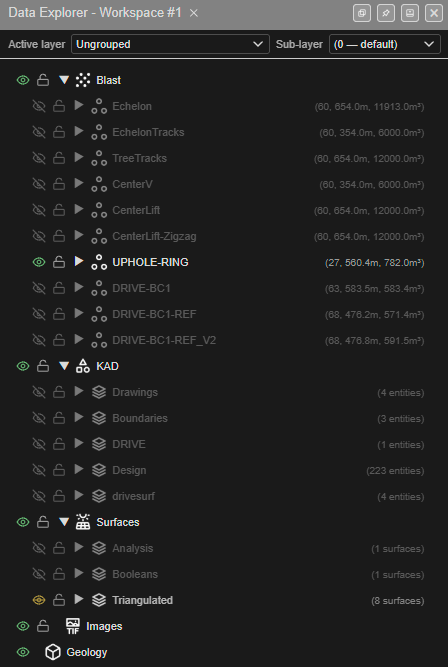 The Data Explorer. Grey rows are hidden; the eye icon is green on visible rows.
The title reads Data Explorer - Workspace #N — the workspace this window is using.
Window buttons
The four buttons at the right of the title bar:
| Button | What it does |
|---|---|
| Open in new window | Pops the Data Explorer out into its own browser window |
| Dock to edge / Undock | Docks it to the edge of the window, or floats it again |
| Collapse / Expand | Folds it down to its title bar, or opens it again |
| Close | Closes it |
What’s in the tree
| Group | Holds |
|---|---|
| Blast | One row per blast, each holding its holes (and groups, if any) |
| KAD | Drawing layers, each holding points, lines, polygons, circles and text |
| Surfaces | Surface layers, each holding surfaces and solids |
| Images | Imported images such as GeoTIFFs and ECWs. An amber warning on an ECW means its file needs reconnecting. Right-click an image and choose Statistics for its details and colour histogram (see Image Statistics) |
| Point Clouds | Point clouds from LAS, LAZ and text point-cloud files, one row each. They are on no drawing layer |
| Geology | Block models |
Click the ▶ arrow to open a row, ▼ to close it.
The grey text on each row
| Row | Example | Means |
|---|---|---|
| Blast | (60, 654.0m, 11913.0m³) |
Number of holes, total hole length, and blast volume (from Assign Volume…) |
| Drawing layer | (4 entities) |
Number of drawings in the layer, including its sub-folders |
| Surface layer | (8 surfaces) |
Number of surfaces in the layer |
| Group | (12 holes) |
Number of holes in the group; fx marks a live (formula) group |
| Point cloud | N=10,040,120 |
Number of points in the cloud |
Active layer
The bar at the top sets where new drawings and surfaces go:
- Active layer — the layer new work is added to. Choose + New Layer… to make one.
- Sub-layer — the folder inside it. Choose + New Sub-layer… to make one.
See Layer Organisation for how layers and sub-layers nest.
Show, hide and lock
Each row has two icons at its left.
| Icon | States | Click it to |
|---|---|---|
| Eye | Visible · Hidden · Mixed (some of the contents hidden) | Show or hide the row and everything inside it |
| Lock | Unlocked · Locked · Some locked | Lock or unlock the row and everything inside it |
A locked item stays visible but cannot be selected or edited — use it to protect a finished design while you work around it. Most right-click actions on a locked row first ask Unlock and …?; Delete is refused until you unlock it.
Tip: Hiding is the quickest way to work on one blast at a time. Exports also follow visibility — hide what you don’t want in the file.
Select in the tree
| Do this | Result |
|---|---|
| Click a row | Selects it |
| Shift + click | Selects the range of rows between |
| Ctrl + click (Cmd on a Mac) | Adds or removes one row |
| Delete or Backspace | Deletes the selected rows (see Delete below) |
| Escape | Clears the selection |
Right-click menu
Right-click a row for its tools. The menu shows only the items that fit what you clicked.
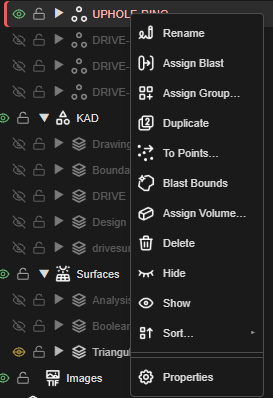 Right-clicking a blast.
Blasts and holes
| Item | What it does |
|---|---|
| Rename | Renames the blast, or the hole’s ID. With several holes selected, moves them to a blast name you type |
| Assign Blast | Moves the holes to another blast |
| Assign Group… | Puts the holes into a named group |
| Duplicate | A blast: copies it as a new blast. Holes: copies them into a new blast |
| To Points… | Makes KAD points at the visible holes |
| Blast Bounds | Draws a red boundary polygon around each blast’s visible holes (needs at least 3) |
| Assign Volume… | Chooses how the blast volume is worked out — for example Burden × Spacing × hole length |
| Reset Connections | (Holes only.) Removes the holes’ ties: each hole is tied to itself, with zero delay and hole time |
| Statistics | (Blasts only.) Opens the Blast Statistics table — holes, drilling and charging by hole type |
| Properties | Opens the hole editor for the hole, holes or blast |
Groups
| Item | What it does |
|---|---|
| Edit Group… | Changes the group’s name, its manual or live mode, its formula and its members |
| Remove from Group | Takes the selected holes out of the group (not for live groups, whose members come from the formula) |
| Remove Group | Deletes the group. The holes stay |
Drawings (KAD)
| Item | Shows on | What it does |
|---|---|---|
| Add Layer | The KAD group | Creates a drawing layer |
| Make Active | A layer | Makes it the active layer (not a locked one) |
| Rename | A layer, folder or drawing | Renames it |
| Duplicate | A layer, folder or drawing | Copies it as <name>_copy |
| Move to Layer | A layer, folder or drawing | Moves it to another layer |
| Circle to Polygon | Circles only | Replaces each circle with a 36-sided polygon. The circles are removed |
| Text to Poly | Text only | Turns the text into line or polygon outlines. The text is kept |
| Select objects/holes fully inside | Polygons | Selects the holes — or drawings or vertices, by the H / K / V mode — wholly inside the polygon |
| Statistics | Lines, polygons, points | Opens a read-only table of the drawing’s statistics |
| Properties | A drawing | Opens its editor |
Surfaces
| Item | Shows on | What it does |
|---|---|---|
| Add Layer | The Surfaces group | Creates a surface layer |
| Make Active | A layer | Makes it the active layer |
| Duplicate | A surface | Copies it |
| Move to Layer | A surface | Moves it to another layer |
| Send to Image… | Surfaces, a layer, or the group | Renders the surfaces as an image in Images |
| Convert to… ▸ Faces / Edges / Points | A surface | Makes KAD polygons (one per triangle), lines (one per edge) or points. Asks first if this would make more than 5,000 drawings |
| Footprint… ▸ Ceiling / Floor / Edge | A surface | Draws the outline at the highest elevation, the lowest, or along the real open edge |
| Normals… ▸ Flip Normals / Align Normals / Normals Out / Normals In / Orient | A surface | Flips, aligns (faces up), points a closed solid’s faces out or in, or makes the winding consistent |
| Statistics | A surface | Opens a read-only Surface Statistics table |
| Properties | A surface | Opens the surface menu |
Point clouds
| Item | What it does |
|---|---|
| Rename | Renames the cloud |
| Properties | Opens Cloud Properties: point size, colouring, limits, classes and Remove duplicates |
Hide / Show and Delete are on the shared list below. Sort… is on the Point Clouds group.
Trunks
| Item | What it does |
|---|---|
| Convert to Hole Ties | Replaces the trunk with hole-to-hole ties. It asks first, and cannot be converted back |
On everything
| Item | What it does |
|---|---|
| Hide / Show | Hides or shows the row and everything inside it |
| Sort… ▸ 0 → 9 / 9 → 0 / A → Z / Z → A | Re-orders the rows in the tree. Your data is not changed |
| Delete | Deletes the selection — see below |
Delete
| Deleting | What happens |
|---|---|
| Holes, drawings, vertices | Deleted; Undo (Ctrl+Z) brings them back. Deleting some holes of a blast asks Renumber Holes? |
| A layer | Delete Layer(s) asks: Delete All (the layer and its contents), Keep Entities, or Cancel |
| A trunk or block model | Asks to confirm |
| A point cloud | Delete Point Cloud asks Delete 1 point cloud(s)? This cannot be undone. — click Delete or Cancel. Undo does not bring it back |
| A surface or image | Deleted straight away — no confirmation and no undo |
Warning: Circle to Polygon, Remove Group, Reset Connections and deleting a surface or image happen without a confirmation. Export a KAP project before large clean-ups.
Troubleshooting
A blast is in the tree but not on the canvas. Its eye is off (the row is grey). Click the eye.
I can’t select something on the canvas. It is locked — click its lock icon.
My new drawing went onto the wrong layer. Check Active layer at the top of the Data Explorer before drawing.