kirra-docs
Workspaces
Kirra keeps ten separate workspaces, numbered 0 to 9. Each one is a complete, separate store of holes, drawings, surfaces, charging, timing and libraries. Use them to keep jobs apart — one blast per workspace, a test copy beside the real one, or a clean workspace to try something without touching your work.
Prerequisites
- Nothing. Workspace 0 is used unless you choose another.
The Workspace toolbar
Open the Workspace toolbar from its tab on the right edge of the window.
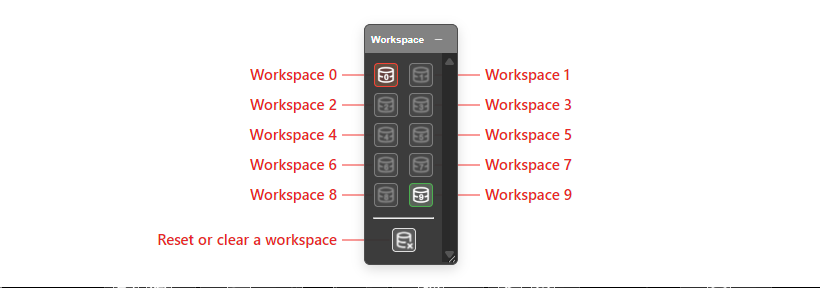 Ten workspace chips and, at the bottom, Reset or clear a workspace.
Reading the chips:
| Chip | Means |
|---|---|
| Red border | The workspace this window is using |
| Green border | Holds data |
| Dimmed | Empty |
Hover over a chip for the same information in words, for example “Workspace 2 — has data”.
Open another workspace
- Click a workspace chip.
- In a browser, the workspace opens in its own window. Clicking the same chip again brings that window forward rather than opening a second copy.
- Work in it as normal. Each window saves to its own workspace.
Clicking the chip of the workspace you are already in shows Already Here.
Note: If nothing opens, the browser blocked the new window and Kirra shows Popup Blocked. Allow pop-ups for Kirra and click the chip again.
In the desktop app, there is one window. Clicking a chip asks Switch Workspace — “Unsaved changes are lost.” Click Switch to change this window to that workspace, or Cancel.
Open a workspace from its address
Each workspace has its own address: add ?ws= and the number to Kirra’s address, for
example ?ws=3 for Workspace 3. Without it, Kirra opens Workspace 0. Bookmark an address to
go straight to a job.
Name a workspace
- Right-click a workspace chip.
- In Name Workspace, type a name in Name for Workspace N.
- Click OK.
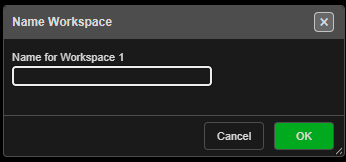
The name shows in the window title and the chip’s tooltip. Leave the field blank and click OK to remove the name. Names are kept by this browser on this computer.
Clear a workspace
Clearing removes everything in a workspace. It cannot be undone — export a KAP project first if you may want any of it again.
- Click Reset or clear a workspace at the bottom of the Workspace toolbar.
- In Reset a Workspace, choose the workspace under Which workspace should be cleared? Each line says whether it has data and which one is THIS WINDOW.
- Click Clear….
- Read the confirmation — “Holes, drawings, surfaces, charging, timing and every library in it are removed. This cannot be undone.” — and click Delete, or Cancel.
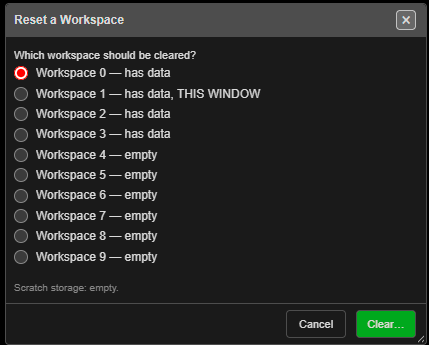 Reset a Workspace. The line at the bottom reports the scratch storage.
What to expect
- Kirra shows Cleared when it is done.
- Clearing the workspace you are in reloads Kirra, empty.
- If the workspace is open in another window, Kirra shows Still Open Elsewhere — close that window first.
Scratch storage
Large imports leave working files in the browser’s scratch storage. The line at the bottom of the dialog reports how much there is. When there are leftover files, a Clear Scratch button appears — it removes only those files, not any workspace.
Moving work between workspaces
Workspaces do not share data. To copy a job from one to another, export a KAP project from the first and open it in the second. To copy only your site setup — products, charge rules, templates — use a KAT template. See Starting, Saving & Projects.
Troubleshooting
A workspace I used yesterday looks empty. Check the window title and the red chip — you may be in a different workspace. Workspaces are kept by the browser: a different browser, a private window, or clearing the browser’s site data shows empty workspaces.
No chip is marked as having data. Some browsers cannot report which workspaces hold data. The reset dialog says so when this happens.