kirra-docs
Editing Holes
Once holes are on the canvas — whether manually placed, imported from a file, or generated as a pattern — you can select, move, modify, and delete them individually or in bulk.
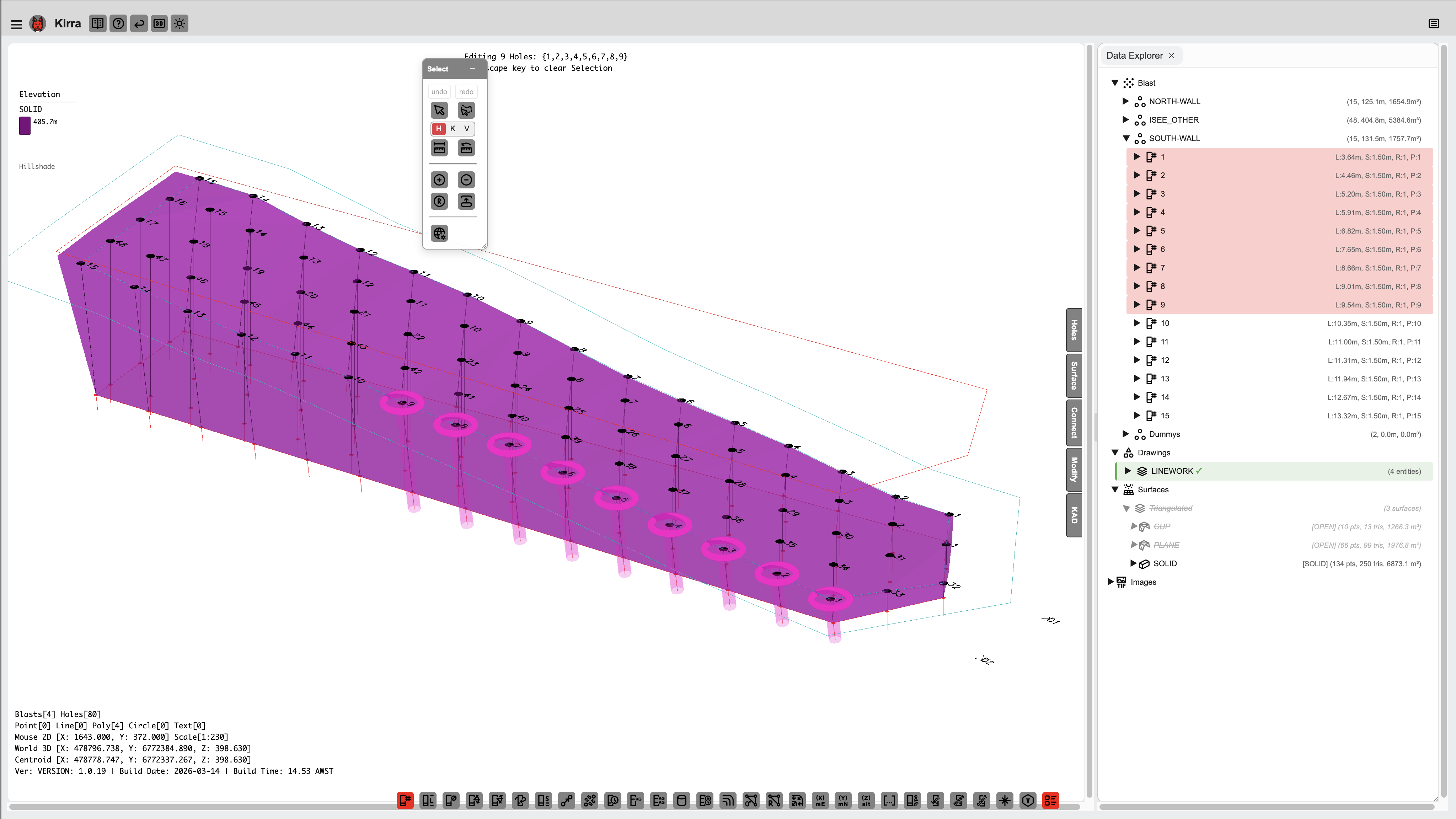 Selecting entities in the Data Explorer highlights them on the canvas.
Selecting Holes
Single Selection
- With Pointer Select on (Select toolbar), click any hole on the canvas
- A plain click replaces the current selection with that hole
Multi-Selection
| Method | How |
|---|---|
| Shift+Click | Add individual holes to the current selection one at a time |
| Polygon Select | Use the Select toolbar’s polygon / shape selection to select every hole inside an area — see Select Toolbar |
TreeView Selection
The TreeView panel on the left shows all entities (patterns) and their holes in a tree structure.
- Click an entity name to select all holes in that pattern
- Click an individual hole node to select just that hole
Tip: Use the TreeView to quickly find and select holes by name, especially in large patterns with many overlapping holes.
Viewing Hole Properties
Right-click a hole to open the Edit Hole dialog for it (or for the whole selection, if the hole is part of one):
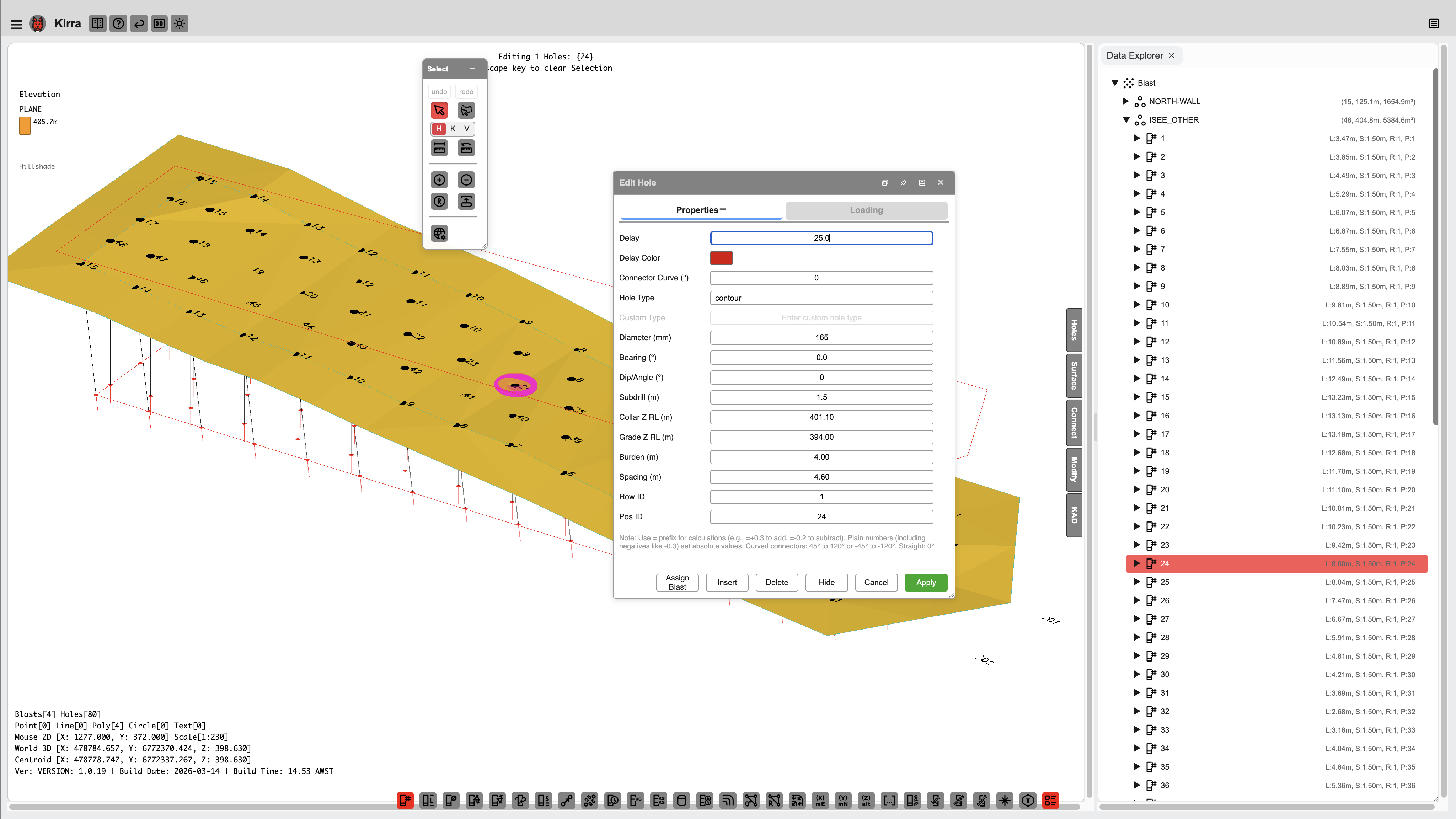 Right-click a hole to view and edit properties, charge details, timing, and more.
Moving Holes
Drag to Move
- Select one or more holes
- Click the Move button on the Modify toolbar
- Click and drag on the canvas to move the selection
- Release to drop at the new location — collar, grade and toe move together
Dropping on another hole: if a moved hole lands on top of another hole in the same blast, Kirra shows a coincidence warning on drop and lets you Keep the move or Revert (snap the moved hole(s) back to where they started). See Hole coincidence below.
Modifying Hole Properties
Individual Hole
- Right-click the hole — the Edit Hole dialog opens
- On the Properties tab, edit fields such as Hole Type, Diameter (mm), Hole Pivot Location, Bearing (°), Dip/Angle (°), Subdrill (m), Collar Z RL (m), Grade Z RL (m), Burden (m) and Spacing (m)
- Click Apply — dependent values (hole length, grade and toe position) are recalculated
The dialog also has Additional, Loading and Text tabs, and footer buttons Hide, Delete, Insert and Assign Blast.
Bulk Edit
- Select two or more holes
- Right-click one of the selected holes — the Edit Hole dialog opens for the whole selection (with Properties, Additional and Text tabs)
- Fields that differ across the selection are left empty with a hint such as varies (avg: 115); list fields are marked (multiple). Type or pick a new value to apply it to all selected holes
- Fields left unchanged stay as they are on each hole
- Click Apply
Common bulk-edit operations:
- Change hole type for all selected holes (e.g. Production to Presplit)
- Update diameter across a selection (e.g. 115 mm to 165 mm)
- Adjust angle for all selected holes
- Set a new colour for visualisation
Hole Colour and Shape
Holes are normally drawn to contrast with the background — white on a dark canvas, black on a light one. You can instead give a hole a colour of its own, and a shape.
Setting them
- Right-click a hole (or a selection) to open Edit Hole
- Open the Additional tab
- Set Hole Colour, and Hole Shape
- Click Apply
The Additional tab also holds the Surface Product, Delay, Delay Colour and Connector Curve controls.
Hole Colour
| Setting | What you get |
|---|---|
| Auto | White on a dark background, black on a light one |
| Fixed colour | The colour you pick, on any background |
Switching back to Auto remembers your colour, so you can toggle between them without losing the pick.
Hole Colour is not Delay Colour. Delay Colour is the colour of the timing connectors between holes. Hole Colour is the hole marker itself. They sit next to each other on the Additional tab and do different jobs.
Hole Shape
Circle (the default), Triangle, Square, Cross or Diamond.
- Triangle, square, cross and diamond point along the hole’s bearing, and turn with the plan when you rotate the view.
- The cross is drawn as an × across the bearing, so it is not confused with the × already used to mark a hole with no length.
- Shapes other than the circle are drawn a little larger, each by the amount needed to carry the same visual weight — a triangle needs more than a square.
- The diamond is slightly narrow across the bearing, so it reads as a diamond rather than a square turned on its corner.
Editing several holes at once
Select the holes first. Both controls offer – No Change –, which is what they show when the selection is mixed — so changing the shape of a selection will not overwrite everyone’s colour, and vice versa.
On the printed plan
Colours and shapes print exactly as they appear on screen. A hole set to Auto prints black, because the page is white.
The red grade circle and subdrill line always stay red — red means below grade.
Setting them for a whole new pattern
A Pattern Template can carry a colour and a shape, and applies them to the holes it creates.
Deleting Holes
- Select the holes to remove
- Press
DeleteorBackspace(or right-click and click Delete in the Edit Hole dialog) - Kirra asks what to do with the numbering of the holes that remain:
| Choice | What happens |
|---|---|
| Delete | The holes go and the numbering is left alone, so there is a gap where they were — 179, 183, 184 … |
| Renumber | The holes go and the gap is closed up, so the numbering stays continuous |
| Cancel | Nothing is deleted |
- Undo with
Ctrl+Zif needed
Choosing Renumber asks for a starting value first, and renumbers the whole blast from there.
Note: If you are deleting every hole in a pattern there is nothing left to renumber, so Kirra deletes without asking.
Renumbering Holes
Use Renumber Holes on the Holes toolbar: pick the first and last hole of a
run and give it new IDs, a row and positions. The start value you type chooses the naming scheme —
500 gives numbers, A1 gives row names. Timing links and charging follow the new IDs.
To rebuild every row and position in a blast from a row line, use Reorder Rows.
How hole numbers change when you edit
Numbered holes carry one continuous count across the blast, so an edit in the middle moves everything after it:
| Action | Effect on the numbering |
|---|---|
| Insert a hole before 179 | The new hole becomes 179; the old 179 and everything after move up one |
| Insert a hole after 179 | The new hole becomes 180; the old 180 and everything after move up one |
| Delete 180, choosing Renumber | 181 becomes 180, and so on — the gap closes |
| Delete 180, choosing Delete | The gap stays |
Row-named holes work differently. There the number is the hole’s column, and a gap in it is meaningful — it keeps A13 sitting under D13 across the pattern. So inserting into a row-named blast renumbers only that row, and deleting leaves the column gap in place.
Holes you have named yourself keep their names through all of this, and nothing else is given their number.
Serpentine patterns are preserved throughout. Inserting, deleting and renumbering all read the direction from your existing hole names, so a blast that snakes back and forth still snakes after the edit.
Automatic Pattern Analysis
Kirra uses HDBScan clustering to automatically determine pattern structure for your holes:
| Calculated Property | Description |
|---|---|
| Row ID | Which row each hole belongs to |
| Position ID | Position within the row |
| Burden | Distance to the next row |
| Spacing | Distance to the next hole in the same row |
These values are calculated automatically and can be viewed in the Edit Hole dialog or exported with your data. They enable row-based operations, pattern statistics, and burden/spacing analysis.
Undo / Redo
All editing operations support undo and redo:
Ctrl+Z— undo the last actionCtrl+YorCtrl+Shift+Z— redo
Hole coincidence
Two holes in the same blast must never share an XY position — a duplicate on top of another causes double-charging, breaks the timing network, and corrupts volume/powder-factor calculations. Every tool that creates or moves a hole checks for this and warns you before it happens:
- Adding / inserting / pattern tools — if a new hole would land on an existing hole in the same blast, a proximity warning appears with Ignore (place anyway), Skip (place only the non-clashing holes), Skip All, or Cancel.
- Move tool — if a dragged hole is dropped on another hole in the same blast, the drop is flagged with Keep (allow) or Revert (snap the moved hole(s) back to their original positions).
Coincidence is only flagged within a blast (same entity). Holes from different blasts may overlap in plan view by design — they sit on different benches at different elevations. To find coincident holes across blasts, use Coincident Holes Check on the Holes toolbar.
Duplicating a whole blast
(v1.1.32.46)
Right-click a blast in the Data Explorer and choose Duplicate to make a second, separate copy of it — a Version 2, or a copy to try a different charge or timing against the original.
Holes are never duplicated into a blast (see Hole coincidence above). The copy is always a new blast, sitting on the same ground as the original.
- Right-click the blast → Duplicate.
- Enter the New blast name. Kirra suggests
<name>_V2; copying a_V2suggests_V3. A name already used by another blast is refused. - Leave Hide the original ticked unless you want both on screen — they occupy the same positions, so both visible will overprint.
- Click Duplicate. The copy appears in the tree straight away.
What is copied: every hole’s design, the charging, surface ties, cord links and trunklines, blast groups, label layout, and the volume method.
What is not:
- The link to the timing construct. Fire times are kept exactly, but the copy is not part of the original’s construct, so you can re-time it on its own without touching the original. It is also treated as its own firing event.
- Links that leave the blast. A hole tied from another blast becomes self-tied, and cord links or trunk knots into another blast are left out. Kirra tells you how many.
- The trunk network name. The copy’s trunklines form their own network.
A duplicate cannot be undone with Ctrl+Z — delete the copy to remove it.
Related Topics
- Add Hole — place individual holes manually
- Insert Holes — insert into a row before or after a hole
- Renumber Holes and Reorder Rows
- Hole Properties Reference — every field explained
- Pattern Generation — generate patterns automatically
- Timing Sequences — assign initiation delays