kirra-docs
Timing Sequences
Timing controls the order and delay between hole detonations in a blast. Correct timing is essential for fragmentation, vibration management, and flyrock control. In Kirra you build surface timing by tying holes together with the tools on the Connect toolbar.
Key Concepts
| Term | Meaning |
|---|---|
| Tie (connector) | A link drawn on the canvas from one hole to the next, carrying a delay |
| From Hole | The hole that triggers the current hole (the source of its tie) |
| Delay | The delay in milliseconds a tie adds |
| Initiation point | A hole tied to itself — where the blast is lit. Its delay is its start time |
| Firing time | The absolute time a hole fires: the sum of the delays along the tie chain from the initiation point, plus any connector travel time |
| Inter-hole / inter-row delay | The delays you choose for ties along a row and between rows |
Tying Holes
- Pick a connector product chip on the Connect toolbar, or type a Delay Amount — see Connector Settings
- Choose a tie tool:
- Tie Connect — one tie at a time: click the source hole, then the target hole
- Tie Connect Multi — click the first and last hole of a line; every hole near the line is tied in order
- Tie Connect Continuous — click a run along the row, on holes or the ground between them
- Trunk Branch Connect — lay a trunk line; holes in the swath are tied with branches to it
- Make the first hole an initiation point — click it twice with a tie tool, or use Self Connect Add IP
Each tie sets the target hole’s From Hole and Delay. Firing times recalculate as you go. See the Connect Toolbar for every tool.
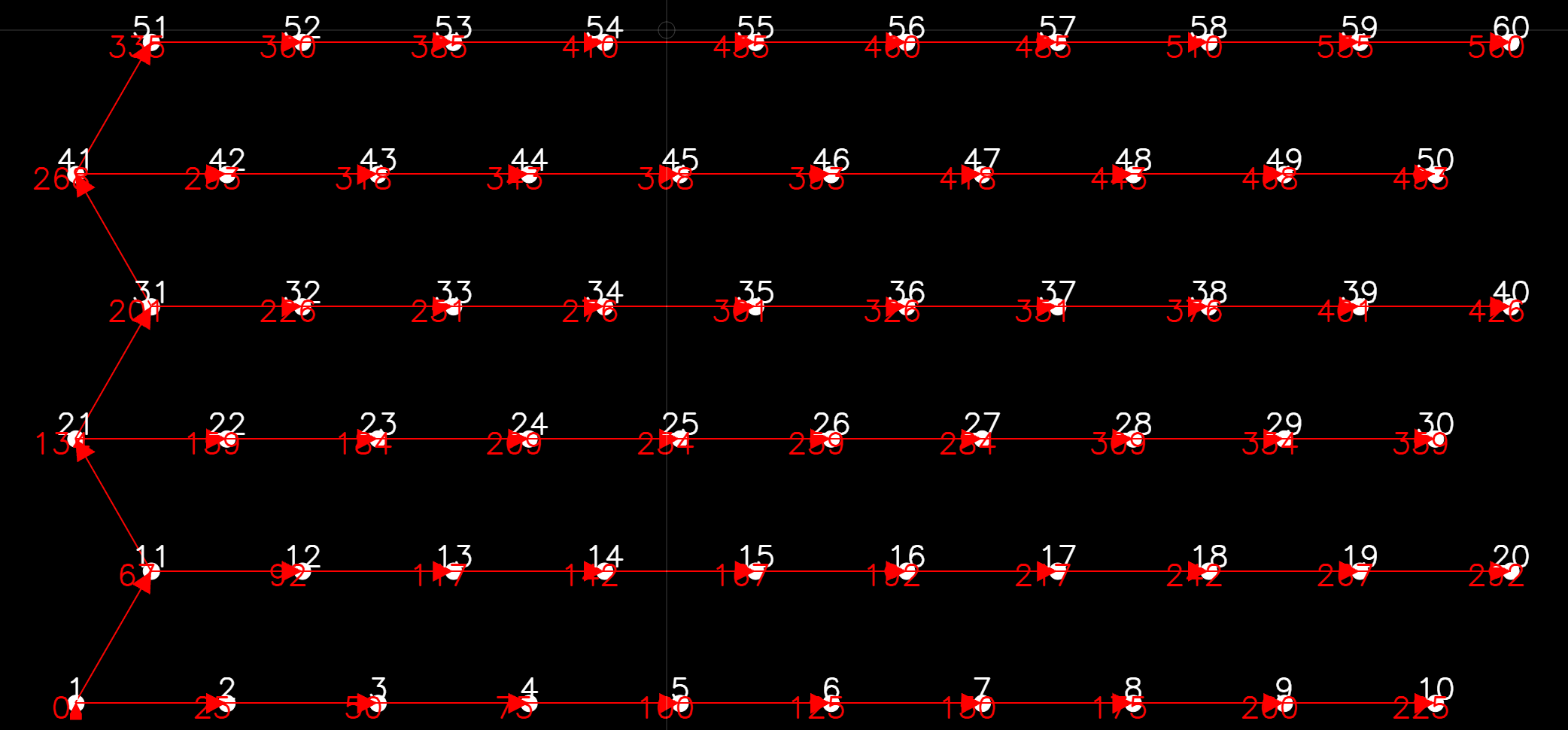 A pattern tied row by row with Ties and Hole Time on. Each arrow runs from the hole that
fires it; the red number beside each hole is its firing time in ms.
A pattern tied row by row with Ties and Hole Time on. Each arrow runs from the hole that
fires it; the red number beside each hole is its firing time in ms.
Viewing ties and times
Use the display toggle buttons along the bottom of the workspace — Ties shows the tie lines, Delay Value shows each hole’s delay, and Hole Time shows its firing time.
Removing ties
- Connectors Remove on the Connect toolbar — hover a tie to highlight it, then click it (or press
Delete) to remove it - Reset Connections — right-click selected holes in the Data Explorer. Each hole is tied to itself, so the surface ties are cleared
Timing Flow Across a Pattern
Timing builds up from the initiation point. Each hole’s firing time is the sum of the delays along its tie chain:
Hole A (0 ms)  -->  Hole B (42 ms)  -->  Hole C (84 ms)
                         |
                         v
                    Hole D (67 ms)  -->  Hole E (109 ms)
In this example:
- Hole A is the initiation point and fires at 0 ms
- Hole B fires 42 ms after Hole A (absolute time: 42 ms)
- Hole C fires 42 ms after Hole B (absolute time: 84 ms)
- Hole D fires 25 ms after Hole B (inter-row delay; absolute time: 67 ms)
- Hole E fires 42 ms after Hole D (absolute time: 109 ms)
A hole with no tie chain back to an initiation point has no firing time. Removing an initiation point therefore leaves every hole fed from it without a time — Kirra reports how many.
Ties made with a connector product also add the product’s signal travel time (distance ÷ the product’s Delivery VOD). A delay typed by hand carries no travel time.
Tie Display Settings
These are set per hole on the Additional tab of the Edit Hole dialog (right-click a hole):
| Setting | Description |
|---|---|
| Surface Product | The connector product on the hole’s tie |
| Delay | The tie’s delay in ms |
| Delay Colour | Colour of the tie line |
| Connector Curve (°) | Curve of the tie line (0 = straight) |
Checking Timing
- Turn on Hole Time and look for holes with no time — they are not connected to an initiation point
- Look for crossed tie lines — they often indicate incorrect firing order
- Use the Time Window dialog and Timing Contours to review the firing sequence across the pattern
- Play the sequence with Blast Animation on the Analyse toolbar
Exporting Timing Data
Each hole’s From Hole and Delay travel with the blast in Kirra project files and in the hole CSV formats that carry timing columns. See CSV Export and Other Formats.
Electronic timing constructs (optional)
For electronic detonators in the charging design, you can build a temporal mesh (time as height) from drawn contours and assign firing times by interpolating at each collar. That system is separate from tie delays and is documented in:
To move surface timing onto electronic detonators, use Bake Delay on the Connect toolbar — see Bake Delay.
Related Topics
- Connect Toolbar — every tie, trunk and timing tool
- Pattern Generation — generate your pattern before assigning timing
- Editing Holes — select and modify holes
- Adding Holes — place individual holes manually