kirra-docs
Add Hole
Places individual blast holes where you click on the canvas — one at a time, or a run of holes with the same settings. Use it for infill holes, relief holes, re-drills and small designs that no pattern tool fits.
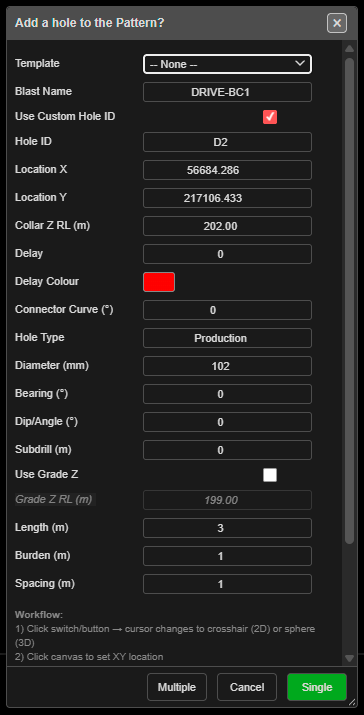 The Add a hole to the Pattern? dialog, with Multiple, Cancel and Single in the footer.
Prerequisites
- None. To place the hole on existing work, snap the click to a KAD point, vertex or hole.
Place a hole
This tool is click-first: you click the position, then the dialog opens.
- Click Add Hole on the Holes toolbar. Hole ID labels are switched on so you can see the numbering.
- Click the canvas where the hole goes. The click snaps to nearby objects; the status line says what it snapped to.
- The Add a hole to the Pattern? dialog opens with the click in Location X / Location Y.
- Set the blast name and hole properties (see The fields).
- Click Single to place this one hole and finish, or Multiple to place it and keep going.
Place several holes with the same settings
- Fill in the dialog and click Multiple. The hole is placed and the dialog closes.
- Click the canvas again. Each click places another hole with the same settings — no dialog.
- Click Add Hole again, or press Escape twice, to finish.
The status line confirms each hole: “Hole added to {blast name}”.
The fields
| Field | First-use value | What it does |
|---|---|---|
| Template | – None – | Picking a pattern template fills the blast name, type, diameter, angle, subdrill, burden, spacing and elevations. Its text setup and charging are applied to the new hole |
| Blast Name | Added_hole_ + a number |
The blast the hole goes into. An existing name adds to that blast |
| Use Custom Hole ID | Off | Tick to type the ID yourself |
| Hole ID | — | The custom ID. A number at or below the blast’s highest number becomes the next number after it; any other ID already in the blast is replaced with a free one |
| Location X / Location Y | Your click | Collar position. You can type over them |
| Collar Z RL (m) | Snapped elevation | The elevation of the object you snapped to, or the drawing elevation. If that is 0, the last value you used |
| Delay | 0 | Remembered for next time. A new hole starts untied at 0 ms — tie it with the Connect toolbar |
| Delay Colour | Red | Remembered for next time. A new hole starts with a red tie colour |
| Connector Curve (°) | 0 | Remembered for next time. The dialog’s tip: “Curved connectors: 45° to 120°, -45° to -120° | Straight: 0°”. A new hole is untied, so it has no connector to curve |
| Hole Type | Production | Free text |
| Diameter (mm) | 115 | Hole diameter |
| Bearing (°) | 0 | Direction an angled hole leans (0 = North, clockwise) |
| Dip/Angle (°) | 0 | Angle from vertical. 0 = vertical |
| Subdrill (m) | 0 | Vertical depth below grade |
| Use Grade Z | Off | Ticked: the hole runs to Grade Z RL (m). Unticked: it is set by Length (m) |
| Grade Z RL (m) | Calculated | Floor RL. Editing it recalculates the length |
| Length (m) | 0 | Collar-to-toe length, including subdrill. Editing it recalculates the grade |
| Burden (m) | 3.0 | Stored on the hole for analysis |
| Spacing (m) | 3.5 | Stored on the hole for analysis |
The dialog remembers what you entered, so your last values become the defaults. Its Workflow and Tips notes at the bottom summarise these steps.
Note: Add Hole has no Hole Pivot Location field — the click is always the collar.
What to expect
- The hole appears at the clicked position, collar at Collar Z RL (m), toe set by the angle, bearing and length or grade.
- Each hole is its own undo step — Ctrl+Z removes the last one.
- If the new hole would sit on a hole already in the same blast, the Hole Proximity Warning asks you to Skip, Ignore, Skip All or Cancel. Holes in other blasts are not checked. See Editing Holes → Hole coincidence.
- The Data Explorer updates with the new hole under its blast.
Hole geometry in brief
Every hole is defined by three points: the collar (top), the grade (where it crosses the design floor) and the toe (bottom).
- Bench height = collar RL − grade RL
- Subdrill = grade RL − toe RL (vertical; positive = below the floor)
- Length = the 3D distance from collar to toe
- Angle is measured from vertical; bearing clockwise from North
The full list of hole fields is in the Hole Properties Reference; axes and angle conventions are in Coordinate System.
Other ways to use it
| Method | Result |
|---|---|
| Multiple | Keep clicking to place holes with the same settings |
| Cancel in the dialog | Closes it and switches the tool off |
| Escape (twice) | Leaves the tool and returns to Pointer Select |
| 3D view | Click in 3D; the same dialog opens, and Multiple works the same way |
| Section work plane | In Multiple mode each click on the plane takes its own elevation |
| Insert Holes | Adds holes into an existing row, renumbering the row |
| Add Pattern and the other pattern tools | Many holes at once |
Troubleshooting
“Invalid Blast Name” or “Invalid Type” Blast Name or Hole Type is empty.
“No Location” — “Please click on the canvas to set hole location.” The dialog has no clicked position. Close it and click the canvas first.
The hole has no depth. Length (m) is 0 on first use. Enter a length, or tick Use Grade Z and set the grade RL.
I typed a custom Hole ID but the hole got a different one. That ID is already used in the blast, so Kirra gave the hole a free one.
Editing a hole after placement
Click the hole with Pointer Select to select it, then right-click for the Edit Hole dialog. See Editing Holes for moving, bulk editing and deleting.
Related
- Add Pattern — a rectangular grid
- Pattern in Polygon — fill a boundary
- Holes Along Line and Holes Along Polyline — rows
- Pattern Templates
- Editing Holes
- Hole Properties Reference
- Holes Toolbar