kirra-docs
Selection & Snapping
Most Kirra tools act on what is selected, and most drawing tools place points by snapping to something already there. This page explains how selecting and snapping work everywhere in Kirra. The button-by-button reference is in Select Toolbar.
What can be selected: H / K / V
The H / K / V switch on the Select toolbar decides what a click or a shape picks up.
| Mode | Selects |
|---|---|
| H — Select Holes | Holes |
| K — Select KAD | Whole KAD drawings — points, lines, polygons, circles, text |
| V — Select KAD Vertices | Individual vertices of KAD drawings |
Tip: If a click selects nothing, check H / K / V first — it is the most common reason.
Select by clicking
With Pointer Select active (it is the default tool):
| Do this | Result |
|---|---|
| Click an item | Selects it, replacing the selection |
| Shift + click | Adds the item — or removes it if it is already selected |
| Ctrl + click (Cmd on a Mac) | Removes the item from the selection |
| Click empty canvas | Clears the selection |
| Escape | Clears the selection (a second Escape also leaves the current tool) |
These work the same in the 2D and 3D views.
Select by drawing a shape
Polygon Select picks everything inside a shape you draw. Right-click its button to choose the shape — the choice is remembered.
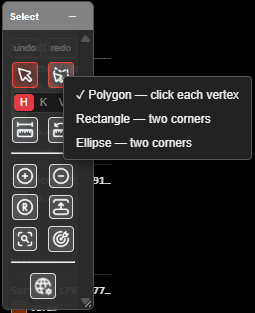
| Shape | How to draw it |
|---|---|
| Polygon — click each vertex | Click each corner, then double-click to close |
| Rectangle — two corners | Click one corner, then the opposite one |
| Ellipse — two corners | Click two opposite corners of the ellipse’s box |
Hold Shift as you finish the shape to add to the selection, or Ctrl (Cmd) to remove from it.
Select from the Data Explorer or by criteria
- Click rows in the Data Explorer — Shift selects a range, Ctrl (Cmd) adds or removes one row.
- Find Select Zoom on the Select toolbar selects holes or drawings that match criteria — hole type, diameter, elevation and more — and zooms to them. See Find Select Zoom.
Things you cannot select
A locked item stays visible but cannot be selected. Lock and unlock items with the lock icon in the Data Explorer.
Snapping
When snapping is on, the cursor jumps to the nearest thing worth snapping to — a hole collar, a drawing vertex, a surface — so points land exactly on existing work.
Turn snapping on or off
Click Snap in the top bar. A red tint means snapping is on; it is on when Kirra starts.

How close the cursor must be
Right-click Snap to open the Snap popover and drag Radius (0–100 screen pixels). The same value is Snap Tolerance (px) on the 2D tab of Settings. The radius is in screen pixels, so it covers less ground as you zoom in.
What Kirra snaps to
When several things are inside the radius, Kirra takes the first in this list:
- Hole collar
- Hole grade
- Hole toe
- KAD point
- KAD line vertex
- KAD polygon vertex
- Where two KAD segments cross (in plan)
- KAD circle centre
- KAD text position
- A point along a KAD line
- A point along a KAD polygon edge
- Block model cell corner
- Block model cell edge midpoint
- Surface point
- Surface face
While the cursor is snapped, the World 3D line in the information overlay reads Snapped 3D.
Self-snap
When you move KAD points, they normally ignore their own drawing. Hold S to let them snap to other points of the same drawing.
Troubleshooting
Points won’t snap where I expect. Something higher in the list above is inside the radius — zoom in, or lower the Radius.
Snapping grabs things I don’t want. Lower the radius, or turn Snap off for free placement.
Clicking a hole does nothing. Check the H / K / V mode, and check the hole is not locked in the Data Explorer.
Related
- Select Toolbar — every button in detail
- Keyboard Shortcuts & Mouse Controls
- Views & Navigation