kirra-docs
Select Toolbar
The Select toolbar groups the workspace-wide tools for selecting entities, measuring distances and angles, controlling the view, and setting the selection mode. It is one of the eight floating toolbars in the Kirra workspace.
Despite the name, this toolbar is not only about selection — undo/redo, zoom, reset view, section plane, orbit focus, and the Settings dialog all live here because they apply across every other tool.
Toolbar Overview
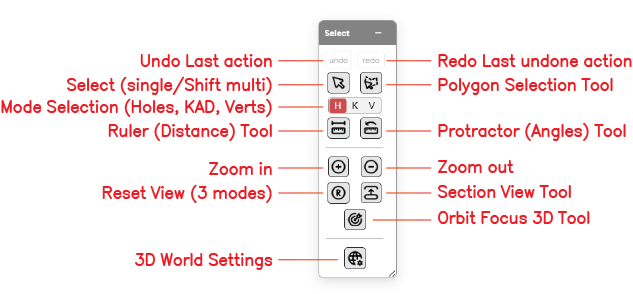 The Select toolbar with its controls labelled.
The Select toolbar contains the following controls:
| Control | Type | Purpose |
|---|---|---|
| Undo | Action | Reverse the last action |
| Redo | Action | Re-apply the last undone action |
| Pointer Select | Mode | Click to select; Shift+click to add, Ctrl+click to remove. This is Kirra’s home tool |
| Polygon Select | Mode | Select everything inside a shape you draw — a polygon, rectangle or ellipse (right-click the button to choose) |
| Mode Selection (H / K / V) | Toggle | Constrain selection to Holes, KAD entities, or KAD Vertices |
| Ruler | Measurement | Measure the distance between points on the canvas |
| Protractor | Measurement | Measure the angle formed by three points |
| Zoom In | View | Zoom the viewport in by one step |
| Zoom Out | View | Zoom the viewport out by one step |
| Reset View | View | Reset the camera — click repeatedly to step through three modes |
| Section Plane | View | Slice the scene with a section plane |
| Find Select Zoom | Dialog | Search holes / KAD by criteria (colour, shape, ID, type, length, bearing, mass, delay…), combine criteria, then zoom to the result |
| Orbit Focus | View | Click a point in the 3D scene to set it as the new orbit centre |
| 3D Settings | Dialog | Open the Settings dialog — 2D view sizes and snap tolerance, 3D camera and lighting, and performance limits |
Undo
Reverses the last editing action. Undo covers adding, deleting, moving and editing holes; inserting holes; adding, deleting, moving and editing KAD entities and their vertices; KAD transforms; trunk changes; and adding, editing or deleting surfaces. Kirra keeps the last 20 actions.
How to Use
- Click the undo button on the Select toolbar, or press
Ctrl+Z(Cmd+Zon a Mac)
See Keyboard Shortcuts for all undo/redo shortcuts.
Redo
Re-applies the last action that was undone.
How to Use
- Click the redo button on the Select toolbar, or press
Ctrl+Y(orCtrl+Shift+Z)
Pointer Select
The default selection tool. Kirra always returns to Pointer Select when another tool finishes or is cancelled, so it is never left with no tool active.
How to Use
- Click the Pointer Select button on the Select toolbar
- Click any entity on the canvas to select it
- Hold
Shiftand click more entities to add them to the selection — Shift+click on an entity that is already selected removes it - Hold
Ctrl(Cmdon a Mac) and click an entity to remove it from the selection - Click on empty canvas to clear the selection
Switching from Polygon Select to Pointer Select keeps the current selection.
Selection Mode Interaction
The Mode Selection toggle (H / K / V) determines which entity types this tool can select — see Mode Selection below.
Polygon Select
Selects every entity inside a shape you draw on the canvas. Right-click the button to choose the shape:
| Shape | How to draw it |
|---|---|
| Polygon | Click each vertex, then double-click to close |
| Rectangle | Click one corner, then the opposite corner |
| Ellipse | Click one corner, then the opposite corner of its bounding box |
The button’s icon and tooltip change to show the chosen shape, and the choice is remembered. Picking a shape from the right-click menu also turns the tool on.
How to Use
- Click the Polygon Select button on the Select toolbar (right-click it first to change the shape)
- Draw the shape on the canvas
- Everything inside it is selected, subject to the active H / K / V mode
Hold Shift while you finish the shape to add to the current selection, or Ctrl (Cmd on a Mac) to remove from it.
Mode Selection (H / K / V)
A three-way toggle that constrains which entity types selection tools pick up. This is one of the most important settings in the workspace — the wrong mode is a common reason a click seems to do “nothing”.
| Mode | Selects |
|---|---|
| H | Holes only |
| K | KAD entities only (points, lines, polygons, circles, text) |
| V | KAD vertices only (does not select hole collars). With Polygon Select, also the points of visible, unlocked point clouds |
How to Use
- Click the H, K, or V letter on the Select toolbar to set the active mode
- The active mode is highlighted
- Selection tools (Select, Polygon Selection) respect the active mode
Tip: If a click isn’t selecting what you expect, check the H/K/V toggle first.
Ruler
Measures the distance between two points on the canvas.
How to Use
- Click the Ruler button on the Select toolbar
- Click the first point
- Click the second point
- A floating panel beside the cursor shows the two elevations (Z1, Z2), the Plan and Total distance, ΔZ, Dip and Slope
Click again to start a new measurement.
Protractor
Measures the angle formed by three points — vertex in the middle, arms to either side.
How to Use
- Click the Protractor button on the Select toolbar
- Click the first arm point
- Click the vertex (the corner of the angle)
- Click the second arm point
- The angle is displayed in a floating panel beside the cursor
Zoom In
Zooms the viewport in by one step, centred on the current view.
How to Use
- Click the Zoom In button on the Select toolbar, or use the mouse wheel
Note: Mouse-wheel direction is controlled by the Scroll wheel forward will setting on the 3D tab of the Settings dialog. The Cursor Zoom setting on the same tab decides whether the wheel zooms towards the cursor or the screen centre.
Zoom Out
Zooms the viewport out by one step.
How to Use
- Click the Zoom Out button on the Select toolbar, or use the mouse wheel in the opposite direction to Zoom In
Reset View (Three Modes)
Resets the camera. Each click in quick succession moves to the next mode; after a pause of about a second and a half the next click starts again at the first mode. The button’s tooltip names the mode the next click will apply.
3D View
| Click | Result |
|---|---|
| 1st click | Plan view — looks straight down, keeps the current zoom |
| 2nd click | Extents of the visible data |
| 3rd click | Extents of all data (visible or not) |
2D View
| Click | Result |
|---|---|
| 1st click | North up (rotation cleared) |
| 2nd click | Extents of the visible data |
| 3rd click | Extents of all data (visible or not) |
Reset View also clears any orbit centre set with Orbit Focus.
Section Plane
Slices the scene with a section plane so you can see inside surfaces or cut through a pattern. Useful for inspecting hole depths against terrain, deck configurations inside a bench, and multi-level pit designs.
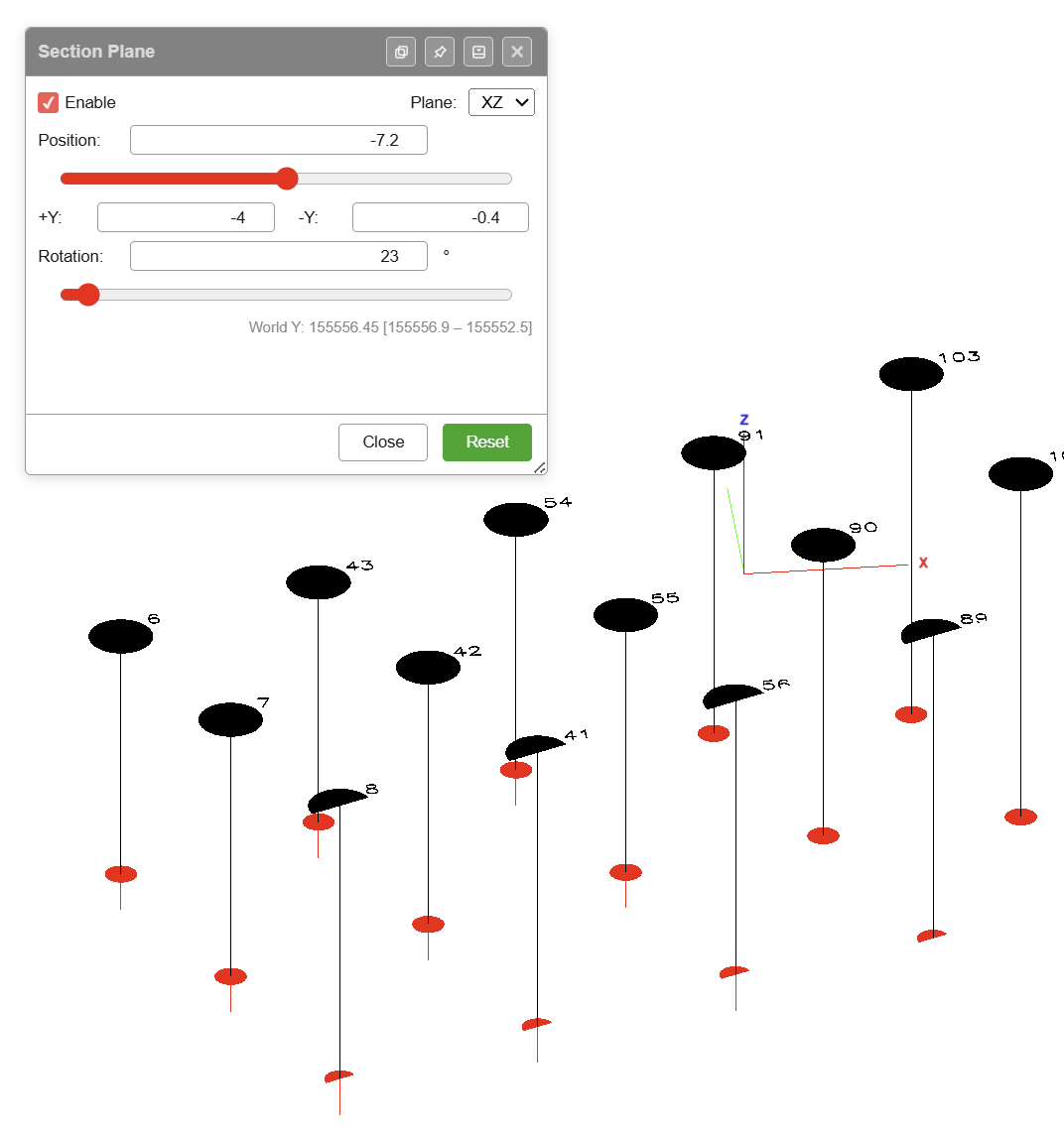 The Section Plane dialog, sectioning across the front of a blast.
How to Use
- Click the Section Plane button on the Select toolbar
- Tick Enable Section Plane (the view switches to 3D)
- Choose the Plane — Two Points, Segment, XY (Elevation), YZ (East-West) or XZ (North-South)
- Set the slice thickness either side of the plane, then step it with Position
- Click Close to leave the dialog (the section stays on while Enable Section Plane is ticked), or Reset to return to the defaults
See 3D View — Section Plane for every option, and Section Views for how it compares with the Hole Section View.
Find Select Zoom
Opens the Find / Select / Zoom dialog — search for holes or KAD objects by one or more criteria, select the matches, and zoom the viewport to them. Handy for isolating a subset of a large blast (for example, every triangle-shaped hole, or every hole with a delay over a threshold).
Criteria are chips: click (or drag) one from the palette into the Match ALL of box, then set its comparison. Add as many as you need — a hole must satisfy all of them to be found.
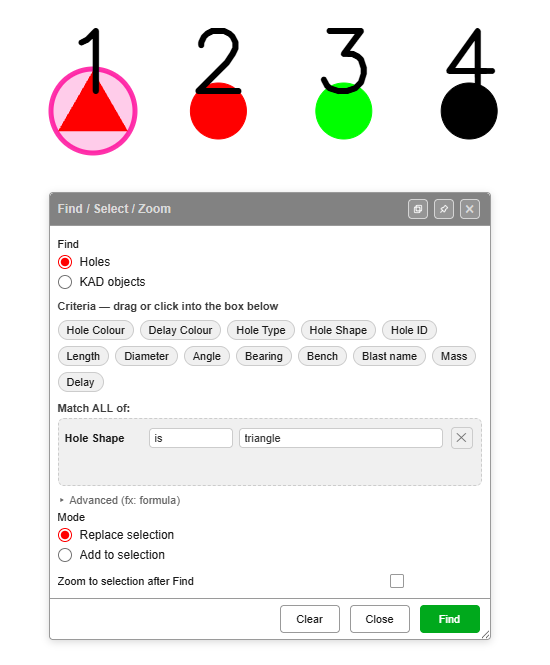 Hole Shape is triangle — hole 1 is the only triangle in the pattern, and it is the only one selected.
Criteria for Holes
| Chip | Compares | Notes |
|---|---|---|
| Hole Colour | The colour the hole is drawn in | Colour well, or sample one off the pattern with the target-arrow button. Also is auto / is not auto — see below |
| Delay Colour | The delay / connector swatch | A different thing from Hole Colour. This is the colour the ties and delay text take |
| Hole Type | Production, Batter, Buffer, Presplit… | Lists only the types present |
| Hole Shape | circle, triangle, square, cross, diamond | Lists only the shapes present. A hole that was never given a shape is a circle, and is found as one |
| Hole ID | Hole name, as text or as a number | text matches A1 exactly; number compares the trailing digits, so > 10 finds B11 |
| Length, Diameter, Angle, Bearing, Bench | Numeric | Angle is degrees from vertical; bearing is degrees from north |
| Blast name | The blast the hole belongs to | is / is not / contains |
| Mass | Explosive kilograms from the charging system | 0 finds uncharged holes |
| Delay | Hole delay, milliseconds | 0 finds holes with no delay set |
Criteria for KAD objects
Switch Find to KAD objects for a different palette:
| Chip | Compares | Notes |
|---|---|---|
| Object type | point, line, poly, circle, text | |
| Colour | The object’s colour | Colour well, or sample one with the target-arrow button |
| Point count | Number of vertices | = 2 finds two-point lines |
| Name | The object’s name | is / is not / contains |
| Closed | Closed or open | |
| Line width | Numeric | |
| Elevation | Every point of the object | See below |
| Layer | The KAD layer it sits on | Lists only layers that hold something. Unlayered objects are Ungrouped |
| Length | Plan length, metres | A closed polygon’s length is its perimeter; a circle’s is its circumference |
| Area | Plan area, square metres | Closed polygons and circles only; open lines are 0 |
| Text | A text object’s words | is / is not / contains |
| Font height | A text object’s font height |
Length and Area are measured in plan, the same as the L= and A= figures in the tree.
Elevation
Elevation looks at every point of the object, not just the first:
| Comparison | Finds |
|---|---|
| > / >= | Objects lying entirely above that RL |
| < / <= | Objects lying entirely below that RL |
| = | Objects flat at exactly that RL — contours, bench lines |
| ≠ | Everything not flat at that RL |
Add Elevation twice for a band: > 400 and < 500 finds everything lying between RL 400 and RL 500. An RL of 0 is a real elevation and is found like any other.
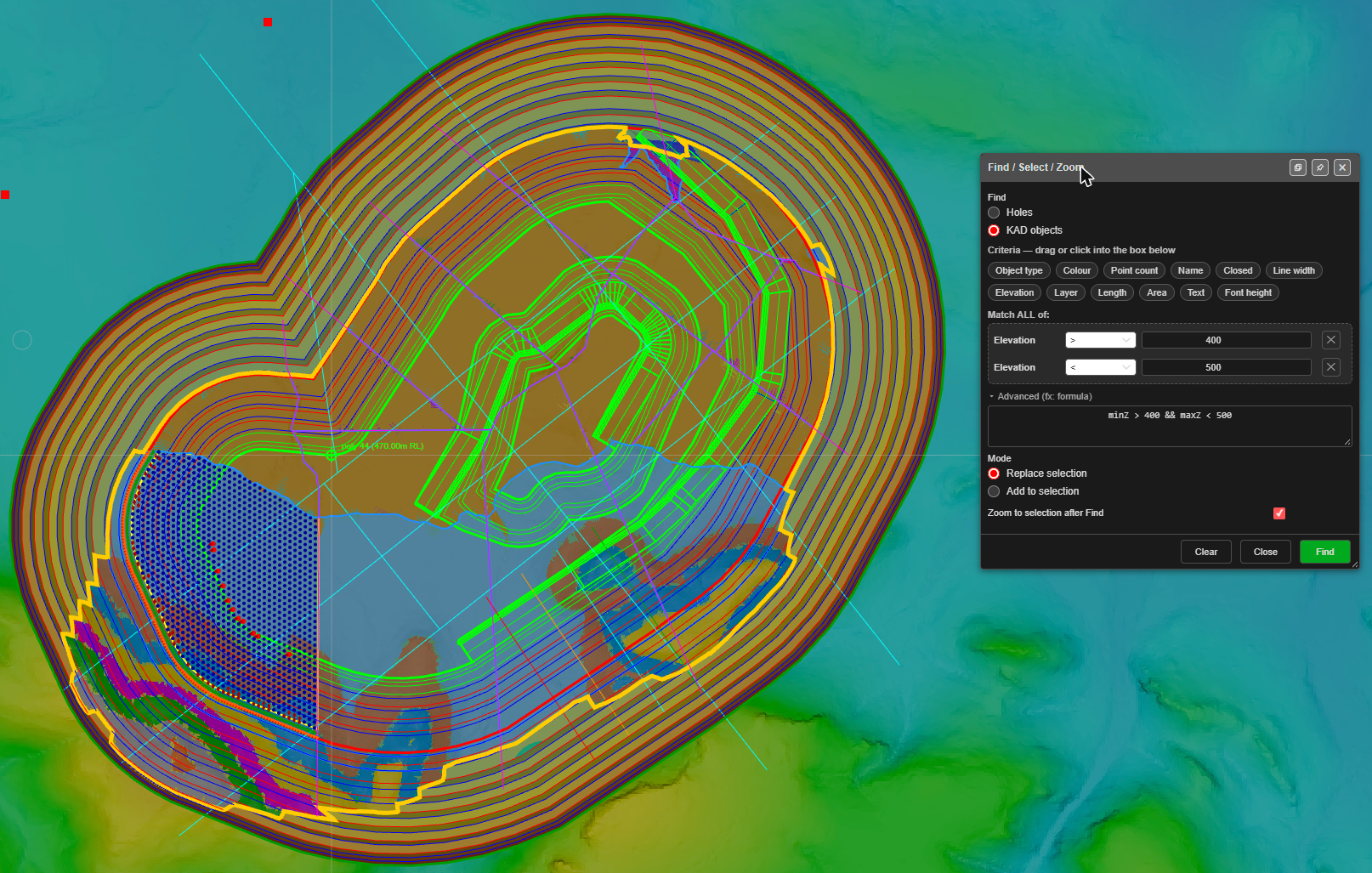 Elevation > 400 and Elevation < 500 — the strings lying wholly inside that band are selected (green). Advanced shows the formula the two chips compiled.
To find strings that cross an RL — some points above, some below — use Advanced:
fx:minZ < 300 && maxZ > 300
Hole Colour, Delay Colour, and “is auto”
A hole carries two colours and they are not interchangeable:
- Hole Colour is the collar glyph — what you see on the canvas.
- Delay Colour is the connector and delay-text swatch, set by the Delay Colour control on the hole’s Additional tab.
Searching one will not find the other, so pick the chip that matches what you are looking at.
A hole does not have to carry a colour of its own. Left on auto it takes the theme’s contrast colour — white on a dark background, black on a light one — and there is no colour you could type that would name that set. The is auto comparison finds them:
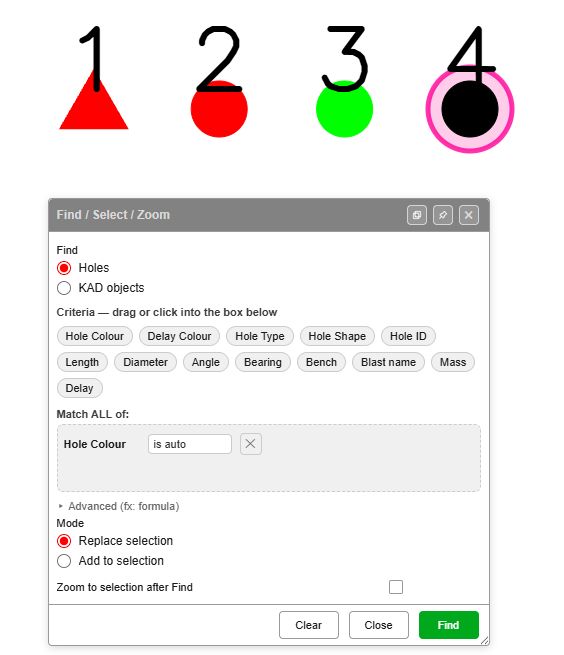 Hole Colour is auto — holes 1, 2 and 3 were each given a colour, so only hole 4 is still taking the theme’s black.
Sampling an auto hole with the target-arrow button switches the chip to is auto for you, rather than picking up the black or white it happens to be showing.
Advanced (fx: formula)
Expand Advanced (fx: formula) to see the predicate the chips compiled, and to edit it by hand. It is the same language as a live blast group formula — for example:
fx:holeShape == "triangle" && holeLength > 10
For KAD objects, Advanced can use minZ and maxZ (lowest and highest point), layer, length, area, text and fontHeight, alongside the original entityType, colour, pointCount, name, closed and lineWidth.
How to Use
- Click the Find Select Zoom button on the Select toolbar
- Choose Holes or KAD objects
- Click a criterion chip to drop it into the Match ALL of box
- Set its comparison and value — repeat for as many criteria as you need
- Choose Replace selection or Add to selection
- Tick Zoom to selection after Find if you want the view to follow
- Click Find
Use Clear to empty the criteria box and start again.
Orbit Focus
Click any point in the 3D scene to set it as the new orbit centre. This is the most effective way to inspect specific blast holes or surface features up close — the camera rotates around your chosen focus point instead of the scene origin.
How to Use
- Switch to 3D view (2D/3D toggle in the top bar)
- Click the Orbit Focus button on the Select toolbar
- Click any point in the 3D scene to set it as the orbit centre
- Alt+drag to orbit around the new centre
See 3D View & Orbit Focus for the full 3D navigation reference.
Settings
The 3D Settings button (globe-and-cog icon, at the bottom of the Select toolbar) opens the Settings dialog — 2D, 3D and Performance tabs. Every field, its default and when it applies are in Settings.
Related Topics
- Interface Tour — workspace overview
- Keyboard Shortcuts — undo/redo and navigation shortcuts
- 3D View & Orbit Focus — full 3D navigation reference
- Holes Toolbar — placing holes and generating patterns
- Modify Toolbar — transforming entities after selection
- Editing Holes — uses of the Select modes