kirra-docs
Hole Bearing
Changes the bearing of holes by dragging — the hole swings to point at the cursor.
Re-aim holes
- Click Hole Bearing on the Modify toolbar. The status line reads “Bearing Tool Activated — Select a hole and drag to rotate — Hold ‘F’ for focus mode”.
- Press on a hole (or anywhere, if holes are already selected) and drag. The holes point towards the cursor.
- Release to set the bearing. The selection clears, ready for the next hole.
Works in 2D and 3D. In 2D the cursor snaps, so you can aim a hole at a point exactly.
Choose the pivot
Right-click the Hole Bearing button to choose which point stays put while the hole swings.
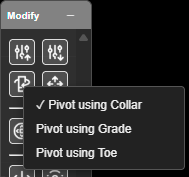
| Option | Stays in place | Button colour while on |
|---|---|---|
| Pivot using Collar (default) | The collar | Red |
| Pivot using Grade | The grade point | Green |
| Pivot using Toe | The toe | Amber |
The choice is remembered and travels in KAP projects, and each re-aimed hole keeps the pivot it was turned about. The tooltip reads, for example, “Hole Bearing — pivot on grade (right-click to change)”.
Tip: Pivot on the toe or grade for presplit, trim or wall-control holes, where the surveyed point is at the bottom.
Other ways to use it
| Method | Result |
|---|---|
| Several holes selected | All take the same bearing — from the first hole’s pivot to the cursor |
| Hold F (focus mode) | Each hole points at the cursor from its own pivot |
| Right-click the button | Choose the pivot |
| Snap on (2D) | Aim at a hole, vertex or surface point |
Undo
Each drag is one Ctrl+Z step, covering bearing and pivot together.