kirra-docs
Section Views
A section shows your design side-on, so you can read what a plan view hides: hole depths against the bench, burden to the face, the layers a pattern passes through, and the decks inside a hole. Kirra has three section views, each for a different job.
| Section view | Where | Use it to |
|---|---|---|
| Section Plane | Select toolbar | Slice the whole 3D scene — holes, drawings, surfaces, images and block models — and step the slice through the pattern |
| Hole Section View | Analyse toolbar → Hole Section Tool | Check one hole’s burden to the face, and adjust the hole while you watch |
| Deck Builder section | Charging → Deck Builder | See and edit the decks inside a hole, collar to toe |
Section Plane
The Section Plane cuts a slice through everything loaded and hides what is outside it. You choose where the slice sits and how thick it is, then step it through the pattern.
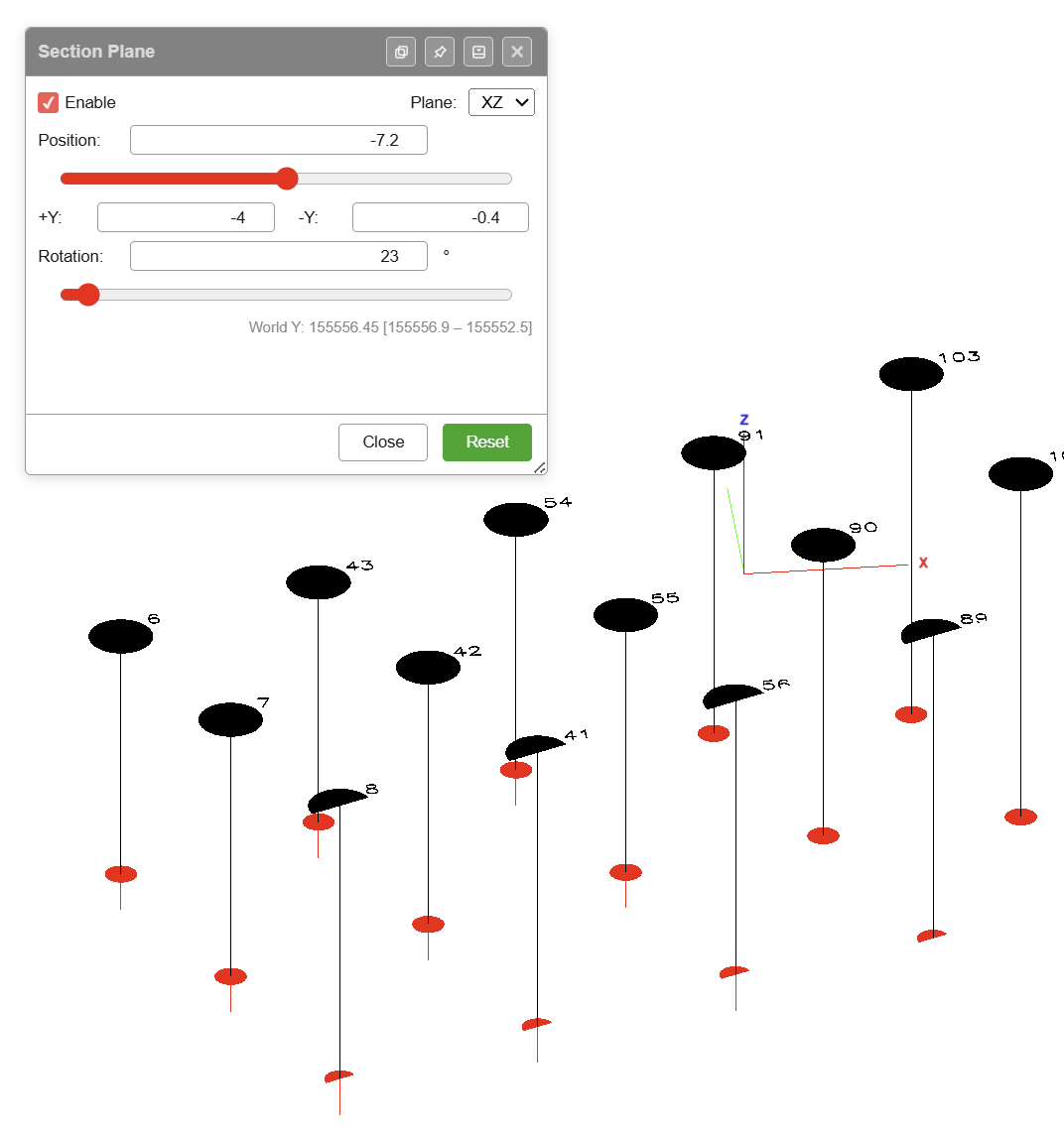 A Two Points section across the front of a blast: the face profile, the angled front-row holes and the vertical holes behind them. The grid is Show Section Plane.
Take a section
- Click Section Plane on the Select toolbar.
- Tick Enable Section Plane. The view switches to 3D — a section is a 3D view.
-
Choose the Plane:
Plane The slice Two Points Runs vertically through two points you click Segment Runs vertically along a line you click XY (Elevation) Horizontal, stepping up and down YZ (East-West) Vertical, stepping east and west XZ (North-South) Vertical, stepping north and south - For Two Points, click the start point, then the end point. For Segment, click a line you have drawn. Press Esc or right-click to cancel a pick.
The view turns to look along the section. The direction you clicked or drew the line in sets which way the view faces; the reverse button beside the Plane list looks the other way.
Set the thickness and step through
- Look Forward and See Behind set how far either side of the section line stays visible. Both default to 1, a 2 m slice. For the XY, YZ and XZ planes the same two boxes are labelled by axis, for example +Y and -Y.
- Position moves the slice off the section line; 0 sits on it.
- Step Increment is how far each step moves. Step with the double-chevron buttons either side of Position, or Page Up / Page Down. Hold Shift to land on exact multiples of the step.
- Rotation tilts the slice away from vertical.
Choose what is cut
Clip sets which kinds of data the section applies to: Blasts, KAD, Surfaces, Images and Blocks (block models). Untick one to keep it whole while the rest is sliced — for example, keep the topography whole while slicing the holes.
Draw on the section
By default a section is for looking: tools still work in plan. Tick Draw on plane to make the section the plane the tools work in — offset, extend, hole set-out, move, Design Plane tagging and triangulation. It needs Enable Section Plane and the 3D view.
While it is on, a warning across the top of the dialog reads WORK PLANE ACTIVE. Untick Draw on plane to go back to working in plan. It is never remembered between sessions.
Show Section Plane draws a grid on the section so you can see the plane you are looking at. The grid spacing is the Step Increment.
This is how underground design works in Kirra — see Design Underground Rings and Drives on a Section Plane.
Finish
Close leaves the dialog; the section stays on while Enable Section Plane is ticked. Reset returns the settings to their defaults.
Full reference: 3D View — Section Plane.
Hole Section View
The Hole Section View is a section through one hole, measured against a surface — usually the face. It shows the burden in front of the hole all the way down, and lets you edit the hole and see the effect before you commit it.
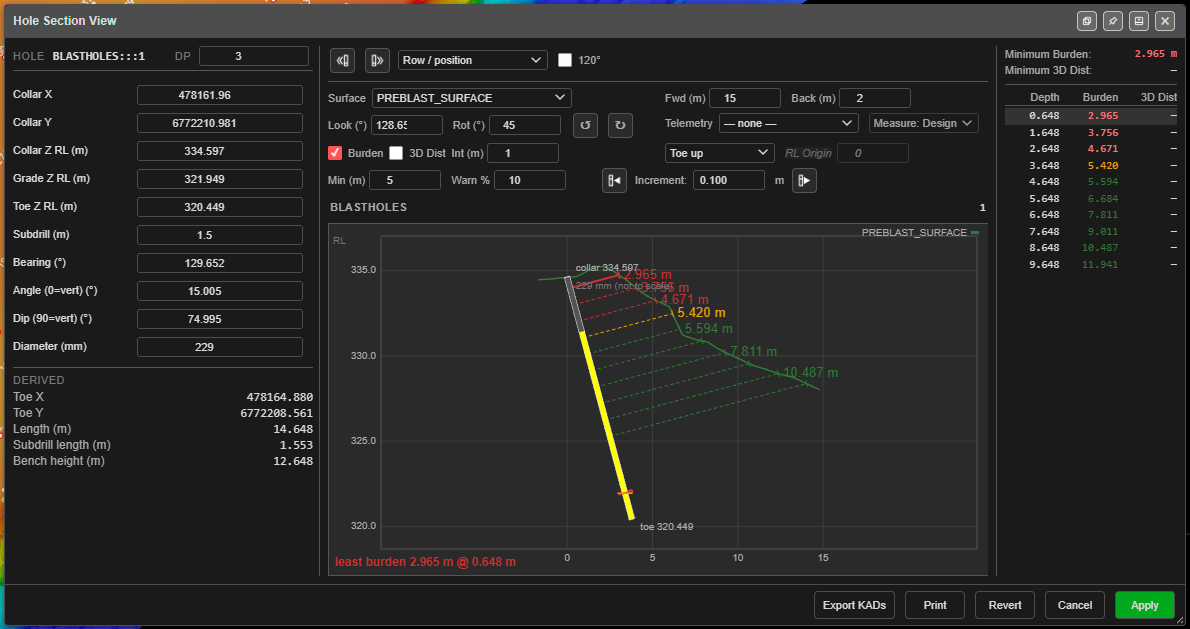 A front-row hole measured against the pre-blast surface with Burden on and Min (m) set to 5: red below the minimum, amber within the warning band, green beyond. The table on the right lists the burden at each depth.
Check a hole’s burden
- Select a hole, or a group of holes.
- Click Hole Section Tool on the Analyse toolbar.
- Choose the Surface that is the face.
- Tick Burden, 3D Dist, or both.
The section shows the hole and the surface profile, with the burden measured at intervals down the hole. The panel on the right reports the Minimum Burden and Minimum 3D Dist.
The section
| Control | What it does |
|---|---|
| Surface | The surface the burden is measured to. |
| Fwd (m) / Back (m) | How far the section reaches in front of and behind the collar. |
| Look (°) | The bearing the section is cut along. It starts at the hole’s own bearing — change it when the face is not where the hole points. |
| Rot (°) and the rotate buttons | How far each press of the rotate buttons turns the section. Set 180 to flip it in one press. |
Measuring the burden
| Control | What it does |
|---|---|
| Burden | Burden in front of the hole, on the hole’s own bearing. |
| 3D Dist | The shortest distance to the face in any forward direction. Slower than Burden. |
| 120° | Widens the 3D Dist search from 90° to 120° off the hole bearing, to find a face to the side or slightly behind — a corner hole. |
| Int (m) | The sample interval down the hole. A larger interval can step over the tightest point. |
| Collar down / Toe up / RL origin | Where the samples are anchored. RL origin samples at fixed elevations, set by RL Origin, so every hole is sampled at the same levels. |
| Min (m) | The minimum acceptable burden. Burden below it shows red, within the warning band amber, and above it green. Leave at 0 for no colour bands. |
| Warn % | The width of the amber band above the minimum. |
| Telemetry | A KAD layer of surveyed hole paths. The path nearest this hole’s collar is used. |
| Measure: Design / Measure: Telemetry | Measure from the design hole, or from the surveyed path. A surveyed hole bends, and its burden is measured square to the bend. |
Adjust the hole
The left panel holds the hole: Collar X, Collar Y, Collar Z RL (m), Grade Z RL (m), Toe Z RL (m), Subdrill (m), Bearing (°), Angle (0=vert) (°) or Dip (90=vert) (°), and Diameter (mm). Derived shows the toe position, length, subdrill length and bench height that follow. DP sets the decimal places shown.
Edits are staged: the section redraws with the change, marked staged - not applied, but the hole itself is not changed yet.
- The move buttons either side of Increment nudge the hole toward or away from the face along its bearing, by the increment.
- Apply commits the staged changes to the hole. It can be undone.
- Revert discards them.
Kirra will not apply a move that puts the collar on top of another hole.
Step through a group
With a group selected, Previous hole and Next hole step through it, in the order chosen beside them: Row / position, Numerical or Alphanumerical. Apply or revert a hole’s staged changes before moving on.
Print and export
- Print builds a PDF of the section.
- Export KADs saves the burden paths as KAD drawings.
Deck Builder section
The Deck Builder shows the hole being charged as a 2D section, collar at the top and toe at the bottom, with every deck drawn in place.
- Drag a product from the Product Palette onto the section to add a deck.
- Click a deck to select it and edit its properties.
- Drag a boundary between decks to resize them. This overrides any formula on that deck.
Full reference: Deck Builder.
Which one?
- “Is this hole too close to the face?” — Hole Section View, with Burden or 3D Dist and a Min (m).
- “What does the whole pattern look like across this line?” — Section Plane, Two Points or Segment.
- “Where are the holes against the geology at this bench?” — Section Plane with Blocks clipped, or a bench slice of the block model.
- “Is the stemming and charge right in this hole?” — Deck Builder.
See also: Select Toolbar · Analyse Toolbar · 3D View & Orbit Focus · Deck Builder