kirra-docs
Join and Split KAD Lines
KAD Join Lines joins two lines end to end. KAD Split Lines cuts a line or polygon into pieces at chosen vertices.
Join
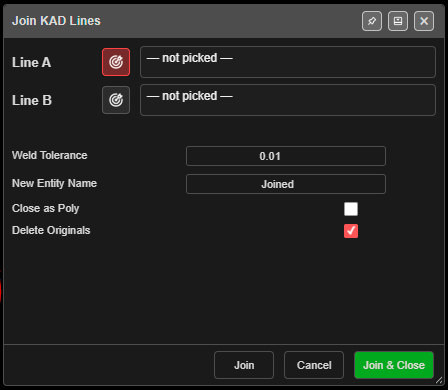
- Click KAD Join Lines on the Modify toolbar. Join KAD Lines opens, ready to pick.
- Click near the end of the first line — “Click on or near a line to select its nearest endpoint”. The nearer end is used.
- Click near the end of a different line.
- The dialog shows the gap, for example “Distance between endpoints: 0.004 m (will weld)” or “… (gap — no weld)”.
- Click Join (the dialog stays open for the next join) or Join & Close.
| Field | Default | What it does |
|---|---|---|
| Weld Tolerance | 0.01 | Ends closer than this merge into one point. Lines further apart are still joined, with a connecting segment |
| New Entity Name | <Line A>_joined |
If the name is taken, Kirra adds _1, _2… |
| Close as Poly | Off | Make the result a closed polygon |
| Delete Originals | On | Remove the two lines after joining |
The joined line takes Line A’s colour, width and layer. One Ctrl+Z undoes the join.
Join works on lines only. The target buttons beside Line A and Line B re-pick an end.
Split
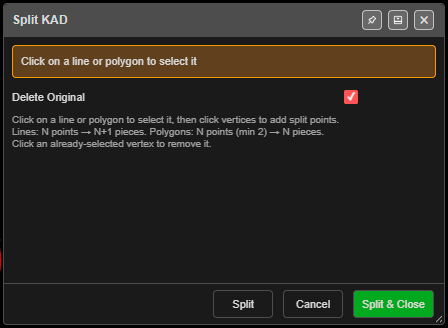
- Click KAD Split Lines on the Modify toolbar. Split KAD opens.
- Click a line or polygon to choose it.
- Click the vertices to split at. Click one again to remove it.
- Click Split (ready for the next drawing) or Split & Close.
From the dialog: “Lines: N points → N+1 pieces. Polygons: N points (min 2) → N pieces.” A line needs at least 3 points and a polygon 4. The first and last points of a line cannot be split points.
| Field | Default | What it does |
|---|---|---|
| Delete Original | On | Remove the original after splitting |
The pieces are open lines named Name_A, Name_B… on the original’s layer. One Ctrl+Z undoes
the split.
Other ways to use them
| Method | Result |
|---|---|
| Click the button again | Cancels the tool |
| Escape | Cancels the tool |
| Right-click (Split) | Removes the last split point |
| Join / Split buttons | Keep the tool open for the next one |
| Works in 3D | Pick in either view |