kirra-docs
Points, Lines, Polygons and Circles
The four basic KAD drawing tools on the KAD toolbar. Everything they share — finishing, undo, layers, height and snapping — is in Drawing Basics.
| Button | Draws |
|---|---|
| Add KAD Points | A set of points |
| Add KAD Line | An open polyline |
| Add KAD Polygon | A closed shape |
| Add KAD Circle | A set of circles at Circle Radius (m) |
Draw points, a line or a polygon
- Set Elevation Z, KAD Color and Point and Line Size on the KAD toolbar.
- Click Add KAD Points, Add KAD Line or Add KAD Polygon.
- Click on the canvas for each point or vertex. In 3D, click in the 3D view.
- Right-click (or Escape) to finish. The tool stays on — click again to start the next one.
- Right-click again to turn the tool off.
A polygon is closed from its first vertex: you do not need to click back on the start.
Draw circles
- Set Circle Radius (m) on the KAD toolbar.
- Click Add KAD Circle and click each centre. A ghost circle shows the size before you click. Change the radius between clicks if you need different sizes.
- Right-click to finish.
Placement modes
Right-click the Add KAD Points, Add KAD Line or Add KAD Polygon button to choose how each click places a point.
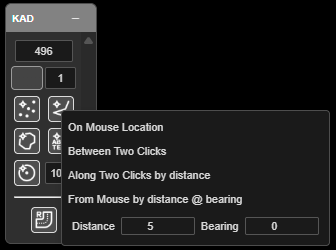
| Mode | Each point goes | Button colour while on |
|---|---|---|
| On Mouse Location | Where you click (normal) | Red |
| Between Two Clicks | Half-way between two clicks | Blue |
| Along Two Clicks by distance | Distance metres from the first click towards the second. Its height follows the slope between them | Amber |
| From Mouse by distance @ bearing | Distance metres from the click at Bearing (0 = north, clockwise). It keeps the click’s height | Green |
- Distance (default 5) and Bearing (default 0) are set in the row under the menu.
- Picking a mode also switches the tool on, and the status line confirms it, for example “Draw placement: Along two clicks by 5 m”.
- In the two-click modes, the first click places nothing — “Click the second point.”
- In 2D a marker previews where the next point will land.
- Each of the three tools keeps its own mode. The mode goes back to On Mouse Location each time you switch the tool on.
Tip: Along Two Clicks by distance places a point a set distance along a line between two snapped points — for example 5 m in from a crest along a toe line.
Other ways to use them
| Method | Result |
|---|---|
| Right-click the button | Placement modes (Points, Line and Polygon only) |
| Snap on | Points land exactly on holes, vertices, lines and surfaces |
| Section plane in 3D | Points are drawn on the plane |
| Backspace | Removes the last point |
| Ctrl+Z | Undoes one point at a time |
Troubleshooting
Every click starts a new drawing. You are right-clicking between points, or pressing Escape. Each one finishes the drawing.
The points are at the wrong height. Snap gave them the height of what they snapped to. Turn Snap off, or check Elevation Z.
Kirra asks to convert my line to a point. A line needs at least 2 points and a polygon 3 — see Too few points.
Related
- Drawing Basics
- KAD Text
- Modify Toolbar — offset, join, split, simplify and more