kirra-docs
Reorder Rows
Rebuilds a blast’s row and position numbers from a row line you pick, and can renumber the holes to match. Use it when automatic row detection has grouped or ordered the rows differently from how you want them drilled, charged or tied.
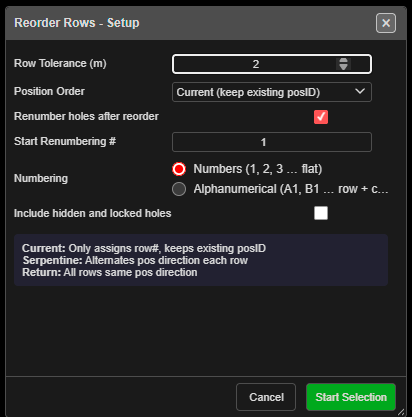 Reorder Rows - Setup.
Prerequisites
- At least one blast loaded. With no holes, Kirra says “There are no blast holes to reorder.”
- Two holes in the same row of the blast, one near each end.
Reorder a blast’s rows
- Click Reorder Rows on the Holes toolbar. The Reorder Rows - Setup dialog opens.
- Set the options (below), then click Start Selection.
- Click the first hole in a row. It turns green, and a line follows the cursor.
- Click the last hole in the same row. The line now shows the row direction, and an arrow at right angles shows the burden direction — the way row numbers increase.
- The Confirm Row Reorder dialog shows the Row Direction and Burden Direction as bearings. Click Flip Burden Direction to point the arrow the other way.
- Click Apply. Every hole in the blast is given a row and position, and the status bar reports “Reordered … holes into … rows”.
Click Cancel, or press Escape, to stop without changing anything. The tool switches itself off after each reorder.
While the tool is on, Row and Position display is switched on. It works in 2D and 3D.
The options
| Option | Default | What it does |
|---|---|---|
| Row Tolerance (m) | 2.0 | How far, across the rows, a hole may sit from a row and still belong to it (0.5 to 20) |
| Position Order | Current (keep existing posID) | Current only assigns row numbers and keeps each hole’s position. Serpentine (alternate direction) reverses every second row. Return (same direction) runs every row the same way |
| Renumber holes after reorder | Ticked | Also gives every hole a new hole ID |
| Start Renumbering # | 1 | The first hole ID when renumbering. 1 or 500 for numbers; A1 for row names |
| Numbering | Follows the start value | Numbers (1, 2, 3 … flat) or Alphanumerical (A1, B1 … row + column, gaps & infills). Typing in Start Renumbering # sets it; clicking a choice afterwards wins |
| Include hidden and locked holes | Unticked | Unticked: hidden and locked holes keep their row, position and name, and no new name repeats theirs. They still help line up the rows. Ticked: every hole in the blast is re-rowed and renamed |
The dialog remembers your settings for the session.
How rows and positions are worked out
- Rows are numbered along the burden arrow. Row 1 is the row furthest back against the arrow.
- A hole joins a row when it sits within Row Tolerance of that row, measured across the rows.
- Position 1 is at the end of the row you clicked first (for Serpentine and Return).
- With Serpentine, every second row runs back the other way.
Hole names
| Numbering | Position Order | Names |
|---|---|---|
| Numbers | any | One running count across the blast, no gaps |
| Alphanumerical | Return or Current | Row letter plus the hole’s column in a grid shared by every row, so A7 sits beside B7. A missing hole leaves a gap; an infill hole between two columns gets a suffix, such as B3a |
| Alphanumerical | Serpentine | Row letter plus the count along that row’s walk, starting at 1 every row. Columns do not line up |
Ties, charging, label layout, timing construct membership and blast groups follow the new IDs. A hole that is renamed but not moved keeps its own timing and its own blast group.
Warning: Reorder Rows cannot be undone with Ctrl+Z. It changes every visible, unlocked hole in the blast — and hidden and locked ones too when Include hidden and locked holes is ticked. Lock the holes you want to keep before you start.
Other ways to use it
| Method | Result |
|---|---|
| Position Order = Current, Renumber holes after reorder unticked | Fixes the row numbers only. Names and positions stay as they are |
| Renumber Holes | Renumbers a run of holes, or moves a run into a named row, without re-rowing the whole blast |
Troubleshooting
| Problem | Cause and fix |
|---|---|
| Two rows were merged into one | Row Tolerance is larger than the gap between rows. Set it below the burden — about half is a good start |
| One row was split into two | The row bends or is staggered more than Row Tolerance. Raise it, or reorder each part separately with Renumber Holes |
| Rows are numbered from the wrong side | Click Flip Burden Direction before Apply |
| Positions start at the wrong end | Click the holes the other way round — position 1 is at your first click |
| The status bar says “Select a hole from the same entity: …” | Both clicks must be on holes of the same blast |