kirra-docs
Snap Objects to Surface
Drapes drawings onto a surface so their heights follow the ground — for example to put a design outline onto a pickup surface.
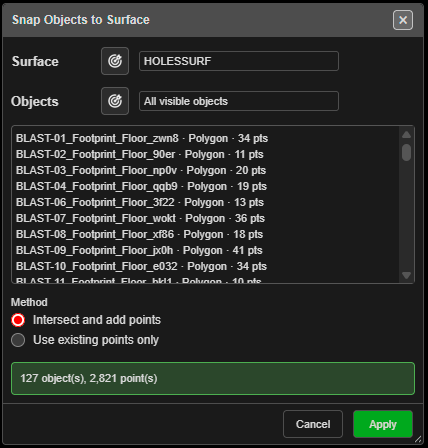
Drape drawings on a surface
- Show the surface to drape onto. Optionally select the drawings first.
- Click Snap Objects to Surface on the Modify toolbar.
- Choose the Surface, and which Objects: Selected objects (the default when something is selected) or All visible objects.
- Choose the Method and click Apply.
With no surface showing: “Show the surface to snap to, then open Snap Objects to Surface again.”
The fields
| Field | What it does |
|---|---|
| Surface | The surface to drape onto. The target button picks it on the canvas (switches to 3D) |
| Objects | Selected objects or All visible objects. The target button adds an object by picking it |
| Object list | Each object with its type and point count. In Selected mode the bin button removes one from the list |
| Method | Intersect and add points (default) adds points wherever the drawing crosses a surface edge, so it follows the ground closely. Use existing points only just moves the points it has |
The status line under the list counts the objects and points.
What you get
Kirra reports, for example, “12 object(s) snapped, 340 point(s) set, 85 added.” Points off the edge of the surface keep their height, and Kirra says how many. The whole operation is one Ctrl+Z step. Hidden objects are never changed.
Related
- Grade Line
- Assign Surface and Assign Grade — the same idea for holes
- Modify Toolbar