kirra-docs
Extrude KAD to Solid
Turns a closed KAD polygon into a solid by pushing it up or down a set distance. Use it for bench solids, design volumes and stockpile envelopes, and as the input to booleans, clipping and horizon slicing.
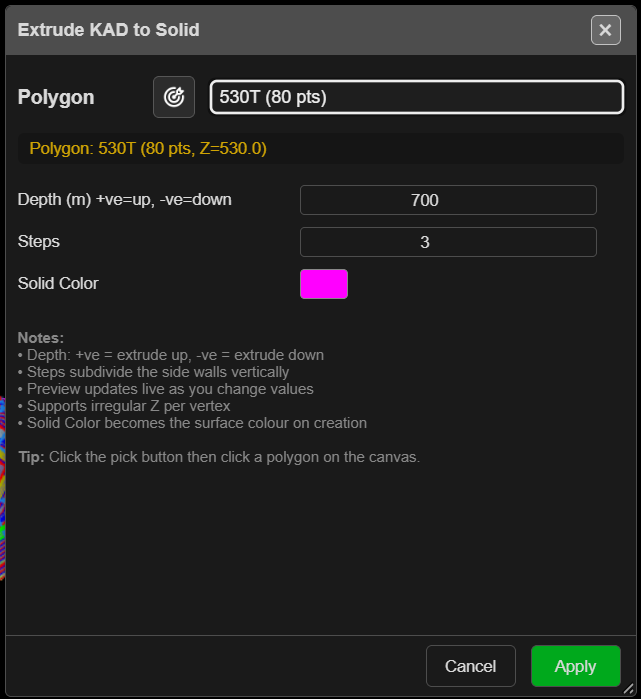
Extrude a polygon
- Click Extrude KAD to Solid on the Surface toolbar. The Extrude KAD to Solid dialog opens.
- Choose the Polygon from the list, or click the target button and click it on the canvas. A polygon you selected before opening the dialog is filled in for you.
- Set Depth (m) +ve=up, -ve=down, Steps and Solid Color. A see-through preview in the 3D view follows each change.
- Click Apply.
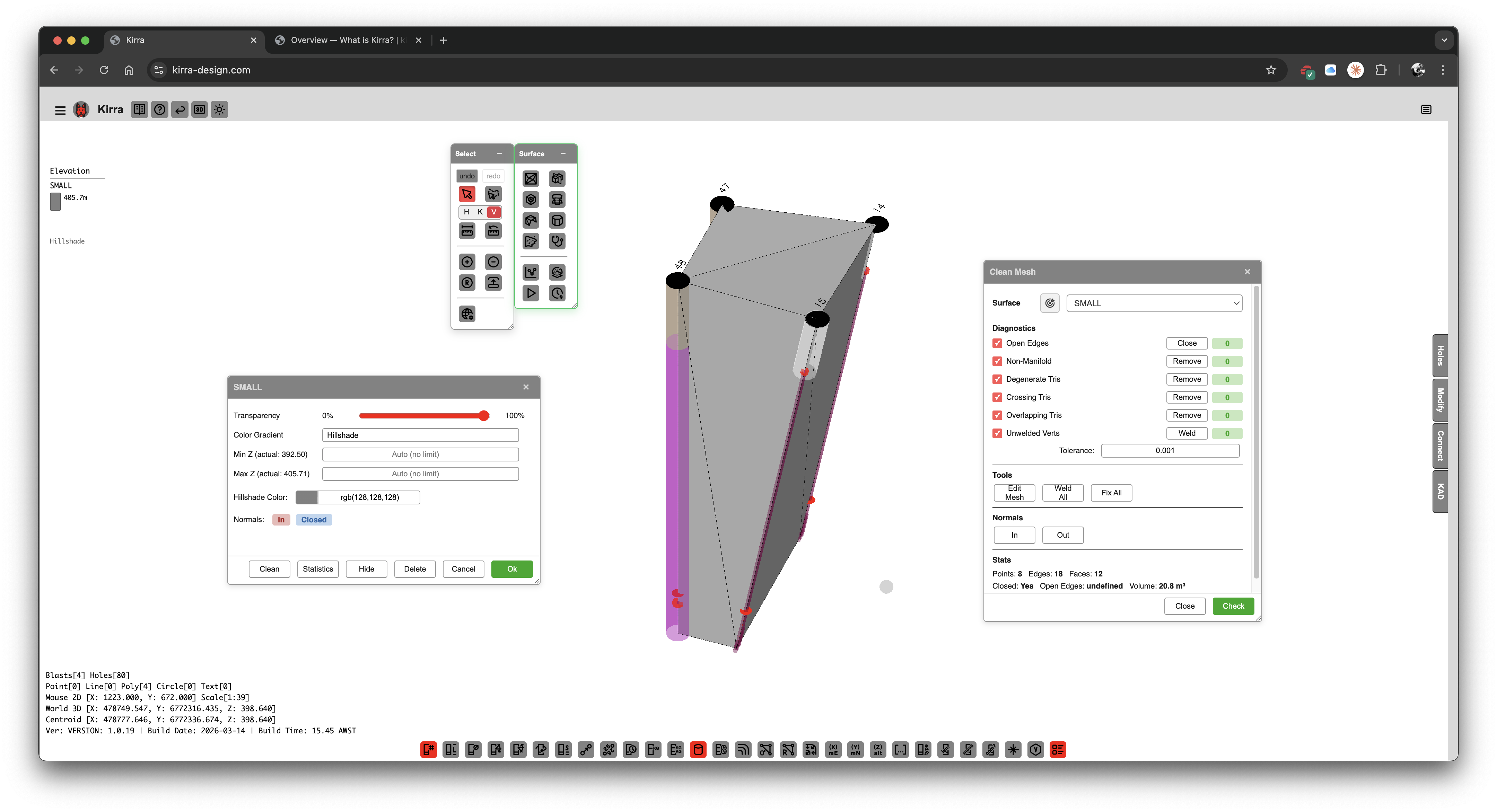
You need at least one closed polygon with three or more points. With none, Kirra says “No closed KAD polygons found. Create a polygon first, then use this tool.” The list includes hidden polygons.
The fields
| Field | Default | What it does |
|---|---|---|
| Depth (m) +ve=up, -ve=down | −10 | How far to push the polygon. Negative goes down (−1000 to 1000) |
| Steps | 1 | Splits the side walls into this many bands (1–50) |
| Solid Color | Blue | Colour of the new solid |
The line under the polygon shows its name, point count and the height of its first point. The dialog remembers your settings in this browser.
Note: Each vertex keeps its own height. The base is the polygon moved by Depth, so it follows the shape of the top rather than sitting flat. Draw the polygon at one elevation if you want flat top and bottom faces.
What you get
A closed solid named EXTRUDED_ and the polygon name, in the Extruded layer of the tree,
hillshaded in the Solid Color. It can be undone. A Depth of 0 gives a flat open surface —
just the polygon filled in.
Troubleshooting
| Symptom | Cause | Fix |
|---|---|---|
| “No closed KAD polygons found.” | No polygon is closed | Close the line, or draw a polygon |
| The target button will not take a closed line | Picking accepts polygons only | Choose the closed line from the list |
| “Nothing was created. The polygon needs at least three distinct points, and must not cross itself.” | Repeated points, or the polygon crosses itself | Remove the repeated points or fix the crossing, then try again |
Other ways to use it
| Method | Result |
|---|---|
| Select the polygon first | It is filled in when the dialog opens |
| Steps above 1 | Extra rings on the walls, useful before clipping or slicing |
| Depth (m) = 0 | A flat surface filling the polygon |
Related
- Solid Horizon Slice — cut the solid into benches
- Solid Boolean
- Clip Surface
- Surfaces Toolbar