kirra-docs
Clip Surface
Cuts a surface or a solid with a KAD polygon and keeps the part inside, the part outside, or both. Use it to trim a pickup to a blast boundary, split a design solid at a limit, or break a solid into blocks with several cutters at once.
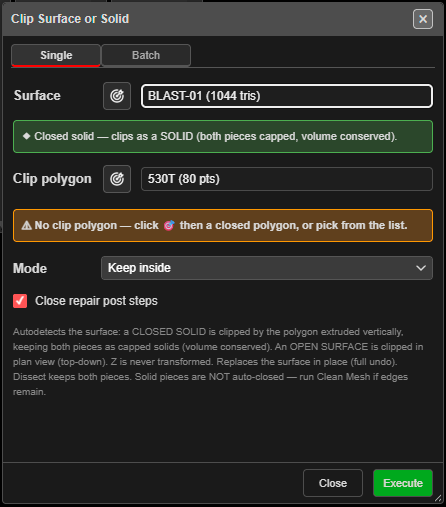
Clip with one polygon (Single)
- Click Clip Surface on the Surface toolbar. The Clip Surface or Solid dialog opens on the Single tab.
- Choose the Surface, or click its target button and click it in 3D. A banner says how it
will be clipped:
- Closed solid — cut by the polygon extended straight up and down; both pieces are capped, so volume is conserved.
- Open surface — cut in plan view; no caps.
- Choose the Clip polygon: click its target button and then a closed polygon, or choose it from the list. The line under it confirms “✔ Clip by: …”.
- Choose the Mode: Keep inside, Keep outside or Dissect (split, keep both).
- For a solid, leave Close repair post steps on — it tidies each piece after the cut.
- Click Execute. A progress window with a timer runs the clip.
Note: The list starts on Choose a polygon…. Clicking Execute before you choose one gives “Pick the clip polygon first.”
Clip a solid with many cutters (Batch)
- Open the Batch tab and choose the Solid. Batch works on closed solids only.
- Under Add cutter, choose a polygon or line, or switch the target button on and click them on the canvas one after another. Click + to add each to the Cutters list.
- Choose the Mode:
- Dissect — divide into all pieces (polys + lines)
- Keep inside — one chunk per polygon (closed only)
- Keep outside — one remainder (closed only)
- With Dissect, tick Extend lines to fill gaps if a line stops short of the solid’s edge.
- Click Execute.
Lines only work with Dissect; the keep modes need closed polygons.
What you get
The surface is replaced by the pieces, in the same layer, and the whole clip is one undo step.
| Mode | Piece names |
|---|---|
| Keep inside / Keep outside | Pit (inside) / Pit (outside) |
| Batch, keep inside | Pit (Cutter1), Pit (Cutter2) … and Pit (remainder) |
| Dissect | Pit (piece 1), Pit (piece 2) … |
Open-surface pieces keep the original colouring. Solid pieces are hillshaded — the inside piece a little lighter and the outside a little darker — and dissected pieces take a colour each. The status line reports the result, including each solid piece’s volume. If it ends with “run Clean Mesh to fully close”, open Clean Mesh on that piece.
Troubleshooting
| Symptom | Cause | Fix |
|---|---|---|
| “Pick the clip polygon first.” | No polygon chosen yet | Pick one, or change the list |
| “Clip produced no result — the boundary may not overlap the surface.” | The polygon misses the surface | Check both in plan |
| “Batch clip currently supports CLOSED SOLIDS only.” | The Batch target is an open surface | Use the Single tab |
| “Keep inside / Keep outside need CLOSED polygon cutters.” | A line is in the cutter list | Switch to Dissect, or remove the line |
| “Dissect: no division — the cutters didn’t cross the solid” | The cutters stop short | Extend them, or tick Extend lines to fill gaps |
Other ways to use it
| Method | Result |
|---|---|
| Dissect (split, keep both) | Both sides kept as separate surfaces |
| Batch target button left on | Click cutter after cutter, then + each |
| A Surface Intersection result as the polygon | Clip one surface where it meets another |
| Ctrl+Z after a clip | Puts the original surface back |
Related
- Clean Mesh
- Clip KAD — clip drawings instead
- Solid Horizon Slice — cut horizontally
- Surfaces Toolbar