kirra-docs
Connect Toolbar
The Connect toolbar ties holes together and times the blast: surface ties, trunks, initiation points, electronic timing, harness assignment and the temporal mesh. Open it from its tab on the right edge of the window.
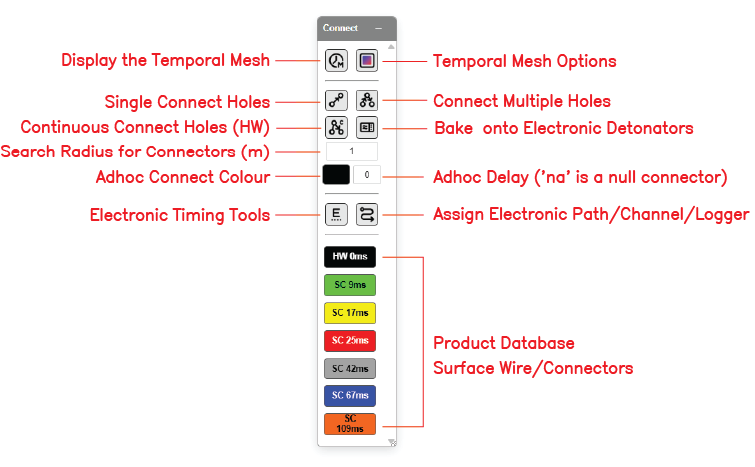 The Connect toolbar with all controls labelled.
The controls
Button names are the tooltips shown when you hover.
| Control | What it does | Other ways to use it | Guide |
|---|---|---|---|
| Temporal Mesh | Shows firing time as a coloured surface | Same switch in the Electronic Timing dialog | Temporal Mesh |
| Gradient | Colours, height and transparency of the temporal mesh; Export Mesh | — | Temporal Mesh |
| Tie Connect / Cord Inline / Reconnect to Trunk | Ties one hole to another | Click a hole twice for an initiation point | Tie Connect |
| Tie Connect Multi | Ties every hole along a line between two clicked holes | — | Tie Connect Multi |
| Tie Connect Continuous | A zig-zag run through holes or open ground | Escape, right-click or double-click ends a chain | Tie Connect Continuous |
| Trunk Branch Connect | A trunk line with a branch to each hole in its swath | Right-click a trunk for its menu | Trunk Branch Connect |
| Connectors Remove | Deletes the tie you click | Delete while hovering a tie | Connectors Remove |
| Self Connect Add IP | Adds or removes an initiation point | Right-click a trunk → Add Initiation | Initiation Points |
| Connect Distance (m), Connector Color, Delay Amount (ms) | What new ties carry, and how wide the tie tools reach | — | Connector Settings |
| Connector product chips | Pick the product new ties carry, or UNDEF for none | — | Connector Settings |
| Electronic Timing Panel | Timing constructs for electronic detonators | — | Electronic Timing Constructs |
| Harness Wire Assignment (Channel / Commander) | Click a hole to set its harness path, unit and channel | — | Harness Wire Assignment |
| Bake Delay (electronic + nonel→electronic conversion) | Writes the surface timing onto electronic primers | Also in Electronic Timing and Time Window | Bake Delay |
Which tie tool?
| You want to | Use |
|---|---|
| Tie one hole to the next | Tie Connect |
| Tie a straight row in two clicks | Tie Connect Multi |
| Walk the bench in one chain, through open ground | Tie Connect Continuous |
| Keep the run on the plan as a trunk with branches | Trunk Branch Connect |
| Set where the blast is lit from, and when | Initiation Points |
| Take a tie off | Connectors Remove |
Tip: Set the delay, colour and product in Connector Settings before you tie — new ties take what is set at the time.
Related
- Timing Sequences — how ties become firing times
- Electronic Timing Constructs
- Time Window — timing analysis
- Holes Toolbar