kirra-docs
Connector Settings
The inputs and product chips on the Connect toolbar decide what every new tie carries: its delay, its colour, its product, and how wide the tie tools reach. Set them before you tie.
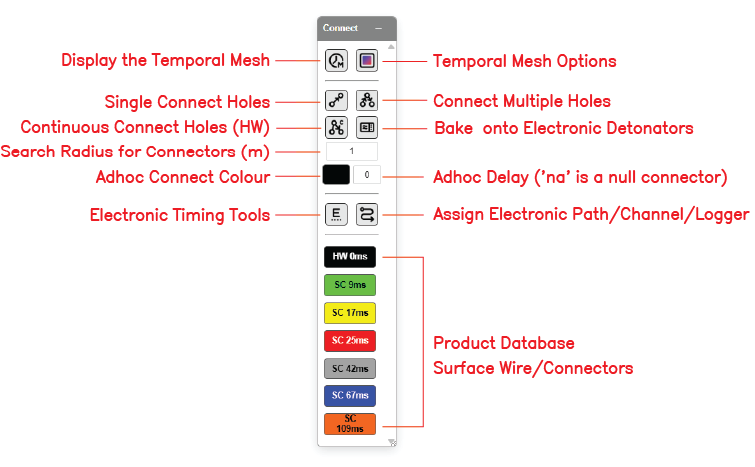
The inputs
| Input | Default | What it controls |
|---|---|---|
| Connect Distance (m) | 2.0 | How far from the line or run a hole may sit and still be tied, for Tie Connect Multi, Tie Connect Continuous and Trunk Branch Connect. Negative values are ignored |
| Connector Color | Red | Colour of new ties |
| Delay Amount (ms) | 25 | Delay of new ties, in whole milliseconds. Negative delays are allowed |
The tooltip on Delay Amount reads: “a manually entered delay carries NO travel time. Only connector products picked from the product list add VOD travel time.”
Null connectors
Type na, n/a, null or nan (any case) into Delay Amount to make a null connector.
The tie is drawn, but carries no delay value.
Product chips
Below the inputs is one chip for each surface connector product in the product list, sorted
by delay and labelled with a type prefix and the delay — for example SC 25ms. Hover a chip to
see the product’s name.
| Prefix | Product type |
|---|---|
| SC | Surface connector |
| HW | Surface wire (harness or bell wire) |
| DC | Detonating cord |
| CC | Cord connector — a DRC or bridging detonator |
Click a chip to make it the active product. It fills Delay Amount and Connector Color from the product and lights up. New ties then carry that product, including its signal travel time.
UNDEF
UNDEF is lit when no product is selected — which is the state Kirra opens in. From its tooltip: “Ties made now carry no product: they draw a plain arrow and have no VOD.”
- Click UNDEF to choose a product-free tie on purpose.
- Typing a Delay Amount, or picking your own Connector Color, also drops the product and lights UNDEF. The tie no longer matches a product, so it cannot carry the product’s travel time.
The chips come from the product list. With no surface products loaded, no chips are shown. Add or edit products in the Product Manager or the Products CSV.
What is kept
Connect Distance, Delay Amount and Connector Color are remembered the next time Kirra opens. The selected product is not — Kirra always opens on UNDEF.
Troubleshooting
| Symptom | Cause | Fix |
|---|---|---|
| Ties draw as plain arrows | UNDEF is lit | Click a product chip |
| A product chip went dark after typing a delay | A typed delay drops the product | Click the chip again |
| No chips on the toolbar | No surface connector products are loaded | Add them in the Product Manager |
| A multi-tie picked up the next row | Connect Distance is too wide | Lower it below about half the burden |
Other ways to use it
| Method | Result |
|---|---|
| Right-click a hole → Edit Hole → Additional tab → Surface Product, Delay, Delay Colour | Change a tie already made — see Timing Sequences |
| Connector in the Initiation Point dialog | Picks the product that lights a start point |