kirra-docs
Add Pattern
Generates a rectangular grid of blast holes — a set number of rows and holes per row at a set burden and spacing — from a start point you click. This is the quickest way to lay out a regular bench blast that has no boundary to fit.
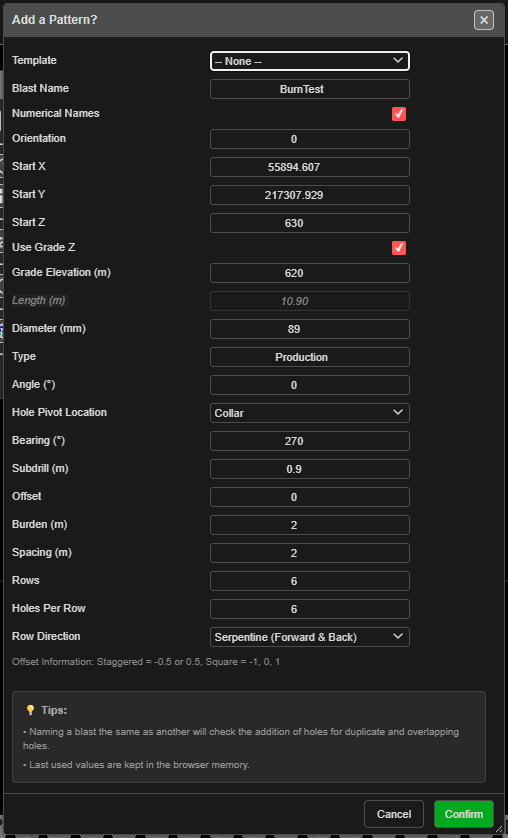 The Add a Pattern? dialog, after clicking the pattern start point.
Prerequisites
- None. To place the pattern on existing work, snap the click to a KAD point, vertex or hole.
Lay out a grid
This tool is click-first: you click the start point, then the dialog opens.
- Click Add Pattern on the Holes toolbar. Hole ID labels are switched on so you can see the numbering.
- Click the canvas where the first hole goes. The click snaps to nearby objects; the status line says what it snapped to.
- The Add a Pattern? dialog opens with the click in Start X / Start Y.
- Set the row layout — Orientation, Burden (m), Spacing (m), Offset, Rows, Holes Per Row and Row Direction.
- Set the hole properties — elevations, Diameter (mm), Type, Angle (°), Bearing (°) and Subdrill (m).
- Click Confirm.
How the grid is laid out
- The start point is the first hole of the first row.
- Orientation is the bearing the rows run along (0 = North, 90 = East, clockwise).
- Each further row steps off by the burden, to the left of the row direction. With the default orientation of 90 the rows run east and step north.
- Offset shifts every second row along the row by that fraction of the spacing.
Row 3   *   *   *   *   *
Row 2     *   *   *   *   *    <- Offset 0.5: shifted half a spacing
Row 1   *   *   *   *   *      <- starts at your click, runs at the Orientation
        |<->|
       Spacing
The fields
| Field | Default | What it does |
|---|---|---|
| Template | – None – | Fills the form from a saved pattern template. The template’s text setup and charging are applied to the new holes. A remembered template is re-read each time the dialog opens |
| Blast Name | Created_Blast + a number |
The blast the holes go into. An existing name adds to that blast |
| Numerical Names | Ticked | Ticked: numbers. Unticked: row letter + position (A1, A2 … B1, B2 …) |
| Orientation | 90 | Bearing of the rows, in degrees |
| Start X / Start Y | Your click | First hole position |
| Start Z | 100 | Collar RL of every hole |
| Use Grade Z | Unticked | Ticked: holes run to Grade Elevation (m). Unticked: holes are set by Length (m) |
| Grade Elevation (m) | Calculated | Floor RL. Editing it recalculates the length |
| Length (m) | 6.2 | Collar-to-toe length, including subdrill. Editing it recalculates the grade |
| Diameter (mm) | 115 | Hole diameter |
| Type | Production | Hole type, free text |
| Angle (°) | 0 | Angle from vertical. 0 = vertical |
| Hole Pivot Location | Collar | Which point sits on each grid position: Collar, Grade or Toe |
| Bearing (°) | 180 | Direction angled holes lean (0 = North, clockwise) |
| Subdrill (m) | 1 | Vertical depth below grade |
| Offset | 0.5 | Stagger. The dialog’s note: “Staggered = -0.5 or 0.5, Square = -1, 0, 1” |
| Burden (m) | 3.0 | Distance between rows. Left blank, it is 1.0 m |
| Spacing (m) | 3.3 | Distance between holes in a row |
| Rows | 6 | Number of rows |
| Holes Per Row | 10 | Holes in each row |
| Row Direction | Return (Forward Only) | Or Serpentine (Forward & Back) — every second row is numbered from the opposite end, so hole 1 of a row is next to the last hole of the row before |
The last values you used are kept for next time.
Note: Add Pattern has no Starting Hole ID field. With Numerical Names ticked, numbering continues from the highest numeric hole ID already loaded. Use Renumber Holes afterwards to set your own numbers.
What to expect
- Rows × Holes Per Row holes appear. Each row gets its own row ID.
- The tool switches off, and the view’s zoom and 3D orbit are reset.
- The pattern is one undo step — Ctrl+Z removes it.
- If a new hole would sit on a hole already in the same blast, the Hole Proximity Warning asks you to Skip, Ignore, Skip All or Cancel. See Editing Holes → Hole coincidence.
Other ways to use it
| Method | Result |
|---|---|
| Cancel in the dialog | Closes it. The tool stays on — the next click opens the dialog again |
| Escape (twice) | Leaves the tool and returns to Pointer Select |
| 3D view | Click the start point in 3D; the same dialog opens |
| Template list | Reuses a saved pattern, including its text setup and charging |
| Pattern in Polygon | A grid trimmed to a boundary instead of a fixed row count |
Troubleshooting
“Invalid Blast Name” or “Invalid Type” Blast Name or Type is empty.
The rows step the wrong way. Rows always step to the left of the Orientation. Add 180° to the orientation and move the start point to the other end of the first row.
The numbers don’t start at 1. Numbering continues from the highest numeric hole ID already loaded. Renumber the pattern afterwards, or untick Numerical Names for row-letter names.
Related
- Pattern in Polygon — fill a boundary
- Holes Along Line — one straight row
- Add Hole — single holes
- Pattern Templates
- Pattern Generation — choosing a method
- Holes Toolbar