kirra-docs
Pattern in Polygon
Fills a drawn polygon with blast holes at a set burden and spacing, keeping only the holes whose collars fall inside it. Use it for irregular blast boundaries, pit-edge shapes and curved benches.
Prerequisites
- A closed KAD polygon marking the blast boundary.
- For Along Polyline mode, a reference line to follow: a KAD line, or the polygon’s own edge.
Two modes — right-click the button
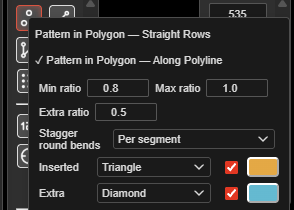
Right-click Pattern in Polygon on the Holes toolbar to choose how the rows run. The ticked item is the current mode. Choosing a mode also switches the tool on.
| Mode | Button colour | Rows |
|---|---|---|
| Pattern in Polygon — Straight Rows | Red | A straight grid along the direction you click, trimmed to the polygon |
| Pattern in Polygon — Along Polyline | Amber | Every row follows the reference line, stepped out by the burden on both sides until the polygon is full |
Hover the button to see which mode is set. Kirra remembers the mode.
Fill a polygon — Straight Rows
- Click Pattern in Polygon on the Holes toolbar. The status line reads “Step 1: Click on a polygon to select it”.
- Click the polygon.
- Click the pattern start point, then the end point. The line between them sets the row direction.
- Click the reference point. The grid is anchored here — one grid position falls exactly on it. The Generate Pattern in Polygon dialog opens.
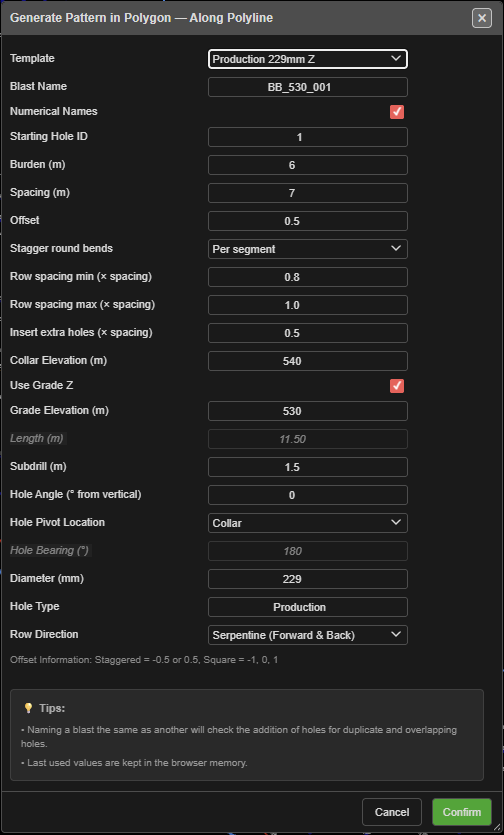
- Set the burden, spacing and hole properties (see The fields).
- Click Confirm.
The canvas labels the picked points START, END and REF and shows the distance between them. Clicks snap to nearby objects; the status line says what was snapped to.
Fill a polygon — Along Polyline
- Right-click Pattern in Polygon and choose Pattern in Polygon — Along Polyline. The button turns amber.
- Click the polygon to fill.
- Click the reference line — a KAD line, or the polygon’s own edge.
- Click the start point on that line, then the end point. Each click picks the nearest vertex. The direction from start to end sets the walking and naming order.
- The Generate Pattern in Polygon — Along Polyline dialog opens. Set the fields and click Confirm.
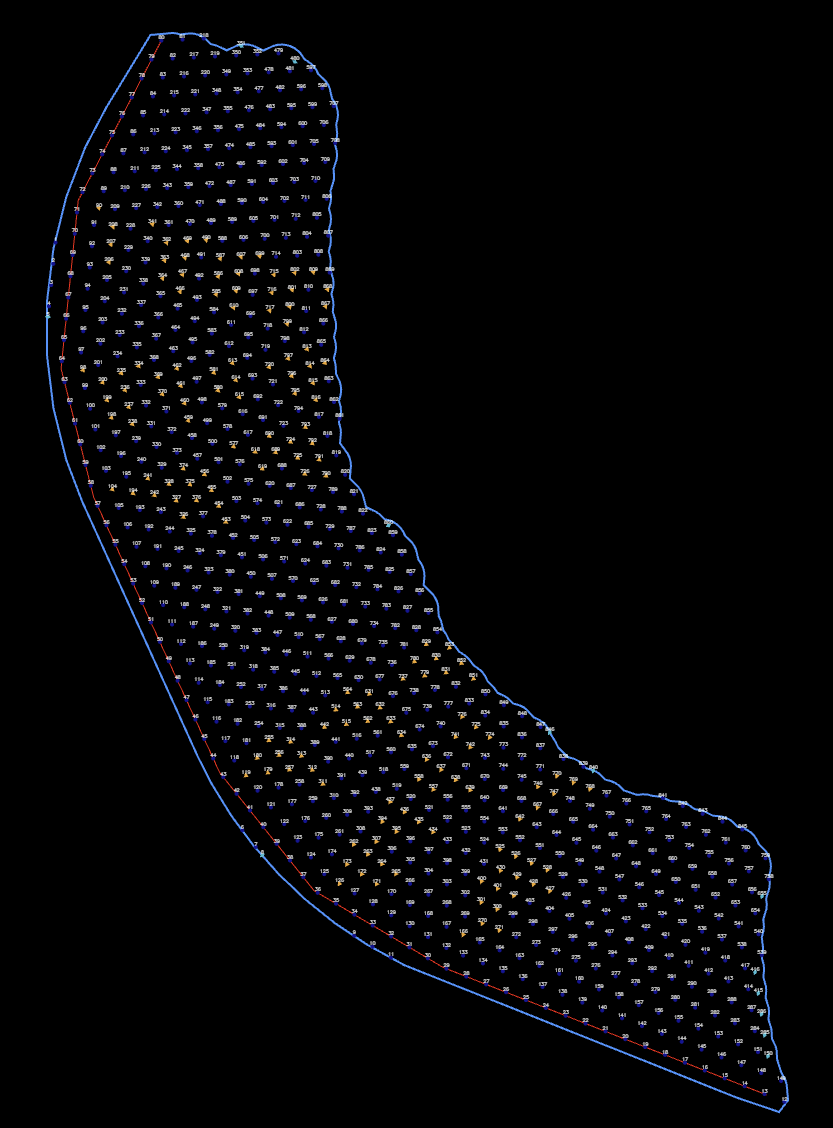
Row 0 sits on the reference line; further rows are offset by the burden to both sides. Each hole is set square to its own row — its bearing comes from the line to its neighbouring hole — so Hole Bearing (°) is greyed out in this mode.
The fields
| Field | Default | What it does |
|---|---|---|
| Template | – None – | Fills the form from a saved pattern template. The template’s text setup and charging are applied to the new holes. A remembered template is re-read each time the dialog opens |
| Blast Name | PolygonPattern_ + a number |
The blast the holes go into. An existing name adds to that blast |
| Numerical Names | Ticked | Ticked: numbers. Unticked: row letter + position (A1, A2 … B1, B2 …) |
| Starting Hole ID | 1 | First ID — a number (500) or an alphanumeric seed (A1). Continues past any higher ID of the same series already in the blast |
| Burden (m) | 3.0 | Distance between rows. Left blank, it is 1.0 m |
| Spacing (m) | 3.3 | Distance between holes along a row |
| Offset | 0.5 | Row stagger as a fraction of the spacing. The dialog’s note: “Staggered = -0.5 or 0.5, Square = -1, 0, 1” |
| Stagger round bends | Per segment | Along Polyline only. Per segment keeps spacing and stagger exact on every straight; Along row keeps spacing exact along every row, but the stagger slips round bends |
| Row spacing min (× spacing) | 0.8 | Along Polyline only. A hole closer than this × spacing to the previous one is removed. 0 = off |
| Row spacing max (× spacing) | 1.2 | Along Polyline only. A longer step gets holes inserted evenly. 0 = off. A gap where the row leaves the polygon is never filled |
| Insert extra holes (× spacing) | 0 | At each end of a row, one more hole is tried this × spacing past the last hole, and kept only if it is inside the polygon. 0 = off |
| Collar Elevation (m) | 100 | Collar RL of every hole |
| Use Grade Z | Ticked | Ticked: holes run to Grade Elevation (m). Unticked: holes are set by Length (m) |
| Grade Elevation (m) | 90 | Floor RL. Editing it recalculates the length |
| Length (m) | Calculated | Collar-to-toe length, including subdrill. Editing it recalculates the grade |
| Subdrill (m) | 1 | Vertical depth below grade |
| Hole Angle (° from vertical) | 0 | 0 = vertical |
| Hole Pivot Location | Collar | Which point sits on the grid position: Collar, Grade or Toe |
| Hole Bearing (°) | 180 | Direction the angled holes lean (0 = North, clockwise). Greyed out in Along Polyline |
| Diameter (mm) | 115 | Hole diameter |
| Hole Type | Production | Free text |
| Row Direction | Return (Forward Only) | Or Serpentine (Forward & Back) — alternate rows are numbered from the opposite end |
The last values you used are kept for next time. Both modes share one set of saved values, and the right-click menu edits the same ones.
Settings in the right-click menu
Below the two modes, the menu holds the settings you change most. Settings that do not apply to the current mode are greyed out.
| Setting | Mode | Default | Same as dialog field |
|---|---|---|---|
| Min ratio / Max ratio | Along Polyline | 0.8 / 1.2 | Row spacing min / max (× spacing) |
| Extra ratio | Both | 0 | Insert extra holes (× spacing) |
| Stagger round bends | Along Polyline | Per segment | Stagger round bends |
| Inserted | Along Polyline | Amber triangle | How holes added by the min/max range are marked |
| Extra | Both | Cyan diamond | How the extra row-end holes are marked |
Marked holes
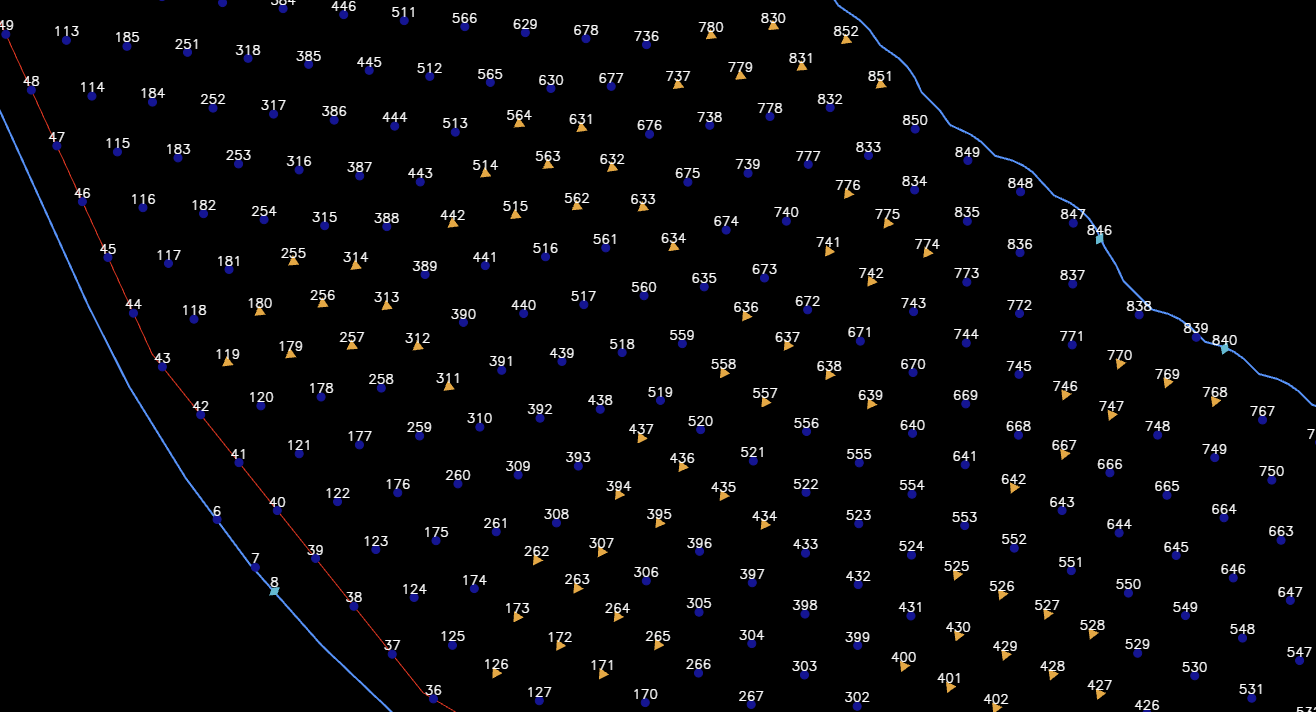
Holes that Kirra adds to fit the polygon are marked so you can review them:
- Inserted — added by the min/max spacing range (Along Polyline only).
- Extra — the additional holes at the row ends.
For each, pick a shape (Circle, Triangle, Square, Cross or Diamond), a colour, or both. Choose Unchanged for the shape, or untick the colour, to leave that part of the hole alone. The mark is saved with the hole, shows on screen and in prints, and can be changed later like any other hole colour or shape.
What to expect
- The holes appear inside the polygon, and the tool switches off.
- A polygon pattern of more than 500 holes shows a Generating Pattern progress bar.
- The whole pattern is one undo step — Ctrl+Z removes it.
- Each row gets its own row ID, so Reorder Rows and Renumber Holes work on it straight away.
- If a new hole would sit on a hole already in the same blast, the Hole Proximity Warning asks you to Skip, Ignore, Skip All or Cancel. Cancel stops the whole pattern and adds nothing. See Editing Holes → Hole coincidence.
Other ways to use it
| Method | Result |
|---|---|
| Right-click the button, pick a mode | Sets the mode and switches the tool on |
| Right-click menu settings | Change the ratios, stagger and marks without opening the dialog |
| Escape (once) | Clears the picks — the status line reads “Pattern tool reset - select polygon to start” |
| Escape (twice) | Leaves the tool and returns to Pointer Select |
| Cancel in the dialog | Closes it and switches the tool off |
| 3D view | The same clicks work in 3D |
| Template list | Reuses a saved pattern, including its text setup and charging |
Troubleshooting
The status line says “No polygon found.” The click did not land on a polygon. Lines and points cannot be filled — close the shape as a polygon first.
“No Holes Generated” No grid position fell inside the polygon. Check the burden, spacing and, in Along Polyline mode, the reference line.
Every hole has a number, not a row letter. Untick Numerical Names in the dialog.
The holes lean the wrong way in Along Polyline mode. The bearing is square to the row, to the right of the start-to-end direction. Pick the reference line’s start and end the other way round.
Related
- Holes Along Line — one straight row
- Holes Along Polyline — one row along a drawn line
- Add Pattern — a rectangular grid with no boundary
- Pattern Templates
- Pattern Generation — choosing a method
- Holes Toolbar