kirra-docs

KAD Toolbar

The KAD (Kirra App Drawing) toolbar groups the controls for drawing vector entities — points, lines, polygons, text labels, and circles — and for setting their default drawing properties. It is one of the floating toolbars on the right side of the Kirra workspace.

KAD entities are Kirra’s vector drawing layer: design boundaries, annotations, blast outlines, and input to surface operations like extrude and boolean.


Toolbar Overview

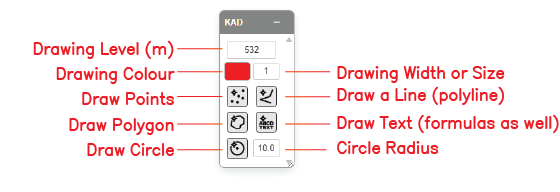
Labelled KAD toolbar The KAD toolbar with all controls labelled.

The KAD toolbar contains the following controls:

Control Type Purpose
Drawing Level (m) Input Z elevation (RL) used when placing new KAD entities
Drawing Colour Picker Colour applied to new KAD entities
Drawing Width or Size Input Line width or point/text size for new entities
Draw Points Tool Place point entities by clicking
Draw a Line (polyline) Tool Draw an open polyline
Draw Polygon Tool Draw a closed polygon
Draw Text (formulas as well) Tool Place a text label; supports fx: formulas
Draw Circle Tool Place a circle entity at the click point
Circle Radius Input Radius (m) for the next circle drawn

Drawing Level (m)

The Z elevation (reduced level) assigned to new KAD entities. The screenshot shows 532. All vertices placed by the drawing tools take this Z unless overridden by snap-to-surface or 3D pick.

How to use

Note: Existing entities are not affected when you change the Drawing Level. Only newly placed vertices use the new value.


Drawing Colour

The colour applied to new KAD entities. The picker swatch shows the current colour.

How to use

  1. Click the colour swatch
  2. Pick a colour
  3. New points, lines, polygons, text, and circles use this colour until changed

Drawing Width or Size

A single field that controls the line width for lines and polygons, and the size for points and text. The screenshot shows 1.

How to use


Draw Points

Places individual point entities at click positions.

How to use

  1. Click the Draw Points button on the KAD toolbar
  2. Click on the canvas to place a point
  3. Each click creates a new point entity at the current Drawing Level
  4. Press Escape or change tool to finish

Draw a Line (polyline)

Draws an open polyline — a chain of connected vertices.

How to use

  1. Click the Draw a Line (polyline) button on the KAD toolbar
  2. Click to place vertices in sequence
  3. Press Backspace (or Delete) to undo the last vertex
  4. Press Escape (or double-click) to finish the line

Notes


Draw Polygon

Draws a closed polygon — like a line, but the last vertex connects back to the first.

How to use

  1. Click the Draw Polygon button on the KAD toolbar
  2. Click to place vertices
  3. Press Backspace (or Delete) to undo the last vertex
  4. Press Escape (or double-click) to close the polygon

Notes


Draw Text (formulas as well)

Places a text label at a click point. Text accepts plain strings and fx: formulas evaluated against hole / pattern data.

How to use

  1. Click the Draw Text (formulas as well) button on the KAD toolbar
  2. Click on the canvas to place the text anchor
  3. Enter the text in the input that appears
  4. Press Enter to commit

Formulas

Text starting with fx: is evaluated as a formula. Example:

Formula Result
fx: holeName The hole’s name
fx: holeDiameter The hole diameter
fx: sdobStem() Stemming length from Scaled Depth of Burial
fx: ppvKG() Maximum Instantaneous Charge

See the Charge Code formula reference [VERIFY: link target — page may live in Charging or KAD] for the full list of variables and helper functions.


Draw Circle

Places a circle entity centred on the click point, with radius set by the Circle Radius input.

How to use

  1. Set the radius in Circle Radius (see below)
  2. Click the Draw Circle button on the KAD toolbar
  3. Click on the canvas to place the circle centre
  4. Each click creates a new circle at the current radius

Notes


Circle Radius

The radius (in metres) used by the next circle drawn. The screenshot shows 10.0.

How to use