kirra-docs
Check a Blast Before Firing
A checklist for reviewing a designed, charged and timed blast before it is signed off: hole positions, rows, timing, powder factor, vibration and flyrock. None of these checks changes the design. Each one names the tool and links to its guide.
Before you start
- A blast with holes, charging and timing — see Plan a Shot, Start to Finish.
- For the vibration checks: monitors at the places you need to protect, with their site laws.
- Show only the blast you are checking. Several checks work on visible holes.
1. Hole positions and rows
| Check | Tool | What to look for |
|---|---|---|
| Holes too close to the last shot’s holes, or inside a no-drill zone | Coincident Holes Check on the Holes toolbar | Any hole listed in the result window |
| Holes filed in the wrong row | Blast Quality | Holes listed under row contradictions, and red bars in the chart |
| Burden, spacing, length and diameter that vary when they should not | Blast Quality | Peaks you did not design. Several peaks can be separate design zones |
| Front-row burden to the face | Hole Section Tool on the Analyse toolbar — see Hole Section View | Burden too small at any depth |
Fix row numbers with Reorder Rows and press Refresh in Blast Quality to confirm.
2. Timing
- Turn on Hole Time on the display toolbar. A hole with no time is not tied back to an initiation point — see Checking Timing.
- Turn on Contours and First Movement to see that the blast fires and moves the way you meant — see Timing Contours, First Movement and Relief.
- Open Time Window on the Analyse toolbar. With the Time Window slider at 8 ms and Chart Mode on Measured / Mass per Hole, the tallest bar is the most explosive firing together — keep it under your site’s limit. See Time Window.
- Play it with Blast Animation on the Analyse toolbar — see Blast Animation.
3. Explosive distribution
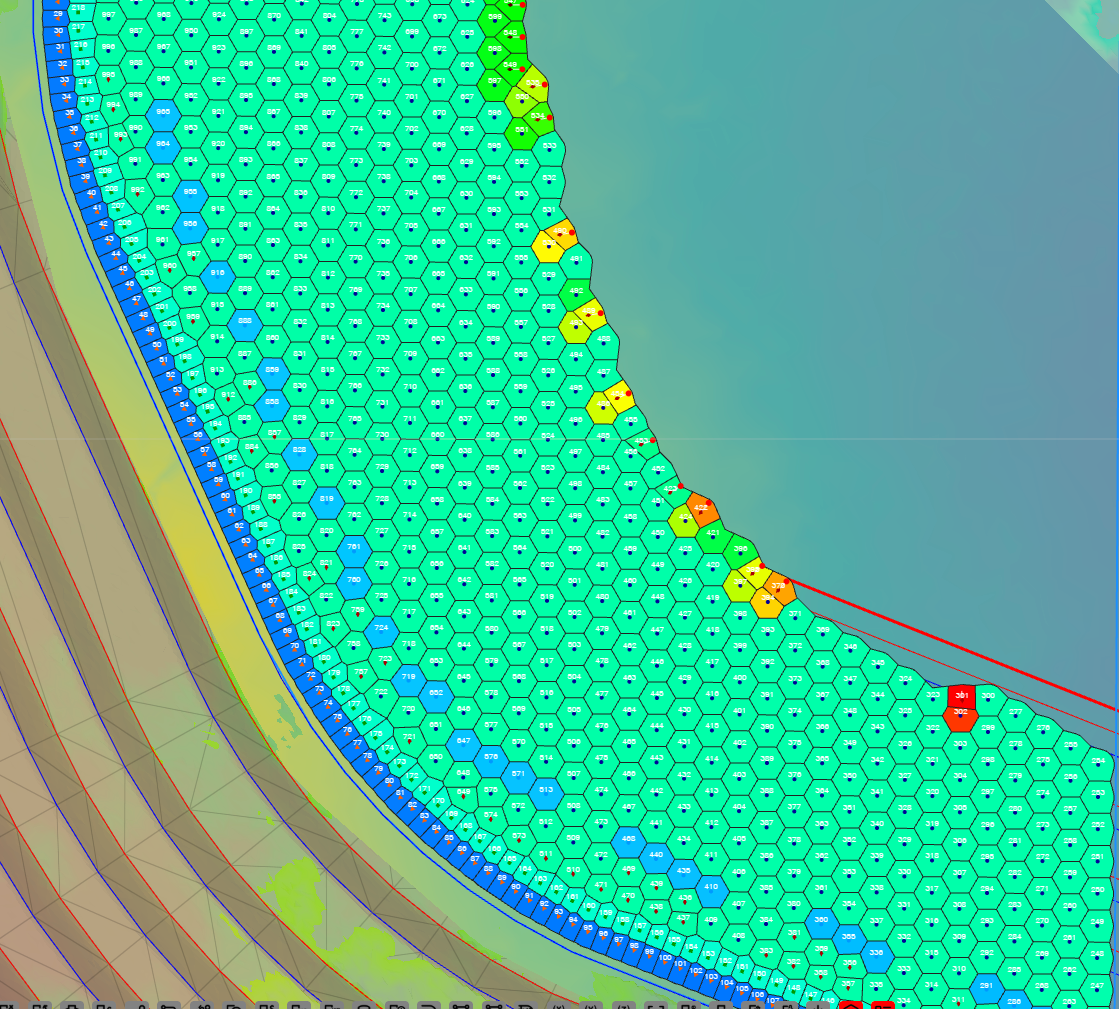
Turn on Voronoi on the display toolbar and show PF - Designed. Light cells are holes with less explosive for their ground; yellow to red are the heaviest. See Voronoi Cells.
To look inside a hole, open its charge column in the Deck Builder.
4. Vibration
- Add or check the monitors in the Monitor Points Manager on the Analyse toolbar — see Monitor Points & Seed Library.
- No site law yet? Fit one from your monitoring records with Site Law Regression.
- Set the Voronoi to PPV — Compliance (mode C): green holes are under every target, amber within 10 %, red over a target. PPV — Dominant Hole (mode B) finds the hole to redesign first. See PPV Voronoi Modes (A – F).
- To see a model across the ground rather than per hole, use the Blast Analysis Shader.
5. Flyrock
Click Flyrock Shroud Generator on the Analyse toolbar to build a 3D envelope over the blast — see Flyrock Modelling.
Warning: The four flyrock models do not agree, and a spread of about 2x between them is normal. Each gives an indicative envelope, not a prediction. Use of these models is your responsibility.
6. Keep a record
Print the plan with the views you checked switched on — the Voronoi cells and timing contours print with it. See Print from Template (XLSX). Save a Kirra Application Project of the blast as signed off — see Save a project.
Common problems
| Problem | Cause and fix |
|---|---|
| Voronoi powder factor is blank | The holes have no charging and no mass. Charge them — see Plan a Shot, Start to Finish |
| PPV modes B to F show nothing | No enabled monitor, or no site law on it. See Monitor Points & Seed Library |
| Blast Animation plays nothing | The blast has no timing, or its holes are hidden |
| Time Window bars count holes, not kilograms | Chart Mode is on Surface Hole Count. Switch to Measured / Mass per Hole |
| The Blast Quality chart is empty for a charging attribute | The blast is not charged. Zero counts as no data and is left off the chart |