kirra-docs
Prepare a Surface for Design
Get a survey pickup or design surface ready to design on: bring it in, repair it, trim it to the blast, and use it to set collar and grade heights. Each step names the tool and links to its guide.
Before you start
- The surface file, or the survey points and strings to build one from.
- The coordinate system it is in. If it differs from your project’s — a drone survey in latitude and longitude, for example — you will use a Transform import in step 1.
1. Bring the surface in
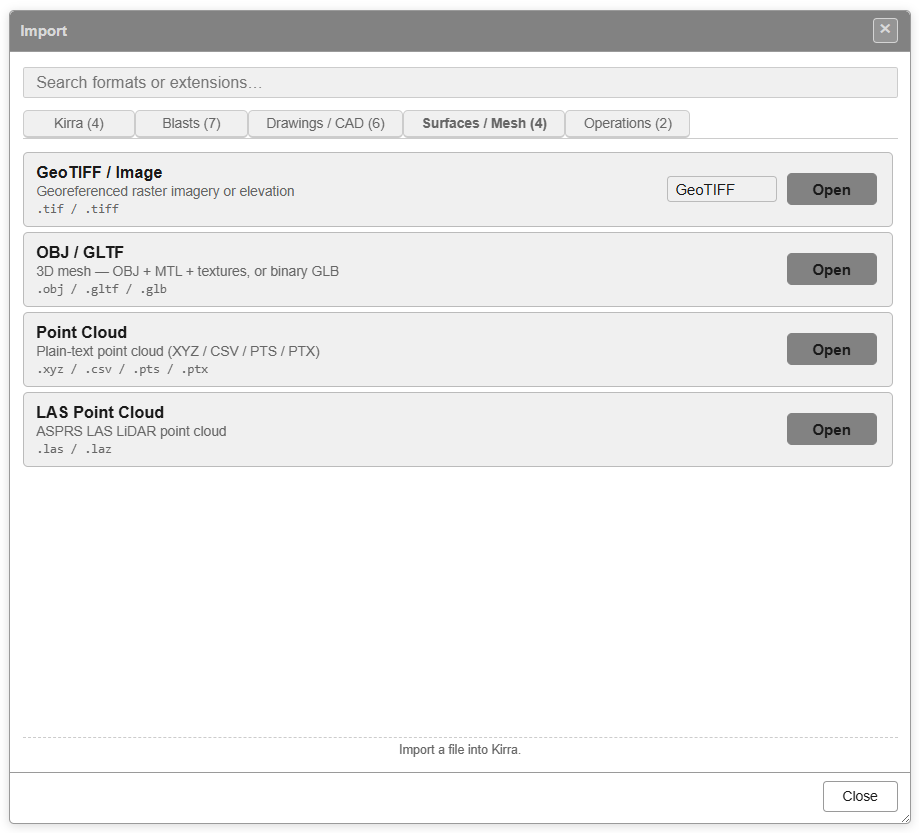
Open Import Export Print in the top bar, choose Import, and find the format — see The Import Dialog.
| Your file | Tab | Guide |
|---|---|---|
Elevation GeoTIFF, OBJ / GLTF, point cloud, LAS, Vulcan .00t, Datamine |
Surfaces / Mesh | Surfaces and Point Clouds |
Surpac DTM / STR, DXF 3DFACE |
Drawings / CAD | Surpac DTM / STR, DXF Import |
| Any of these in another coordinate system | Choose Transform (reproject CRS) at the top | Transform (Reproject) Import |
If the new data is 100 km or more from what is already loaded, Kirra asks about a Coordinate System Mismatch — see Coordinate check.
2. Or build one from points and strings
Show only the survey points, strings and holes you want in the surface, then click Triangulate on the Surface toolbar — see Triangulate. Triangulate uses visible data only, and lines and polygons become breaklines.
3. Check and repair it
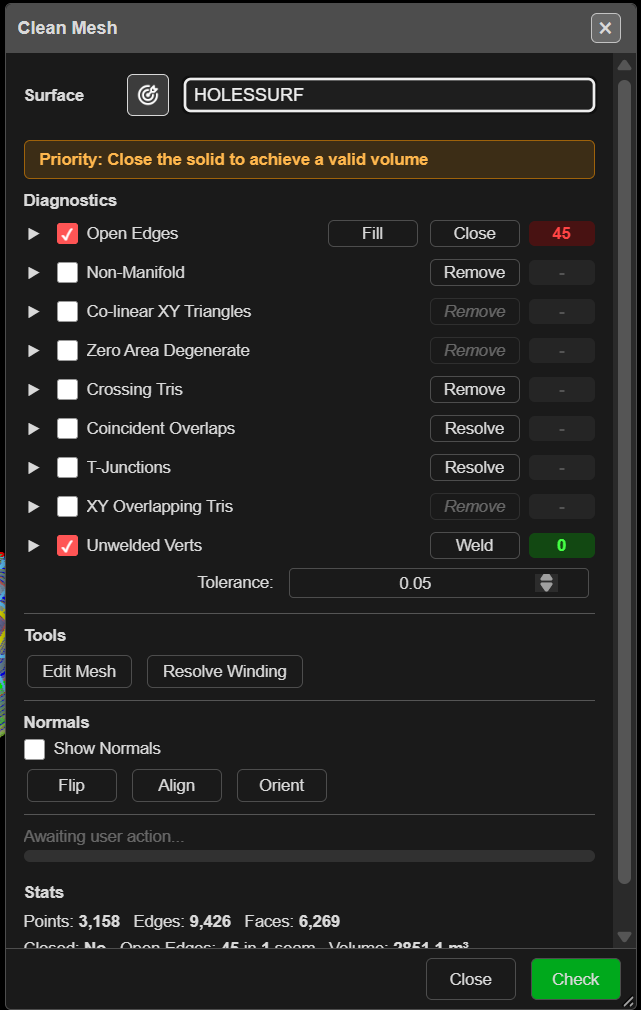
Run Clean Mesh on the Surface toolbar. It finds open edges, crossing and overlapping triangles, unwelded points and mixed-up normals, and repairs each one with a button. Do this before a volume, a boolean, a clip or a slice, and whenever a surface from another package behaves oddly.
Warning: On a surface of more than 500,000 triangles a Clean Mesh repair cannot be undone. Export a copy first.
4. Trim it to the area
Draw a KAD polygon around the area you need, then use Clip Surface on the Surface toolbar with Keep inside. A smaller surface is quicker to draw and to work with.
5. Read it
| To | Use |
|---|---|
| Colour it by elevation, hillshade or a colour map | Right-click the surface to open its properties, and set Color Gradient — see Surface Gradients |
| Draw contour lines, for example to check a floor | Contour Surface |
| Cut a section through it | Section Views |
6. Drape design strings onto it
Crest, toe and boundary strings drawn flat can follow the ground with Snap Objects to Surface on the Modify toolbar.
7. Set hole heights from it
- Show the surface. Hide surfaces you do not want offered.
- Select the holes.
- Click Assign Surface (collars) or Assign Grade (floor or toe) on the Modify toolbar.
See Assign Surface and Assign Grade. With several surfaces showing, Kirra asks which to use; with none, it asks for an elevation.
Common problems
| Problem | Cause and fix |
|---|---|
| The surface is far away or not visible after import | It is in another coordinate system. Import it again with Transform (Reproject) Import |
| Triangulate says “No visible data found for triangulation” | Nothing is showing. Show the points and strings you want in it |
| The surface has spikes or holes | Run Clean Mesh; for point clouds, check the import filters in Surfaces and Point Clouds |
| Fewer holes were adjusted than you selected | Holes outside the surface’s edge are left as they are. Extend the surface, or set those holes from an elevation |
| Assign Surface did not offer the surface | Only visible surfaces are offered. Show it in the Data Explorer |
Related
- Importing Surfaces
- Surfaces Toolbar
- Compare Surfaces — design against the as-built pickup
- Plan a Shot, Start to Finish