kirra-docs
Bring In a Design from Another System
Take a blast designed in other software — or a drill plan from a rig — into Kirra, check it, fix its rows and numbering, and send it on. Each step names the tool and links to its guide.
Before you start
- The design file, and the coordinate system it is in.
- A workspace to bring it into. A spare one keeps it apart from your own work while you check it — see Workspaces.
1. Import the file
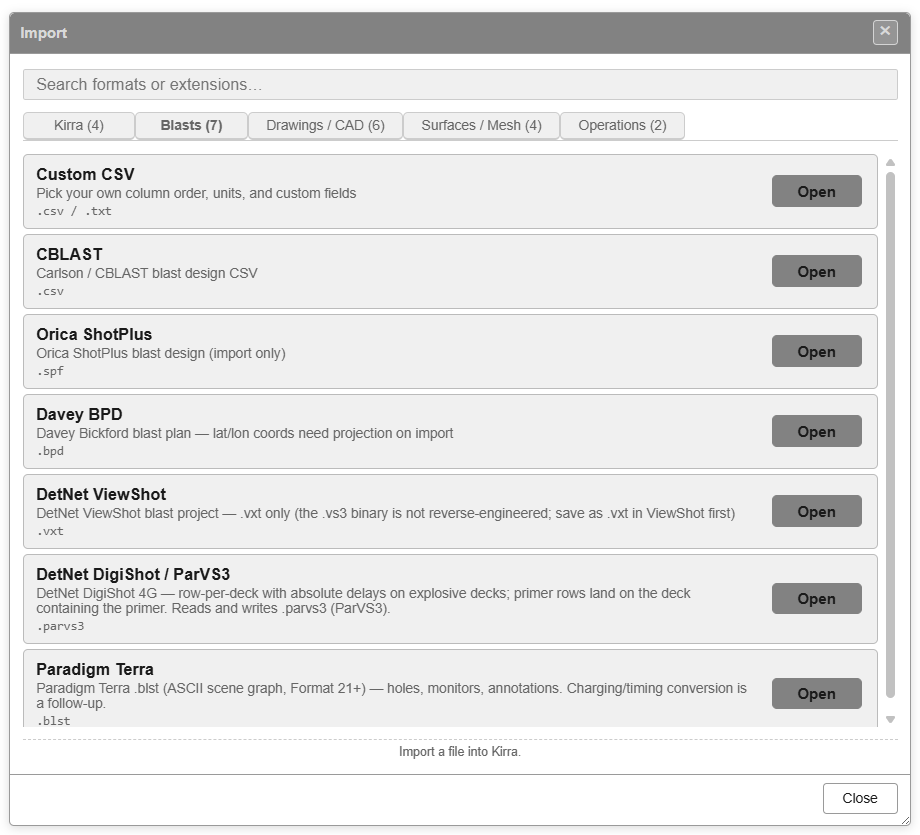
Open Import Export Print in the top bar and choose Import — see The Import Dialog.
| Your file | Where | Guide |
|---|---|---|
| CBLAST, Orica ShotPlus, DetNet ViewShot, DetNet DigiShot / ParVS3, Paradigm Terra and other blast formats | Blasts tab | Blast Design Formats |
| A hole CSV in any other column layout | Blasts tab → Custom CSV | Custom CSV Import |
| A Kirra hole CSV | Kirra tab → Holes CSV / TXT (preset columns) | CSV Import |
| An Epiroc IREDES drill plan | Miscellaneous tab → Epiroc Surface Manager → IREDES Drill Plan | Other Formats |
| Surpac string-file holes | Drawings / CAD tab → Surpac → STR holes | Surpac DTM / STR |
The formats bring in different things — some carry ties, timing and charging, some only hole positions. The table on Blast Design Formats lists what each brings.
If the file is in another coordinate system, choose Transform (reproject CRS) at the top of the dialog — see Transform (Reproject) Import.
2. Answer the import checks
Kirra checks new holes before adding them — see Checks on import:
| Kirra asks | Usually choose |
|---|---|
| Coordinate System Mismatch | Cancel, then import again with a Transform — unless you meant to bring in distant data |
| Duplicate Hole Import Detected | Rename the incoming blast, so it does not mix with one already loaded |
| Hole Proximity Warning | Skip holes that land on top of existing holes; Ignore if they are meant to be there |
3. Look at what came in
- Find the blast in the Data Explorer. It is named after the file, or after the blast name the file carries. To change it, right-click it and choose Rename.
- Right-click a few holes to check diameter, angle, length and subdrill in Edit Hole — see Editing Holes.
- Turn on the labels you need — hole ID, row and position, delay — from the display toolbar.
4. Fix rows and numbering
Other software numbers rows and holes its own way.
- Open Blast Quality and look for holes whose row disagrees with where they sit.
- Rebuild the rows with Reorder Rows: click the first and last hole of one row, check the burden arrow, and apply. Tick Renumber holes after reorder to rename the holes to match.
- Renumber a single run of holes with Renumber Holes.
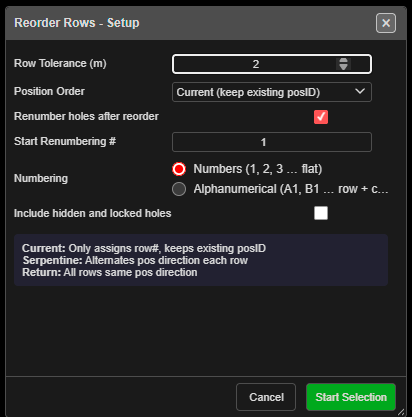
Note: Reorder Rows cannot be undone with Ctrl+Z. Lock any holes you want to keep as they are first.
5. Put it on the ground
Collar and grade heights from another system may not match your surfaces. Select the holes and use Assign Surface and Assign Grade — see also Prepare a Surface for Design.
6. Fill in what the file did not carry
| Missing | Do this |
|---|---|
| Charging | Apply a charge rule — see Plan a Shot |
| Ties and timing | Tie the blast and add an initiation point — see Connect Toolbar |
Then run the checks in Check a Blast Before Firing.
7. Send it on
| To | Export |
|---|---|
| An Epiroc rig | Miscellaneous tab → Epiroc Surface Manager → IREDES Drill Plan → Save |
| Cat MineStar | Blasts tab → Minestar AQM → Save |
| Back to the other system | Its own row on the Blasts tab, or Custom CSV |
| CAD | DXF — see DXF Export |
See Other Formats and CSV Export. The drill-rig and DXF exports write visible holes only — hide the other blasts first.
Common problems
| Problem | Cause and fix |
|---|---|
| The holes are hundreds of kilometres away, or nowhere to be seen | The file is in another coordinate system. Import it again with a Transform |
| A DXF brought in drawings, not holes | Holes in a DXF come in as drawing entities. Bring the holes in from a blast format or CSV instead |
| Every hole is in one row, or rows are split | The rows were not in the file, or were worked out differently. Use Reorder Rows |
| Two blasts’ holes are mixed together | The blast name already existed. Import again and choose Rename |
| A CSV’s columns came in wrong | Use Custom CSV and check the mapping in Import CSV: Map Columns |
| CBLAST holes have no subdrill | CBLAST files bring holes in with the grade at the toe. Set the grade with Assign Grade, mode Assign GRADE (keep Toe, calc Subdrill) |